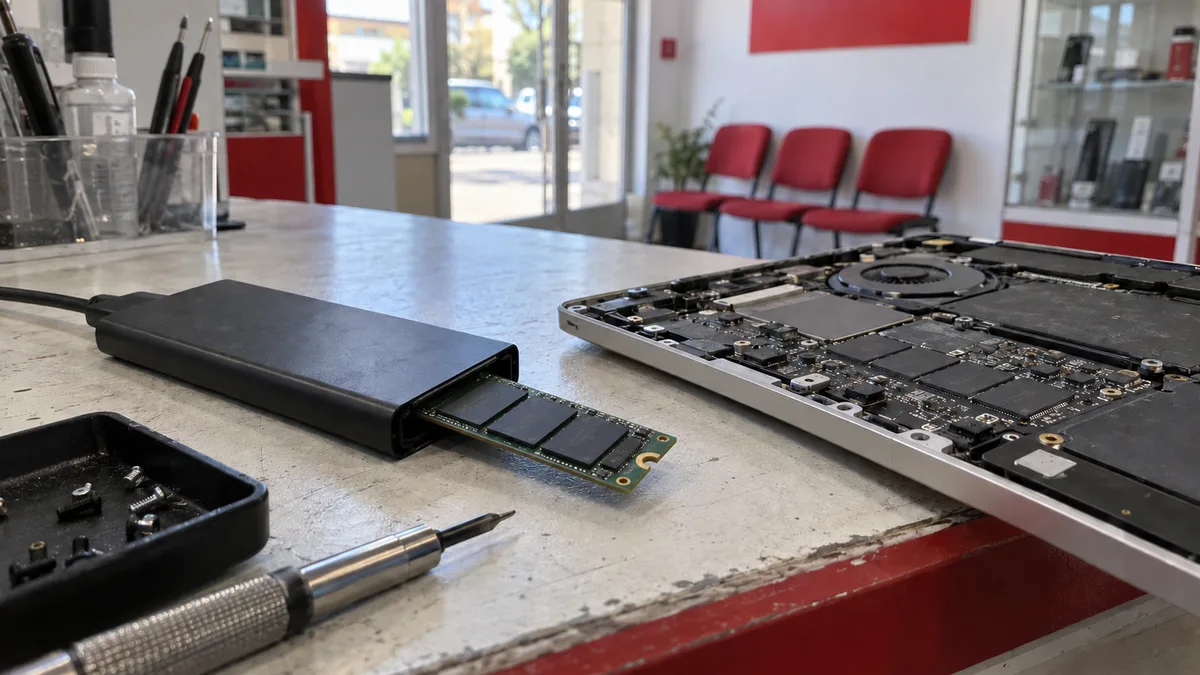
The short answer: In a MacBook Air with an M1–M4 chip, the storage is not a separate drive that can be removed from a failed computer and read elsewhere. The memory is soldered to the logic board, and its encryption is tied to the Secure Enclave—Apple explicitly states that files become inaccessible if the internal SSD is physically moved to another device. At home, it is worth checking the power supply, disconnecting every accessory, holding the power button for about 10 seconds and trying to start macOS Recovery. If the Mac reaches Recovery, focus on the data, not the repair. If it does not respond at all, your backup—not the repair shop—determines what happens to the data.
Why the usual advice does not apply to this laptop
The advice you will find on almost every forum is simple: if a laptop will not turn on, remove the drive, place it in a USB enclosure and copy the data. That really does work with a machine that uses an M.2 module. With a MacBook Air powered by an Apple chip, not one part of that advice applies.
First, there is no removable module. The NAND memory chips are soldered directly to the logic board—the iFixit teardown of model A2681 (the 2022 13-inch Air with M2) revealed a single NAND chip in the base 256GB configuration. There is no connector beside it from which the storage could be removed or into which it could be plugged.
Second, and more importantly, the data is encrypted before it ever reaches the memory. Apple explains in its security documentation that every device with a Secure Enclave has a dedicated AES‑256 encryption engine built directly into the direct memory access path between the NAND flash storage and the main system memory. The keys are also bound to the UID of the specific chip: according to the same document, the key hierarchy protecting the file system includes that UID, so if the internal SSD is physically moved from one device to another, the files become inaccessible.
This is not a setting that can be disabled in advance. Apple states that every APFS volume is created with a volume encryption key. With FileVault turned off, the volume remains encrypted; its key is simply protected by the hardware UID instead of the user’s password. Enabling FileVault adds your password as another layer.
Which Air you have: identifiers instead of guesswork
The “MacBook Air” range now spans four chip generations and two sizes, and repair procedures and parts availability differ between them. Apple assigns an identifier to every model:
| Model | Year | Identifier |
|---|---|---|
| MacBook Air (M1) | 2020 | MacBookAir10,1 |
| MacBook Air (M2, 13″) | 2022 | Mac14,2 |
| MacBook Air (15″, M2) | 2023 | Mac14,15 |
| MacBook Air (13″, M3) | 2024 | Mac15,12 |
| MacBook Air (15″, M3) | 2024 | Mac15,13 |
| MacBook Air (13″, M4) | 2025 | Mac16,12 |
| MacBook Air (15″, M4) | 2025 | Mac16,13 |
On a working Mac, you can find the identifier in System Information. If the Mac will not turn on, use the model and serial numbers engraved on the bottom case. For completeness, Apple now also lists models with the M5 chip (Mac17,3 and Mac17,4). Nothing described in this article changes for them: the storage remains part of the logic board.
One thing has improved in recent years: Apple now publishes repair manuals for MacBook Air models ranging from the 2020 M1 to the latest generations. This does not mean that the storage can be replaced—it means that procedures and tightening torques are publicly available, so repairs do not have to be performed blindly.
What is worth trying at home
This procedure follows Apple’s recommendations for a Mac that will not turn on. Follow the steps in order and change only one thing at a time:
- Check that the power cable is undamaged and connected both to the Mac and to a working power outlet; try another outlet and a known-working power adapter.
- Let the Mac charge for a while before proceeding.
- Disconnect everything—printers, drives, USB hubs, docks, phones and external monitors.
- Hold the power button for about 10 seconds (on MacBooks with Touch ID, it is the same button), then press and release it normally.
- Do not try to reset the SMC. Apple explicitly states that this is unnecessary on a Mac with an Apple chip—these machines do not have a separate SMC reset procedure.
- Try startup options: turn off the Mac, hold the power button until the startup options load, then click Options and Continue.
- From there, you can start Apple Diagnostics—while viewing startup options, press and hold Command (⌘)-D. It will display a reference code; write it down, as Apple expects you to provide it to the repair technician.
If the Mac was exposed to liquid, you smell something burning, the bottom case is bulging or its condition worsens after every attempt, trying to turn it on again is pointless and may cause further damage. The three different conditions commonly described as “it won’t turn on” are examined in detail in our article about a MacBook that will not turn on or has a black screen.
If Recovery starts, focus on the data—not the repair
This is the most important moment in the whole process, and most people miss it. macOS Recovery provides options to restore from Time Machine, reinstall macOS and use Disk Utility, along with additional utilities such as Terminal in the menu bar.
What not to do at this point if you need the data and do not have a verified backup:
- do not click Erase in Disk Utility;
- do not blindly start a reinstall “just to see if it works”;
- do not reset the Mac to factory settings, as this will erase its contents.
What to do instead: note whether Disk Utility can see the internal storage at all, then copy the data out before making any other changes to the system. If you are not comfortable copying files through Terminal, this is exactly the kind of work worth bringing to a repair shop. A separate article covers the situation in which a Mac cannot see its startup disk and displays a folder with a question mark.
There is one final software option: reviving the firmware from a second Mac via a cable in DFU mode. It has two variants, separated by a single click—one reinstalls only the firmware and preserves user data, while the other fully restores the Mac and erases its contents. On a laptop containing data that has not been backed up, this is therefore not a suitable experiment to try at home.
The comparison that determines your chances
| Situation | Laptop with removable M.2 drive | MacBook Air M1–M4 |
|---|---|---|
| The logic board fails but the storage is healthy | the module can be removed and read in another computer | the storage is part of the logic board and cannot be read separately |
| Moving the memory to another device | common practice | Apple states that the files become inaccessible after the transfer |
| Encryption | depends on the settings and may be disabled | the volume is always encrypted, with the Secure Enclave holding the keys |
| What determines the fate of the data | the condition of the drive | the condition of the logic board and whether a backup exists |
This difference cannot be overcome with better tools or a more expensive laboratory. It is a design and cryptographic decision by the manufacturer that exchanges one certainty for another: nobody can read a lost or stolen Air, but after the logic board dies, neither can you.
A backup is not a recommendation—it is the only safety net
For these machines, one simple rule applies: anything that has not been backed up effectively ceases to exist when the logic board fails. According to Apple, Time Machine backs up files including apps, music, photos, emails and documents. It creates hourly backups for the past 24 hours, daily backups for the past month and weekly backups for all previous months; once the drive is full, it begins deleting the oldest backups. You need an external USB or Thunderbolt drive with at least twice the capacity of the Mac, and it should be used exclusively for backups.
Cloud synchronisation is not a substitute—it synchronises deletions as well and does not protect against mistakes. A sensible minimum is described by the 3‑2‑1 rule: three copies, two different types of media and one copy stored off-site.
What we will do at the repair shop
We will measure the power rail, check the logic board’s response, inspect the startup options and assess the storage without interfering with the data wherever possible. If Apple Diagnostics can be started, we will compare our findings with its reference code. We are an independent out-of-warranty repair shop, not an Apple Authorised Service Provider; the scope of the work, price and completion date cannot be estimated over the phone and are confirmed only after we know the model and inspect the device. If the Mac is under warranty or covered by a manufacturer programme, contact the seller or Apple first.
Bring the power adapter and cable you normally use, the exact model or serial number, a brief timeline of events—when the Mac last worked and what happened beforehand—and information about whether you have a backup. Do not send us your password; we accept devices without access to their data. The preparation process is described in our article on how to prepare a MacBook, iPad or iPhone for servicing.
You can arrange a diagnostic assessment through Apple repair in Brno, the booking form or by calling 774 777 774. We also provide data recovery for computers and laptops with removable drives—but with Apple-chip Macs, the rule explained above applies: data recovery from a dead logic board cannot be promised.
Sources
- Apple: If your Mac doesn’t turn on
- Apple: How to start up from macOS Recovery
- Apple: Use Apple Diagnostics
- Apple: Identify your MacBook Air model
- Apple: Back up your Mac with Time Machine
- Apple Platform Security: Secure Enclave
- Apple Platform Security: volume encryption with FileVault
- Apple: Mac repair manuals
Rather not deal with it yourself?
Book a diagnosis in Brno — you get the price up front and we start only once you agree.
Where to find us
We are a PC and laptop repair shop in Brno-Židenice: diagnostics and repairs of computers and laptops, data recovery from drives, and out-of-warranty Apple repairs (iPhone 12 and newer, MacBook, iPad).
Viniční 3587/216, 615 00 Brno-Židenice, Czech Republic Mon–Fri 10:00–16:00
Call +420 774 777 774 Computer repair and laptop service in Brno
We put the repair price in writing after diagnostics and carry on only once you agree.


