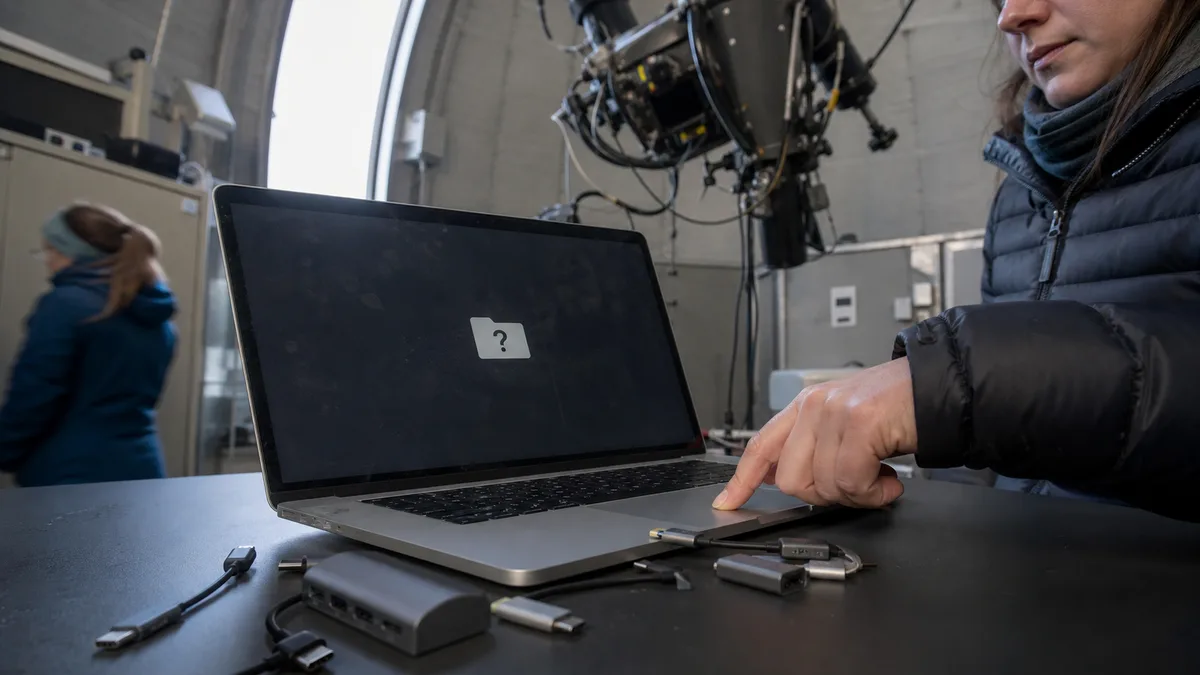
The short answer: A flashing folder with a question mark means your Mac cannot find a usable startup system. Start macOS Recovery and only check whether Disk Utility can see the internal storage. If you need the data on the device and do not have a verified backup, do not select Erase or proceed with a blind reinstall—this is the point where a recoverable situation most often becomes irreversible.
A brief question mark and a persistent question mark are not the same
If the symbol appears only briefly and the Mac then starts normally, Apple says the most likely cause is the startup disk selection. Check it under Apple menu → System Settings → General → Startup Disk, select the correct disk, and click Restart. Apple also mentions resetting NVRAM in this situation; check the correct procedure for your Mac because it differs between Intel and Apple silicon models.
A continuously flashing folder means something else: the selected disk is unavailable or does not contain a working copy of macOS. A white screen with the Apple logo and a progress bar is a third state—macOS is checking the disk, and the process may take some time. Do not confuse these states; each points to a different course of action.
Make a note of what happened before the problem appeared: an update, a drained battery, a fall, a liquid spill, a component replacement, or prolonged slow performance. After a fall or liquid spill, do not keep trying to start the Mac—each additional attempt could make the damage worse.
The route to startup options depends on the chip
This is where generic online instructions most often describe a different machine. Identify the model, year, and chip type: on a working Mac, use the Apple menu → About This Mac; for more details, hold Option and select System Information; on a non-working Mac, check the model number beginning with the letter A on the bottom case.
- MacBook with Apple silicon — Air M1 (2020), M2 (2022 and 15″ 2023), M3 (2024), 13″ MacBook Pro M1 (2020) and M2 (2022), and 14″ and 16″ models with Pro and Max series chips (2021 and later): turn off the Mac by holding the power button for about ten seconds, then hold the button again until “Loading startup options” appears, and select the disk.
- MacBook with an Intel processor — Air models up to 2020, 13″ and 15″ MacBook Pro models with Touch Bar (2016–2020), and the 16″ model (2019): after turning it off, hold the Option key and press the power button; keep holding Option until the disk icons appear.
One more model-specific note: if you have a Mac with the Apple T2 Security Chip, changing the startup disk may require an adjustment in Startup Security Utility. On Macs with Apple silicon, the equivalent is changing the security policy. If you can see the disk but cannot select it, the cause may therefore be a security setting rather than a fault.
The safe minimum in macOS Recovery
In Recovery, focus on inspection rather than cleanup. In Disk Utility, first enable the option to show all devices and check whether the internal disk appears at all. First Aid can check the file system, but it neither guarantees data recovery nor proves that the hardware is healthy—it may pass even on storage that fails a week later.
Write down three things: whether the disk appeared, its exact name, and the full wording of any error message. This record is more valuable to a repair technician than another hour of trial and error because it captures a state that may no longer be visible later.
Decision table
| What you see | What it indicates | Safe next step |
|---|---|---|
| the disk is visible and First Aid passes | the storage is communicating; the issue may be the operating system or disk selection | restart and verify the startup disk |
| the disk is visible, but the repair fails | damage to the file system or storage | consider the value of the data before erasing anything |
| the internal disk does not appear at all | the storage, logic board, or communication path is unavailable | turn off the Mac and have the hardware diagnosed |
| the question mark appears for only a few seconds | the wrong startup disk may be selected | select the disk in settings |
| the disk is visible but cannot be selected | the cause may be a secure startup setting | check the security policy for your type of Mac |
| the problem appeared after a liquid spill or fall | risk of physical damage | do not keep turning it on to test it |
Accessories can produce the same symptoms
Before suspecting the logic board, disconnect everything: USB, USB-C, and Thunderbolt devices, hubs, docks, external drives, card readers, and monitors. For startup problems, Apple recommends connecting the keyboard and mouse directly to the Mac without hubs or extension cables, then reconnecting devices one at a time and restarting after each one. A faulty dock or failing external drive can block startup just as convincingly as an internal fault.
Take particular care if you have ever started the Mac from external storage. In that case, Apple also recommends checking the cable, connection, and power supply of the external drive—the question mark may have nothing to do with the internal disk.
The limit: do not erase your data by accident
After an unsuccessful disk repair, Apple’s official procedure may continue with erasing the disk and reinstalling the operating system. That is appropriate only when losing the local data is acceptable or a verified backup exists. The Erase button is not a diagnostic test, which is why this article deliberately provides no instructions for using it—if you need the data, stop at this stage instead of continuing.
In newer MacBooks, storage is often integrated into the logic board and its contents are encrypted. Repairing the device and accessing its data are therefore separate issues, and you cannot assume that “if it is repaired, the data will still be there.” Servis PC Brno diagnoses hardware as part of this pilot Apple repair service, but does not offer data recovery from damaged storage as part of the service. If the data is the only thing that matters, say so during the first contact—it changes the entire order of operations.
What to bring to the repair shop
Provide the exact model and year, or the A-number from the bottom case, whether Recovery could see the disk, and the exact wording of any error. If you have a backup, note its date and whether you have ever actually verified it by restoring a file. Bring the adapter and cable you normally use, and list everything you have already tried. Do not provide your password or Apple Account credentials for the initial hardware assessment.
Servis PC Brno provides out-of-warranty MacBook diagnostics in a pilot programme and is not an Apple Authorised Service Provider; the scope of work, component option, and price can be determined only after identifying the model and diagnosing the fault. If the device is under warranty or covered by a manufacturer programme, contact the retailer or Apple first. Other common scenarios are covered in MacBook repair in Brno.
If Recovery cannot see the disk or you are unsure what the next step might put at risk, have the MacBook assessed before erasing anything. Arrange an inspection through Apple repair Brno, the booking form, or by calling 774 777 774. In the description, include the model, whether the disk appeared in Disk Utility, and whether the device contains data that does not exist anywhere else.
Sources
- Apple: If your Mac starts up to a question mark
- Apple: If your Mac pauses or runs slowly during startup
Rather not deal with it yourself?
Book a diagnosis in Brno — you get the price up front and we start only once you agree.
Where to find us
We are a PC and laptop repair shop in Brno-Židenice: diagnostics and repairs of computers and laptops, data recovery from drives, and out-of-warranty Apple repairs (iPhone 12 and newer, MacBook, iPad).
Viniční 3587/216, 615 00 Brno-Židenice, Czech Republic Mon–Fri 10:00–16:00
Call +420 774 777 774 Computer repair and laptop service in Brno
We put the repair price in writing after diagnostics and carry on only once you agree.


