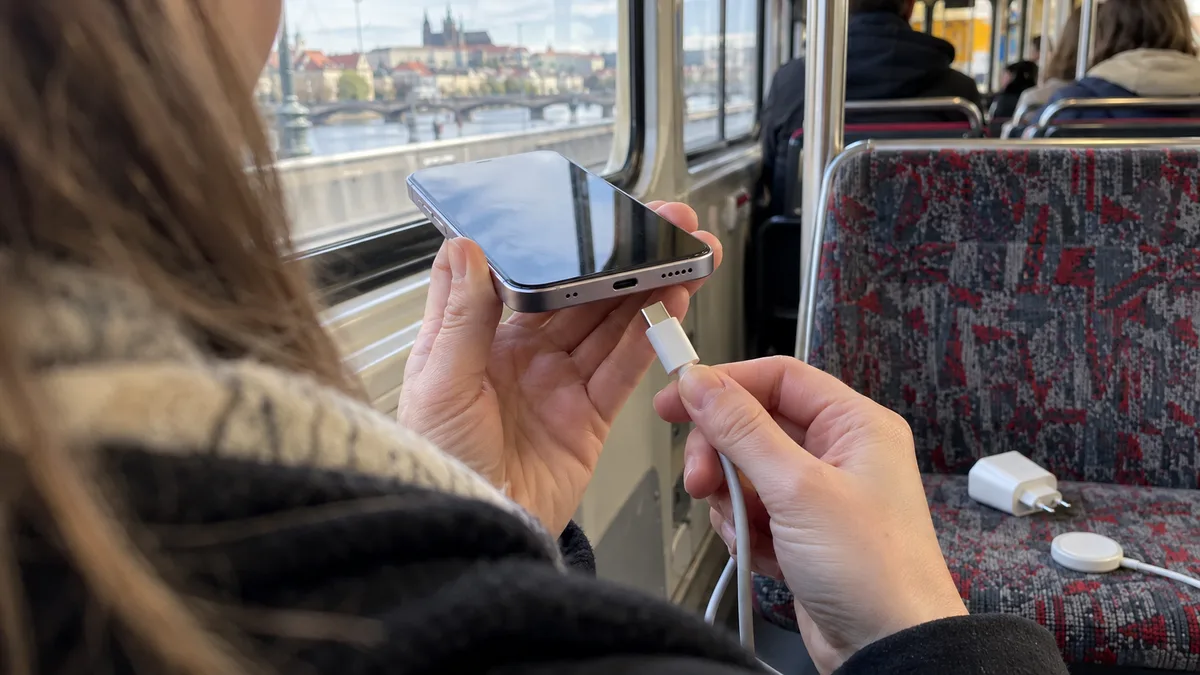
The short answer: An iPhone that will not charge most commonly has a faulty cable, an unsuitable power adapter, or lint packed into the bottom of the port. The cable connector then cannot slide in fully and may charge only when held at an angle. Try another cable and another adapter plugged directly into a wall outlet, then compare the result with wireless charging as a basic test. If the phone charges wirelessly but not by cable, the cable, adapter, or port may be responsible. If neither method works, the battery and electronics also need to be checked. If you see a liquid-detection alert, disconnect the phone and let it dry, even if that takes up to 24 hours. Do not use rice or a hair dryer. If charging stops at 80 percent, the cause is usually an iOS setting rather than a fault. The iPhone 12 through 14 charges via Lightning, while the iPhone 15 and later uses USB-C.
First, determine what “not charging” actually means
In a repair shop, the phrase “my iPhone won’t charge” can describe four different situations, each with a different cause:
- Nothing happens after you connect it. The phone makes no sound or vibration, and no lightning bolt appears beside the battery icon.
- It charges only intermittently. The cable works only in a certain position, falls out, or charging starts and then stops shortly afterward.
- It charges, but cannot keep up. The charging icon is visible, yet the percentage does not increase or even falls.
- It charges only to 80, 85, or 90 percent and goes no further.
The last situation is not usually a fault. For the first three, a few minutes of testing can provide useful clues. Do not simply plug the phone into every available power source in the office, though. Change only one thing at a time and observe what happens.
iPhone 12 through 14 uses Lightning; iPhone 15 and later uses USB-C
The port tells you which cable you need and what should be checked on the phone.
| Series | Year | Charging port | Wireless charging |
|---|---|---|---|
| iPhone 12 mini / 12 / 12 Pro / 12 Pro Max | 2020 | Lightning | MagSafe and Qi |
| iPhone 13 mini / 13 / 13 Pro / 13 Pro Max | 2021 | Lightning | MagSafe and Qi |
| iPhone 14 / 14 Plus / 14 Pro / 14 Pro Max | 2022 | Lightning | MagSafe and Qi |
| iPhone 15 / 15 Plus / 15 Pro / 15 Pro Max | 2023 | USB-C | MagSafe and Qi |
| iPhone 16 / 16 Plus / 16 Pro / 16 Pro Max | 2024 | USB-C | MagSafe and Qi |
| iPhone 16e | 2025 | USB-C | Qi only, no MagSafe |
| iPhone 17 / 17 Pro / 17 Pro Max / iPhone Air | 2025 | USB-C | MagSafe and Qi |
Since the iPhone 12, Apple has not included a power adapter with the phone—only a cable. Many iPhones are therefore charged using an old five-watt USB-A adapter from an earlier phone or a monitor’s USB port. Such a source can charge the phone, but while navigation, Personal Hotspot, or a video call is active, it may not even supply enough power to cover current consumption. This can look like a fault even when nothing is broken.
You can find the exact model under Settings → General → About. Tap the model number to display an identifier beginning with the letter A. The mini, Plus, and Pro variants have their own numbers. Knowing the exact model helps with diagnostics and with checking the correct variant and availability of any required part.
The same tests also apply to tablets. We explain the port differences between iPad generations in iPad won’t charge via USB-C or Lightning.
Five steps you can take without tools
- Plug the adapter directly into a wall outlet. For the first test, bypass the docking station, USB hub, monitor, and laptop port. Each can supply a different amount of power.
- Try another compatible, undamaged cable. For the iPhone 12 through 14, use a cable with a Lightning connector. For the iPhone 15 and later, use a USB-C cable that you know can charge another device.
- Try another adapter. Use a USB-C adapter with Power Delivery suitable for your model. An old USB-A adapter or a computer port may not be appropriate for a comparison test.
- Remove the case. A thick or poorly fitting case can prevent the connector from sliding in fully. On a wireless charger, it also increases the distance between the charging coils.
- Wait half an hour, then force-restart the phone. Leave a completely discharged iPhone connected for at least 30 minutes. Then press and quickly release the volume-up button, press and quickly release the volume-down button, and hold the side button until the Apple logo appears. Leave the phone charging for another 30 minutes afterward.
If the iPhone reports that an accessory may not be supported after you connect it, Apple lists three possible causes. The charging port may be dirty or damaged, the cable may be faulty or damaged, or the charger may not be designed to charge the device. These are the same three things you are testing here.
If the phone charges from a computer but the computer cannot detect it, that is a different problem. We cover it in the phone will not connect to a PC and photo transfer does not work.
Stop using a cable if its insulation is split, its contacts are blackened, or its connector is loose, and dispose of it as electronic waste. Stop charging immediately if the phone, cable, or adapter becomes unusually hot or emits an odor. The same applies if the display or back glass begins to lift, as this may indicate a swollen battery.
The cable will not click into place and charges only at an angle: lint in the port
For a phone carried in a pocket, this is the most common mechanical cause. Fabric fibers and dust gradually enter the port, and every insertion of the cable pushes them farther inside. A thin, felt-like layer forms at the bottom, preventing the connector from sliding in for the final millimeter. The contacts then touch only partially. The cable feels loose, falls out easily, charges only when pushed sideways, or repeatedly disconnects.
With Lightning, the missing click is a clear sign because the springs inside the port engage the connector only when it is fully inserted. A USB-C port has a thin contact tongue in the center, and debris collects around it.
What you can do at home:
- Inspect the port. Turn off and disconnect the phone, then examine the port under a bright light, such as another phone’s flashlight. Compacted lint looks like a gray or dark layer at the bottom.
- Do not insert metal into the port. Do not probe it with a needle, paper clip, pin, or metal tweezers. You could scratch the contacts; with USB-C, you could also bend the tongue or short adjacent contacts.
- Do not use air or liquids. Apple does not recommend compressed air for cleaning an iPhone, and it could push lint even deeper. Cleaning liquids should never be put into the port.
Cleaning will not repair a loose port, corroded contacts, or a broken component inside. If the cable remains loose in a clean port or the port stopped working after the phone landed on its edge, diagnostics are required. The symptom alone does not determine whether a part will need to be replaced.
Lint packed deep into the port is safer to remove with a nonconductive tool under magnification. If you do not feel confident doing this yourself, we accept out-of-warranty iPhone 12 and later models for diagnostics as part of a pilot service, during which we inspect and clean the port. Details are available on our Apple service in Brno page. Before bringing in your phone, read how to prepare an iPhone for service.
Liquid alert: disconnect, dry, and do not insert anything
All iPhone 12 and later models monitor the Lightning or USB-C connector for moisture. When moisture is detected, the phone blocks wired charging because current passing through wet contacts accelerates corrosion. The alert may also appear when only the cable connector is wet.
Apple recommends the following procedure:
- Disconnect the cable and all accessories.
- Hold the phone with the connector facing down and tap it gently against your hand to remove excess water.
- Leave it in a dry place with airflow.
- Wait at least 30 minutes before reconnecting the cable. If the alert returns, liquid may still be present in the port or beneath the cable contacts. Complete drying can take up to 24 hours.
Do not use a hair dryer, heater, another heat source, or compressed air. Do not insert a cotton swab or paper into the port. Do not put the phone in rice. Apple explicitly warns that small rice particles can damage the iPhone.
In an emergency, iOS allows you to override the warning and charge anyway. This is a safeguard for situations in which you urgently need the phone, not a standard procedure: if the port is genuinely wet, you risk corroding the contacts. Wireless charging does not use the port and can temporarily replace it, but the back of the phone must be dry.
How to interpret the result:
- The alert appears with only one cable. The cable or its connector may be responsible.
- The alert appears with every dry cable even after the phone has dried completely. We recommend diagnostics to check the port, possible corrosion, and the connector electronics.
MagSafe and Qi as a basic comparison test
A wireless charger bypasses the port, so it can help with a basic comparison. However, the result alone cannot identify the fault conclusively:
- It charges wirelessly but not by cable. The cable, adapter, port, or related circuitry may be responsible.
- It charges by cable but not wirelessly. Remove the case, try another compatible adapter for the wireless charger, and do not place anything between the phone and the charging pad. Payment and access cards should not be placed there either, as Apple states that the MagSafe magnet may damage them.
- It charges neither by cable nor wirelessly. Diagnostics must check the battery, temperature status, power electronics, and other possible causes.
The iPhone 16e is an exception. It supports Qi wireless charging at up to 7.5 W according to Apple, but it has no built-in MagSafe magnets. It will not attach to a magnetic charger by itself and must be positioned precisely in the center. If it slides off the pad and charging stops, that alone does not prove the phone is faulty. The iPhone 16e is an exception; the other models listed may support MagSafe, depending on the exact model.
Charging stops at 80 percent
If the phone repeatedly stops at the same percentage, check its settings first:
- iPhone 15 and later: under Settings → Battery → Charging, you can set a charge limit from 80 to 100 percent in five-point increments. Even with the limit set to 100 percent, Optimized Battery Charging may delay charging beyond 80 percent based on your routine.
- iPhone 12 through 14: the Optimized Battery Charging switch works similarly. Depending on the iOS version, it may appear under Battery Health & Charging or Battery Health. The phone pauses at 80 percent and charges the remainder according to when you usually unplug it.
- Temperature: if the iPhone becomes too warm while charging—for example, on a wireless charger beneath a thick case or inside a car—Apple states that software may limit charging above 80 percent. At extreme temperatures, charging pauses completely. In iOS 16 and later, the phone reports this on the Lock Screen.
Since iOS 26, Settings → Battery displays an estimate of when the battery will be fully charged while charging is in progress. This can help you distinguish slow charging from a situation in which the phone is not receiving any power.
If the phone still will not charge with the limit set to 100 percent, optimization disabled, and the phone at room temperature, further diagnostics are appropriate. Test the cable, adapter, and port again.
Cable, port, battery, or logic board?
| Symptom | Where to look first |
|---|---|
| One cable does not charge, but another does | the cable, especially its connector and the area where the cable bends beside it |
| It charges only with the connector in one position | the cable connector; if this happens with every cable, also check the port |
| The cable will not click into place, falls out, or charges at an angle | lint at the bottom of the port, wear, or port damage |
| A liquid alert appears with every dry cable even after drying | diagnostics of the port, possible corrosion, and connector electronics |
| It charges wirelessly but not with any cable | as an initial indication: the cable, adapter, port, or wired-charging circuitry |
| It charges by cable but not via MagSafe or Qi | the case, charger adapter, or alignment; the 16e does not have MagSafe |
| The charging icon is visible, but the percentage falls | an unsuitable adapter or laptop port, high power consumption, or the battery |
| It stops at 80, 85, or 90% | the charge limit, Optimized Battery Charging, or temperature |
| It switches off despite showing tens of percent remaining | the battery; see our article about iPhone shutdowns and battery health |
| It will not charge by cable or wirelessly even after a force restart | diagnostics of the battery, power circuits, and logic board |
| The problem began after a fall or contact with water | diagnostics of the port, its flex cable, possible corrosion, and logic board |
The charging port, battery, and logic board are three separate parts of an iPhone. The port is usually mounted on a separate flex cable connected to the board, and its design differs between models. The fault therefore cannot be identified by appearance alone, and replacing the battery will not repair a nonfunctional port.
Before taking the phone in for service
- Back it up while it is still working. An iCloud backup over Wi-Fi under Settings → your name → iCloud is sufficient. We do not offer mobile phone data recovery.
- Bring the cable and adapter in use when the problem occurs. The cable or adapter often turns out to be the cause.
- Describe what happened. Tell the technician whether the phone was dropped, got wet, or displayed a liquid alert, whether it charges only in a particular position, and when the problem began.
A meaningful diagnostic procedure follows a clear sequence. The technician records the exact model number and symptom, tests a compatible cable and adapter, and inspects the port under magnification. They then compare wired and wireless charging as an initial test. Only an assessment of all these steps can show whether cleaning the port is sufficient or whether the port, battery, or logic board requires further attention.
We accept out-of-warranty iPhone 12 and later models for diagnostics as part of a pilot service. We are not an Apple Authorized Service Provider. An in-warranty phone with a faulty port that has not been dropped or exposed to liquid should be taken to the seller or referred to Apple Support. We can provide the price, possible procedure, variant, and availability of any required part only after diagnosing the exact model. We cannot promise an appointment date or while-you-wait repair in advance. We do not offer mobile phone data recovery, and we accept devices without login credentials.
Details of the pilot service are available on our Apple service in Brno page. To submit your phone for diagnostics, complete the service request form.
Sources
- If your iPhone or iPod touch won’t charge
- What to do if you see a liquid-detection alert on your iPhone
- Charge Limit and Optimized Battery Charging on iPhone
- About iPhone charging speeds
- Charging and connecting with the USB-C connector on iPhone
- Identify your iPhone model
- iPhone 16e – Technical Specifications
Rather not deal with it yourself?
Book a diagnosis in Brno — you get the price up front and we start only once you agree.
Where to find us
We are a PC and laptop repair shop in Brno-Židenice: diagnostics and repairs of computers and laptops, data recovery from drives, and out-of-warranty Apple repairs (iPhone 12 and newer, MacBook, iPad).
Viniční 3587/216, 615 00 Brno-Židenice, Czech Republic Mon–Fri 10:00–16:00
Call +420 774 777 774 Computer repair and laptop service in Brno
We put the repair price in writing after diagnostics and carry on only once you agree.


