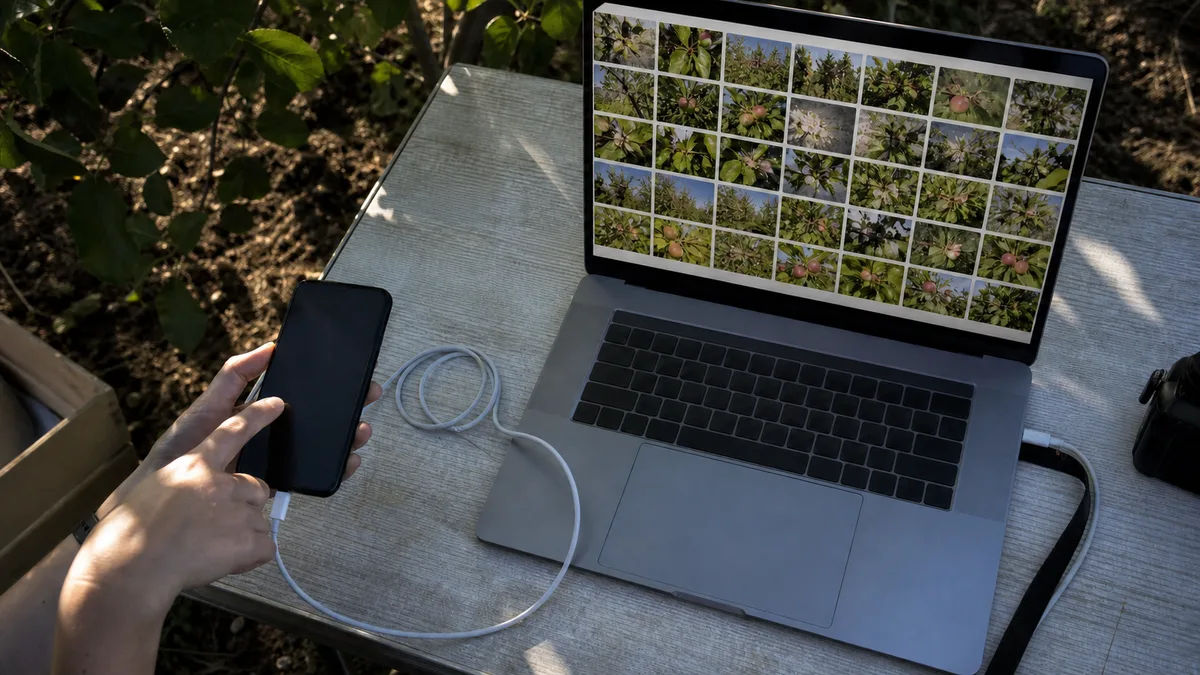
The short answer: In most cases, neither the phone nor the computer is faulty. Try these steps in order: use a different cable (charge-only cables cannot transfer data), unlock the phone, select the USB file transfer mode on Android, or confirm “Trust This Computer?” on an iPhone. Only if none of these steps works should you investigate the ports, drivers, or debris in the connector.
Five causes behind most connection problems
The symptom is nearly always the same—the phone only charges and is nowhere to be found in File Explorer, or it appears briefly and then disappears. The range of possible causes, however, is fairly narrow:
- A charge-only cable. This is the most common and most frequently overlooked cause. Microsoft explicitly states that USB cables have different transfer speeds and not all of them can transfer files. Apple sets the same condition: the cable must support both data transfer and charging.
- A locked phone. The computer cannot detect the device while its screen is locked. This applies to both Android phones and iPhones.
- The wrong USB mode. After an Android phone is connected, it asks what the USB connection should do and often defaults to charging only.
- Trust has not been confirmed on the iPhone. Until you tap Trust, the computer cannot access photos, videos, or contacts.
- The port, connector, or debris. A loose port or dust in the phone’s charging connector can produce the same symptoms as a faulty cable.
Android: check the USB mode before anything else
The order of steps is straightforward on Android phones. Turn on and unlock the phone, then connect it directly to the computer with a data cable—not through a hub or dock. Once connected, the phone will ask what the USB connection should do. Select file transfer instead of charging only. Microsoft describes this as changing the USB port setting so that it can transfer media or photos.
Once the correct mode is selected, open the Photos app on your computer, choose Import, select the connected device, and follow the instructions. You can choose which items to transfer and where to save them.
If you would rather avoid using a cable, there is a wireless option: the Phone Link app from the Microsoft Store can copy recent camera photos and screenshots without a cable. However, it has limitations you need to consider—it only covers recent photos, does not import videos, and requires Android 7.0 or later. It is a convenient addition, but not a complete solution for transferring your entire archive.
iPhone: the trust prompt is the key to the entire transfer
On an iPhone or iPad, everything depends on a single prompt. Apple explains it clearly: trusted computers can sync with the device and access its stored photos, videos, contacts, and other content. Until you tap Trust on the phone, the computer is not allowed to access the data—which makes it look as though nothing has connected.
The procedure on Windows consists of four steps:
- Install the Apple Devices app from the Microsoft Store.
- Connect the iPhone or iPad to the computer with a USB cable.
- When prompted, unlock the device with its passcode.
- When asked “Trust This Computer?”, tap Trust or Allow.
You can then import your photos using the Windows Photos app. The device remembers its trust settings until you change them or erase the device. Since iOS 16, the prompt also appears when backing up the device, so you may encounter it again.
If the prompt does not appear at all or you previously tapped Don’t Trust, Apple recommends trying the following steps one at a time: disconnect and reconnect the device, restart the computer, restart the phone, check that Windows and iOS are up to date, and update Apple Devices or iTunes. To reset trust settings, go to Settings → General → Transfer or Reset → Reset → Reset Location & Privacy. The prompt will appear again the next time you connect the device. If you use iTunes from the Microsoft Store, also check that iTunes Mobile Device Helper is enabled as a startup item.
The computer detects the phone, but DCIM is empty
This situation causes the most confusion because it looks like data loss, even though it usually is not. Work through the possibilities in this order.
| What you see | Likely cause | What to do |
|---|---|---|
| the device appears in File Explorer but contains no files | the phone is locked | unlock the screen and keep it unlocked throughout the transfer |
| empty storage on an Android phone | charging-only mode is selected | switch the USB connection to file transfer |
| most photos are missing from an iPhone | iCloud Photos is enabled and only optimized versions are stored on the device | download the full-resolution originals to the device |
| the photos transfer but cannot be opened | HEIC and HEVC formats | under Settings → Camera → Formats, select Most Compatible |
| the device appears and immediately disappears | the cable, port, or connector | try a different cable and a different port |
The last row deserves some additional explanation. When a device is not recognized, Apple recommends checking whether the phone chimes or vibrates after being connected. If it does not, disconnect the cable and inspect the charging port for debris. Apple also recommends trying a different cable, USB port, and computer, checking for software conflicts, and verifying that Windows, iOS, and the drivers in Device Manager are up to date.
When the symptoms do not say what the cause is, the next step is measurement — fault diagnostics in Brno, not blind part swapping. A related step is iPhone repair in Brno.
When the computer’s port—not the phone—is the problem
Try connecting the device to a different port, preferably directly to the back of a desktop computer or the other side of a laptop, without using a hub. If the phone is not detected by any port but other devices work, the problem is likely with the phone. If no devices work, investigate the computer—the symptoms and troubleshooting steps are summarized in USB Port Not Working and Device Not Recognized. Microsoft also provides a separate overview of the messages Windows displays when USB-C ports encounter problems.
Use the cloud as a fallback, not as a replacement for a cable
If you need to transfer photos from your phone immediately and the cable connection is not working, the easiest option is to upload them to cloud storage and download them to the computer through a browser. Microsoft explicitly recommends this approach: if the camera app syncs with cloud storage, you can access the files from your computer without a cable. iCloud serves the same purpose on an iPhone, with one caveat: the originals must be downloaded to the device before you import them to the computer.
Treat this as a fallback, however, not as a backup. Synchronization also replicates deletions, and a single copy in the cloud is still only one copy. The 3-2-1 backup rule explains why that is not enough and how to create a genuine backup. The best time to set up a phone backup is while the phone is still working.
When it makes sense to visit a repair shop
Servis PC Brno handles this situation from the computer side: faulty or loose USB ports, drivers, Windows behavior, and data transfers between computers. We do not offer data recovery from mobile phones—if the phone is damaged or will not turn on, the only remaining options are a backup or cloud copy you created earlier.
If the phone will not connect to the only computer in your home, the ports are unreliable, or you are unsure whether the transfer overwrote anything, bring it in for an assessment. We will confirm the diagnosis and price only after inspecting the equipment and identifying the actual problem. You can arrange an appointment through the booking form or by calling 774 777 774. In the description, include the phone brand, the computer’s operating system, and exactly what happens when you connect the cable.
Order online: Fault diagnostics — tell us the model and what happens, and we will come back with the next step.
Sources
- Microsoft: Import photos and videos from a phone to a computer
- Microsoft: Fix USB-C problems in Windows
- Apple: About the “Trust This Computer?” alert
- Apple: Transfer photos and videos from an iPhone or iPad to a Mac or PC
- Apple: If your computer does not recognize your iPhone or iPad
- Apple: Install the Apple Devices app on a Windows computer
Rather not deal with it yourself?
Book a diagnosis in Brno — you get the price up front and we start only once you agree.
Where to find us
We are a PC and laptop repair shop in Brno-Židenice: diagnostics and repairs of computers and laptops, data recovery from drives, and out-of-warranty Apple repairs (iPhone 12 and newer, MacBook, iPad).
Viniční 3587/216, 615 00 Brno-Židenice, Czech Republic Mon–Fri 10:00–16:00
Call +420 774 777 774 Computer repair and laptop service in Brno
We put the repair price in writing after diagnostics and carry on only once you agree.


