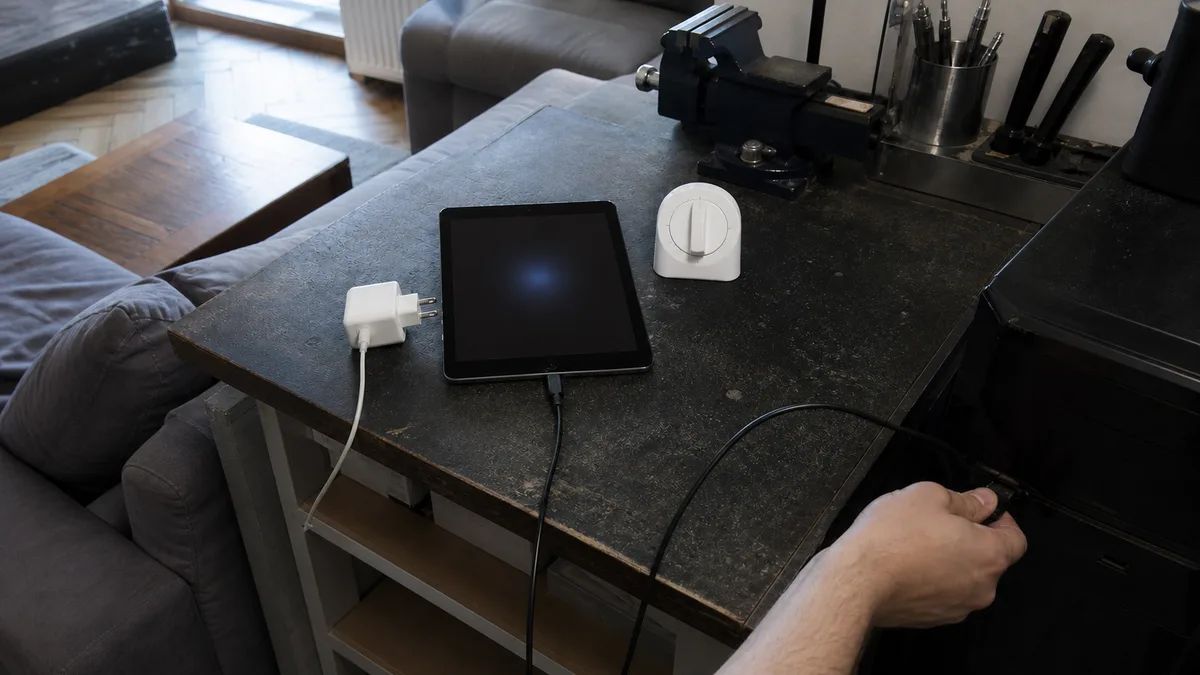
The short answer: Follow three steps in this order. Charge it with a tested wall adapter and leave it for at least an hour — Apple specifically recommends this for an iPad that will not turn on. Then try a force restart; the button combination depends on whether your model has a Home button. Finally, connect the iPad to a computer and see whether it appears in Finder or the Apple Devices app. If nothing happens after an hour of charging, a restart and a test with a second cable, stop trying — the next step is to take measurements on the logic board. One exception overrides everything else: after liquid exposure or a drop, or if the display is lifting anywhere, do not charge or try to start it at all.
Three conditions that look the same
From the outside, they all look like the same black screen, but three very different things may be happening inside:
- Completely dead. No logo, no sound, nothing appears when it is connected to a charger and the device does not warm up. The likely problem is in the power system: the battery, charging path or logic board.
- Black screen, but the iPad is running. A computer detects it when connected, it warms up on the charger or a faint image is visible under a flashlight in a dark room. The system is running, but the display is dark.
- It starts and immediately shuts down again. The Apple logo appears, stays on briefly and the cycle repeats.
This article covers the first two conditions. If your iPad lights up and then returns to the Apple logo or keeps restarting, see iPad freezing, restarting or getting stuck on the Apple logo. If the display is on but does not respond to your finger, see an iPad that does not respond to touch.
When you must not charge or start it
Before pressing anything, check for these four situations. Any further attempt can cause more damage.
After liquid exposure or use in a damp environment. For a device with a wet connector, Apple recommends disconnecting the cable and not charging it until the connector is dry. Wet contacts can corrode and the damage may become permanent. Leave the device in a dry place with airflow. Do not use a hair dryer or compressed air, and do not insert a cotton swab or tissue into the connector. Rice is a myth and can also clog the connector with debris.
A bulging back or a display lifting at the edge. This indicates a swollen battery. Do not charge it, press the display back down or carry the device compressed inside a bag. To learn how to recognise battery swelling and what to do about it, see iPad repair: cracked display and weak battery.
After a fall onto a corner. An iPad that went dark after a fall is not a candidate for repeatedly pressing buttons. The display assembly or a connector may have been damaged or dislodged.
In extreme heat or cold. Apple specifies an operating range of 0 to 35°C and a storage range of −20 to 45°C. When the device overheats, the display may dim or switch off and charging may slow down or stop. In freezing conditions, the iPad may not charge at all. If you have taken it out of a car that was standing in the sun, let it reach room temperature for an hour before testing it. Otherwise, you are measuring the effects of the weather rather than diagnosing a fault.
A charging test that proves something
Most home tests fail because people use whatever charger happens to be nearby. A charging test is useful only under the following conditions:
- A tested adapter and tested cable — ones known to charge another device. Do not use a keyboard port, USB hub or monitor connector. Plug the adapter directly into a wall outlet.
- One uninterrupted hour. Apple says that an iPad that will not turn on may need to charge for up to an hour. Do not move the cable or try switching the device on every minute during that time.
- Watch for any response. A charging screen or low-battery icon means that the device is alive and was simply deeply discharged. Complete silence after an hour with two different cables is itself a useful finding.
- Shine a light into the connector. A compacted lump of pocket lint is a common reason why an iPad “will not charge”, but do not try to dig it out with a needle or any other metal object.
If the iPad charges only occasionally, only when the cable is held in a particular position, or reports an incompatible accessory, that points to a different problem. See iPad not charging: cable, port or battery.
Force restart: the right combination for your iPad
The procedure depends not on the model name, but on whether there is a round Home button below the display.
iPad without a Home button: press and quickly release the volume button closest to the top button, then press and quickly release the volume button furthest from the top button. Finally, press and hold the top button until the Apple logo appears. This group includes the 10th-generation iPad (2022; A2696, A2757, A2777), the 2025 iPad with the A16 chip (A3354, A3355, A3356), the 4th-generation iPad Air (2020; A2316, A2324, A2325, A2072), the 5th-generation iPad Air (2022; A2588, A2589, A2591), the 11-inch iPad Air with the M2 chip (2024; A2902, A2903, A2904), the 6th-generation iPad mini (2021; A2567, A2568, A2569), the iPad mini with the A17 Pro chip (2024; A2993, A2995, A2996), and iPad Pro models with Face ID, including the 11-inch M4 (2024; A2836, A2837, A3006) and 13-inch M4 (A2925, A2926, A3007).
iPad with a Home button: press and hold the Home button and top button together until the Apple logo appears. This is how you restart the 5th- through 9th-generation iPad — the 9th generation was released in 2021 and has model number A2602, A2603, A2604 or A2605 — as well as the 3rd-generation iPad Air, 5th-generation iPad mini and older iPad Pro models with Touch ID in the Home button.
Two practical notes: hold the buttons longer than may seem reasonable, as the logo may not appear immediately on a deeply discharged device. Do not repeat the restart endlessly, either. Two or three attempts are enough; more will not change the outcome.
You will find the A-number engraved on the back of the device in small print below the word iPad. On a working iPad, you can also find it under Settings → General → About → Model Number, but if the device will not turn on, you will need to check the back, the box or the purchase document.
Can the computer see it? This is the most important result
Connect the iPad to a computer with a data cable — not every cable supplied with a charger carries data. Open Finder on a Mac or the Apple Devices app on Windows. Use iTunes on an older version of macOS or on a Windows computer without that app.
The device appears in the list. Good: the power system is working, the logic board is communicating and the operating system is at least partly running. The next suspects are the display assembly and software.
Nothing appears. Try a second cable and another computer. A faulty cable is particularly common at this stage. If that does not help, the finding is more serious and the device needs electrical testing.
The third possibility is recovery mode. Use the same button combination as for a force restart, but continue holding the top button after the logo appears until you see the recovery-mode screen. If that screen appears, you immediately know two things: the display works and the hardware is running. You can then continue on a computer by selecting Update, which preserves the data, rather than Restore, which erases it. The complete procedure is described in the article about an iPad stuck in an Apple-logo loop.
There is one more free test: in a darkened room, shine a flashlight across the display at an angle. If you can see a faint logo or the outline of the Lock Screen, the system is running and the backlight or display assembly has failed. That requires a different repair from a logic-board fault.
What each result means
| What exactly happens | What it suggests | Safe next step |
|---|---|---|
| Completely unresponsive after an hour on a tested charger, with the same result using a second cable | Faulty battery or power path | Have it tested; further attempts to start it will achieve nothing |
| The logo flashes briefly and disappears repeatedly | The battery cannot handle the current spike, or there is a power fault | Stop trying to start it and have the logic board tested |
| The screen is black, but a computer detects the iPad normally | Backlight, display assembly or its connector | Diagnose the display, not the operating system |
| A faint image is visible under a flashlight in a dark room | Display backlight | Replace the display assembly |
| The recovery-mode screen appears | The hardware is running; the problem is in the operating system | Select Update on a computer, not Restore |
| It will not turn on after a fall | Display assembly, connectors or logic board | Do not disassemble it or keep trying to start it |
| It will not turn on after liquid exposure | Corrosion in the connector and on the logic board | Do not charge or switch it on; take it in as soon as possible |
| The display is lifting or the back is bulging | Swollen battery | Stop charging, do not press on it and carry it carefully |
| It charges only when the cable is held in a certain position | Charging connector | Test the cables first, then consider replacing the connector |
| It was left in the sun or freezing conditions | Temperature protection | Let it reach room temperature and test it again |
What not to try at home
Opening it. The display is held in place with adhesive, and the battery sits beneath the display assembly. Prying it open without heat and suction cups often ends with cracked glass and severed flex cables. With a swollen battery, it can also puncture a cell.
A freezer, hair dryer, rice or compressed air. None of these methods repairs anything, and all four can make the condition worse.
Buying a part based on a video. A battery or display assembly ordered before the fault has been identified is often wasted money, and iPad assemblies differ between generations.
Trying to start it over and over. If there is a short circuit in the power system, every attempt supplies it with more energy.
Data: a limitation we state in advance
We want to be clear because this is the most common source of disappointment. Servis PC Brno does not offer data recovery from mobile devices, including iPads. We accept devices for hardware diagnostics and repair without accessing their contents, and we do not ask for your passcode.
This leads to one simple rule: if the iPad starts even once, even for only five minutes, do nothing except back it up to iCloud or a computer. Only after the backup is complete should you continue investigating the cause.
What to prepare before your visit
Bring the iPad generation and size, ideally along with the A-number from the back. Prepare a timeline: when it first happened and what immediately preceded it — a fall, liquid exposure, an update or a night on the charger. Also list what you used for testing: which cables and adapters, and whether a computer detected the iPad. Bring your cable and adapter because either may be the culprit. Do not post the serial number publicly anywhere; we do not need passwords or access to your Apple Account for an initial hardware assessment. For more details, see how to prepare a MacBook, iPad or iPhone for repair.
Frequently asked questions
How long should I leave a dead iPad charging?
Leave it undisturbed for an hour using a tested wall adapter. Apple says that an iPad that will not turn on may need to charge for up to an hour. If no charging screen appears during that time and a second cable produces the same result, leaving it for several more hours will not change anything.
Does a force restart erase data?
No. It simply switches the device off and back on. Data is erased only if you select Restore while working through a computer.
How can I distinguish a display fault from a logic-board fault?
Connect the iPad to a computer and use a flashlight in a darkened room. If the computer detects the iPad or you can see a faint image under the light, the system is running and the display assembly is responsible for the black screen.
Do the same steps apply to an older iPad with a Home button?
The steps do, but the button combination does not. On an iPad with a Home button — such as the 9th-generation model (A2602 to A2605) — press and hold the Home and top buttons together.
Can I have only the battery replaced?
Only after diagnostics. A faulty battery, charging connector or power circuit on the logic board can all produce the same symptom.
At Servis PC Brno, we provide out-of-warranty hardware diagnostics and repairs for Apple devices on a pilot basis. We are not an Apple Authorised Service Provider and do not offer data recovery from mobile devices. With a dead iPad, we begin by taking measurements along the power path and testing the display assembly. This allows us to determine whether the fault lies in the battery, display, charging connector or logic board — and tell you before any parts are ordered. The scope of work, part variant and price can be determined only after we identify the model and fault. If the iPad is under warranty or covered by a manufacturer programme, contact the seller or Apple about the repair first. Arrange an appointment through iPad repair in Brno, Apple repair in Brno, the booking form or by calling 774 777 774 — include the iPad generation and whether a computer detects it.
Sources
- Apple: If your iPad won’t turn on or is frozen
- Apple: If your iPad won’t charge
- Apple: If you can’t update or restore your iPad
- Apple: If your iPhone or iPad gets too hot or too cold
- Apple: If you see a liquid-detection alert on your iPhone
- Apple: Identify your iPad model
Rather not deal with it yourself?
Book a diagnosis in Brno — you get the price up front and we start only once you agree.
Where to find us
We are a PC and laptop repair shop in Brno-Židenice: diagnostics and repairs of computers and laptops, data recovery from drives, and out-of-warranty Apple repairs (iPhone 12 and newer, MacBook, iPad).
Viniční 3587/216, 615 00 Brno-Židenice, Czech Republic Mon–Fri 10:00–16:00
Call +420 774 777 774 Computer repair and laptop service in Brno
We put the repair price in writing after diagnostics and carry on only once you agree.


