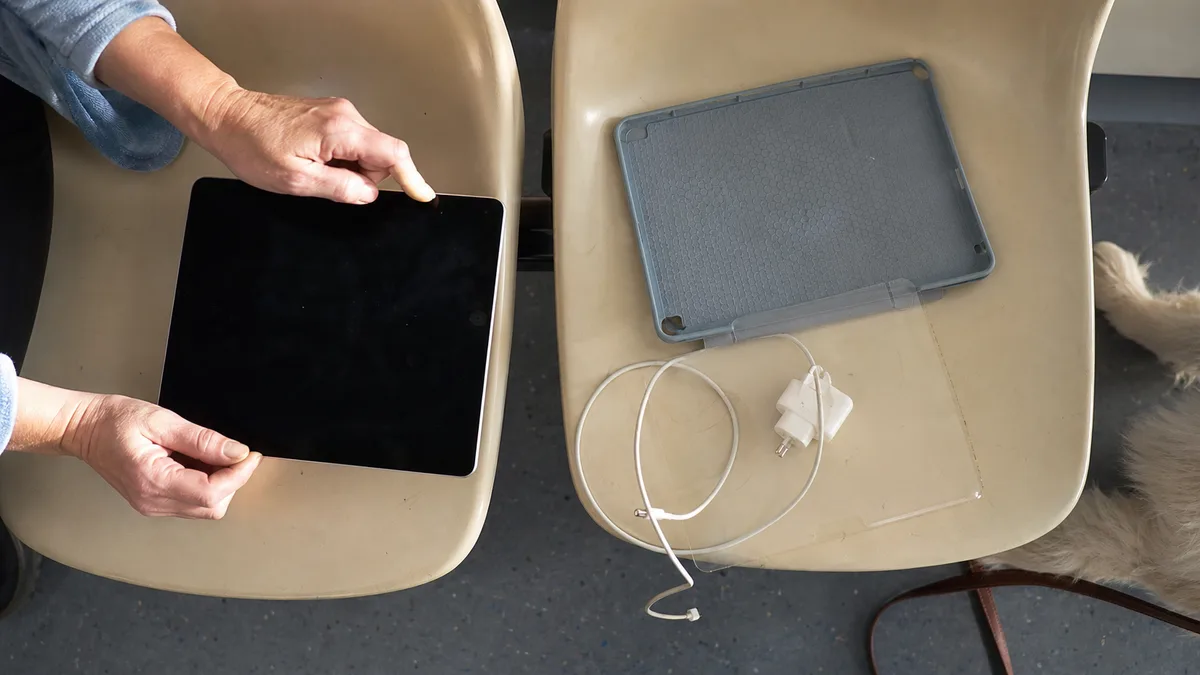
The short answer: Clean and dry the screen, disconnect the charger and any USB-C or Lightning accessories, remove the case and screen protector, and restart the iPad. If the touchscreen settles down after you disconnect the charger, do not continue testing with the same power source — try a different socket, cable, and charger. If dead zones, phantom touches, or visible deformation remain, the display assembly should be professionally diagnosed.
Four different symptoms that are often confused
- Dead zone: a particular strip or corner does not respond, while the rest of the screen works normally.
- Offset touch: the iPad selects a different item from the one you touch — typically with a consistent offset.
- Ghost touch: it types, scrolls, opens apps, or unlocks itself without being touched.
- Frozen screen: nothing responds, but the touchscreen layer may not be faulty; the system may simply be stuck.
The distinction matters because each symptom points in a different direction. A dead zone tends to be stable and reproducible, ghost touch is often related to power or moisture, and a frozen device is addressed with a restart rather than a repair. Record the exact behaviour using another phone — the repair technician will then be able to see the fault even if it does not appear during intake. For intermittent symptoms, this is the most valuable thing you can bring.
Which iPad do you have, and why does it matter?
You can find the model under Settings → General → About, on the box, and on the proof of purchase. For an initial enquiry, the generation and size are enough; never post the serial number publicly.
For the procedures in this article, there is one practical distinction, which Apple uses as well — iPads with a Home button and iPads without a Home button. The model name is not what matters here; look at the actual device and check whether there is a round button below the display. As a general guide:
- with a Home button: 5th- to 9th-generation iPad, 3rd-generation iPad Air, 5th-generation iPad mini, and 9.7-inch, 10.5-inch, and 1st- and 2nd-generation 12.9-inch iPad Pro models;
- without a Home button: 10th-generation and newer iPads, 4th- and 5th-generation iPad Air models as well as models with M-series chips, 6th-generation and newer iPad mini models, and 11-inch and 12.9-inch iPad Pro models from the 3rd generation onwards.
The generation also affects how the display is constructed and which parts can be replaced separately. This is why the scope of repair differs between a 9th-generation iPad and an 11-inch iPad Pro, even when the symptom looks identical.
Steps Apple recommends before seeking service
Apple recommends addressing an intermittently responding screen in the following order, and it is worth following these steps:
- Restart the iPad.
- Make sure the screen is clean, with no dirt or water droplets on it. Use a dry cloth, not a spray cleaner.
- Disconnect all accessories connected via Lightning or USB-C. If the screen works after disconnecting them, try a different socket, cable, or charger.
- Remove any cases and screen protectors, including “thin” ones and those that have worked without problems for years.
Make one change at a time and let the iPad run for a while between changes. If the problem occurs only when a particular charger is connected, stop using it — that is a meaningful finding, not a coincidence. If the screen still does not work after all four steps, Apple itself recommends seeking service.
Force restart by iPad type
A completely frozen iPad or one with a black screen can be force-restarted. The procedure depends on whether the iPad has a Home button:
- iPad without a Home button: press and quickly release the volume button closest to the top button, then press and quickly release the volume button furthest from the top button, and finally hold the top button until the Apple logo appears.
- iPad with a Home button: press and hold the Home button and the top button at the same time until the Apple logo appears.
If the iPad does not turn on at all, leave it charging — Apple notes that a deeply discharged device may take up to an hour to respond. However, do not keep repeating the force restart if the device has been dropped, is bent, has a lifting display, or has been exposed to liquid.
If the iPad turns on but becomes stuck during startup, displaying the Apple logo for a long time or showing a red or blue screen, Apple also describes a computer-assisted procedure. Take care at one particular step: you must choose between Update and Restore. Update preserves your data; Restore erases it. Do not choose the latter blindly.
Decision table
| Test result | What to check next | Limit of home testing |
|---|---|---|
| works after removing the protector | unsuitable or damaged screen protector | do not press it back into place |
| only malfunctions while charging | cable, power adapter, socket | do not use the suspected power source |
| the same strip never responds | touchscreen layer, connector, display | professional diagnostics |
| touch is consistently offset by the same amount | calibration, glass layer, display assembly | do not test by pressing harder |
| display is separating from the frame | battery, adhesive, or deformation | do not charge or press it down |
| spots or lines appeared after a fall | LCD/OLED, glass, or frame | do not bend it any further |
| symptom occurs in only one app | software, not the touchscreen layer | try another app and restart |
The display, touchscreen, and frame are not always one part
The scope of repair depends on the exact model. On some iPads, parts of the assembly are structurally separate; on others, the entire laminated unit, including the frame, must be addressed. The same symptom on a 9th-generation iPad, a 5th-generation iPad Air, and an 11-inch iPad Pro can therefore require a completely different amount of work. A transparent quotation must state the model, the scope of replacement, the type of part, and how the touchscreen will be tested after the repair. A fixed price cannot be promised safely without identifying and inspecting the model, so we do not quote one in advance.
For guidance on deciding whether to repair a cracked screen or weak battery, see iPad servicing: when is a repair worthwhile?. Servis PC Brno provides out-of-warranty iPad diagnostics on a pilot basis, is not an Apple Authorized Service Provider, and does not offer data recovery from mobile devices, including iPads. If the device is under warranty or covered by a manufacturer programme, contact the retailer or Apple about the repair first.
What to prepare
Prepare the model and generation, a brief timeline explaining when the problem started and what preceded it — such as a drop, liquid exposure, update, or new screen protector — a video of the symptom, and information on whether you have a verified backup. It is also useful to bring the charger and cable used when the fault occurs, as they often turn out to be the cause.
If you have completed the four steps above and the touchscreen still has a mind of its own, have the iPad assessed — with intermittent symptoms, the sooner they are measured, the less guesswork is involved. Arrange an appointment through Apple repair Brno, the booking form, or by calling 774 777 774. In the description, include the iPad generation, which of the four symptoms matches yours, and what you have already tried.
Sources
- Apple: If the screen is not working on your iPhone or iPad
- Apple: If your iPad will not turn on or is unresponsive
Rather not deal with it yourself?
Book a diagnosis in Brno — you get the price up front and we start only once you agree.
Where to find us
We are a PC and laptop repair shop in Brno-Židenice: diagnostics and repairs of computers and laptops, data recovery from drives, and out-of-warranty Apple repairs (iPhone 12 and newer, MacBook, iPad).
Viniční 3587/216, 615 00 Brno-Židenice, Czech Republic Mon–Fri 10:00–16:00
Call +420 774 777 774 Computer repair and laptop service in Brno
We put the repair price in writing after diagnostics and carry on only once you agree.


