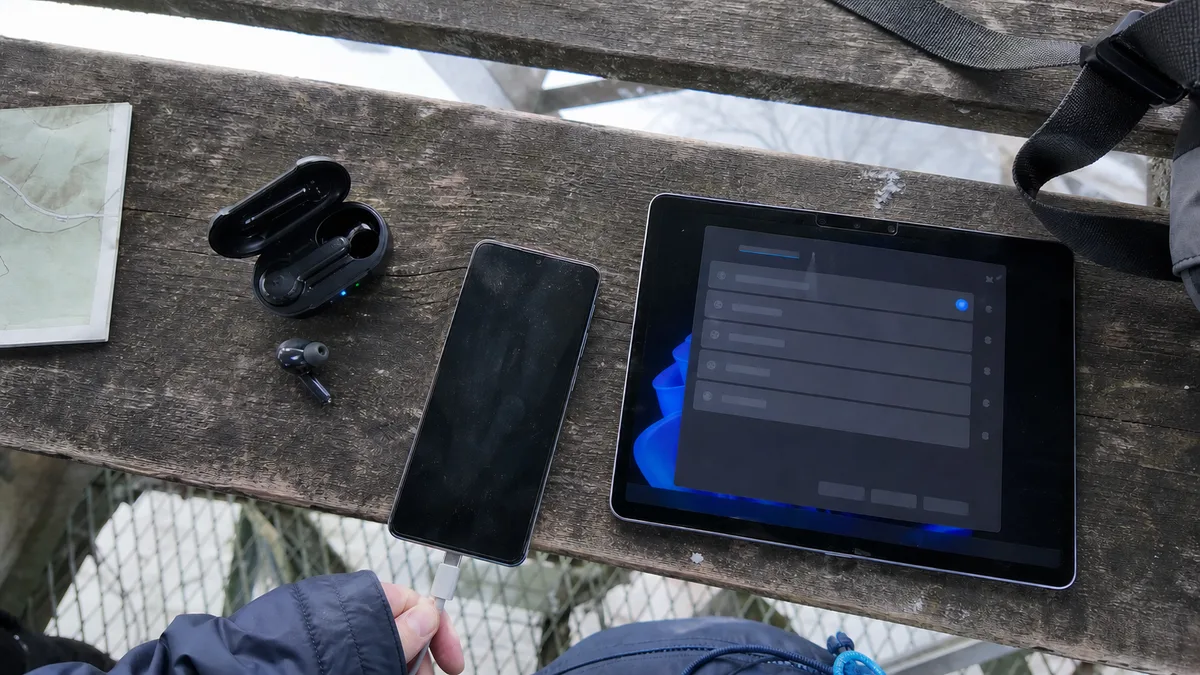
The short answer: The most common cause is not the computer but the device — it is either not in pairing mode or currently connected to a phone. Put the headphones or mouse into pairing mode (for headphones, this usually requires a different, longer button press than simply turning them on), then open Settings → Bluetooth & devices → Add device in Windows. If Bluetooth cannot be turned on in Windows at all, check Airplane mode and the adapter driver in Device Manager.
Pairing mode is not the same as turning the device on
This is where most cases of “broken” headphones end. Turning headphones on merely wakes them up and makes them look for a device they have previously been paired with. For a new computer to detect them, they must be discoverable — a separate mode that is almost always activated by holding the same button down for longer, until the indicator starts alternating between two colours. On earbuds, the pairing button is often on the charging case; on over-ear headphones, it may be beneath an earcup.
Microsoft leaves the details to the manufacturer: the method for making a device discoverable varies between models and should be explained in its manual. The practical consequence is always the same, however — until the device is in pairing mode, Windows will not display it in the list, no matter how many times you click through the settings.
Mice and keyboards usually have a small Connect or Pair button on the underside, which may be recessed. Models designed for several devices may also have a 1/2/3 channel selector: holding down a channel frees that slot for a new computer, while a short press merely switches between devices that have already been paired.
Check the battery as well. Microsoft warns that some devices will not enter pairing mode or maintain a connection when their battery is low. When pairing rechargeable headphones or speakers, it is therefore worth leaving them connected to power.
Adding a device in Windows 11 step by step
- Press Windows + I and open Bluetooth & devices. The Bluetooth switch must be on.
- Click Add device and select Bluetooth.
- Select the device from the list and confirm any code if prompted.
There is also a quicker route through Quick Settings: click the Network, Sound or Battery icon in the bottom-right corner. The Bluetooth tile will show Connected, Not connected, or appear inactive when Bluetooth is off. Next to it, you will find Manage Bluetooth devices, which displays new nearby devices.
Two details are easy to overlook:
- Airplane mode. Check in the same Quick Settings panel that it is not enabled. It disables wireless radios, including Bluetooth, and may cause the switch in Settings either to disappear or turn itself off again.
- Device discovery. Under Settings → Bluetooth & devices → Devices, the Bluetooth devices discovery option is set to Default initially, showing only common devices. Switching it to Advanced displays every device type — this is often where an unusual speaker, game controller or older headset finally appears.
If the device supports Swift Pair, Windows will display a “new device found” notification with a Connect button as soon as you turn on pairing mode nearby.
The device is already connected to a phone or another computer
Traditional Bluetooth accessories maintain one active connection at a time. Headphones paired with the phone in your pocket may reconnect to it as soon as they are switched on, before you even have time to click Add device. The computer then appears unable to “see” them, even if they are only thirty centimetres away. The quickest test is to turn off Bluetooth on the phone and try pairing again.
The opposite can also happen: the device is already paired in Windows, but the connection will not start. Microsoft recommends a simple procedure — under Settings → Bluetooth & devices, click More options (…) beside the device, select Remove device, and then add it again through Add device. Bear in mind that it will not reconnect automatically after removal: you must put it back into pairing mode first.
If that still does not help, turn Bluetooth off in Settings, wait ten seconds and turn it back on. It may sound like a cliché, but it is a documented Microsoft troubleshooting step and often fixes a stuck adapter.
Bluetooth cannot be turned on in Windows
If both the switch and the Quick Settings tile are missing, the problem is not with the accessory but with the computer. Open Device Manager (right-click Start) and look for the Bluetooth section. According to Microsoft, the adapter’s name often contains a term such as “radio” or “transmitter” — in practice, you might see Intel(R) Wireless Bluetooth on laptops fitted with a combined Intel Wi-Fi 6 AX200 or AX201 card or a Wi-Fi 6E AX210 card, or Realtek Bluetooth Adapter in less expensive systems.
This also explains an issue that customers often report as two separate faults: on a combined card, Wi-Fi and Bluetooth share one module, so they often fail at the same time. If your network connection is dropping as well, start with Wi-Fi dropping out on one laptop — the underlying cause is often the same.
Microsoft recommends the following driver procedure:
- In Device Manager, expand Bluetooth, right-click the adapter and select Update driver → Search automatically for drivers.
- If Windows finds nothing, download the driver from the computer manufacturer’s website. Microsoft identifies an outdated or incompatible driver as one of the most common causes of connection problems.
- As a final step, select Uninstall device, then choose Start → Power → Shut down. Turn the computer back on after a few seconds, and Windows will attempt to reinstall the driver. If it does not, select Action → Scan for hardware changes in Device Manager.
If there is no Bluetooth section in Device Manager and there never has been one, the computer probably does not have Bluetooth hardware. This is common with desktop PCs; the solution is a USB adapter, not reinstalling the operating system.
The headphones are connected, but sound still comes from the speakers
Connecting a device and playing audio through it are two separate things in Windows. Click the sound icon on the taskbar and confirm that the correct device is selected, or check the same setting under Settings → System → Sound in the Output section.
Another common complaint is that “the sound works, but it is tinny”. This is caused by profile switching. Windows 11 provides one output and one input for the headphones and automatically switches between the A2DP profile for stereo playback and the hands-free (HFP) profile, which can use the microphone at the same time but offers only mono audio at an 8 or 16 kHz sampling rate. The system switches to hands-free mode whenever an application opens the headset microphone or requests an output intended for communications. Once the microphone is released, it returns to A2DP. This is why music sounds narrow during a call and returns to normal after the communication app is closed. If the quality does not return, look for an application or browser tab that is still using the microphone.
You can also check playback quality manually: for the connected device under Settings → Bluetooth & devices → Devices, open Advanced sound properties and select 2 channels, 16 bit, 48000 Hz (DVD Quality) for the output format. Microsoft also recommends checking the headphone documentation to confirm that the device supports A2DP at all.
If both the headphones and the speakers are silent and no audio works anywhere, Bluetooth is not the problem. Start with no sound in Windows 11, which covers output devices, the volume mixer and the Windows Audio service.
Range and interference: 2.4 GHz and USB 3.0 ports
Bluetooth shares the 2.4 GHz band with Wi-Fi, microwave ovens and your neighbours’ wireless devices. One of the most interesting sources of interference, however, may be sitting directly on your desk: Microsoft explicitly warns that if a Bluetooth device is slow or unresponsive, you should check whether it is too close to another device connected to a USB 3.0 port. Unshielded USB devices can interfere with the connection.
In practice, this might mean an external SSD or hub connected next to the Bluetooth adapter, causing the mouse pointer to stutter. Moving the adapter to a more distant port, placing it on a short USB extension cable away from the cluster of devices, or reconnecting the drive elsewhere can help. Metal also reduces range — including a computer case beneath the desk, a monitor stand or a docking station — so a desktop computer’s USB Bluetooth adapter is usually better placed at the front than on the rear panel. If you discover that the port itself is also behaving incorrectly, see USB device not recognised.
When the symptoms do not say what the cause is, the next step is measurement — fault diagnostics in Brno, not blind part swapping.
When it is no longer a settings problem
The computer needs professional attention if the adapter repeatedly disappears from and reappears in Device Manager, reports an error code and does not recover after the driver is reinstalled; if Bluetooth stopped working after the computer was dropped or exposed to liquid; or if its range has fallen to a few dozen centimetres while the same headphones work correctly elsewhere. The same applies if Bluetooth disappeared after the laptop was disassembled — with combined wireless cards, a single antenna connector that has not been snapped back into place is enough to cause the problem.
We troubleshoot Bluetooth as part of our laptop and desktop computer repair services in Brno; we confirm the diagnosis and price only after inspecting the specific device. You can arrange an appointment through the booking form or by calling 774 777 774. In the description, state what type of device is affected, whether it pairs with a phone, and whether Bluetooth is also missing from Device Manager — this can cut the diagnostic work in half.
Order online: Fault diagnostics — tell us the model and what happens, and we will come back with the next step.
Sources
- Microsoft: Fix Bluetooth problems in Windows
- Microsoft: Troubleshoot Bluetooth not connecting in Windows
- Microsoft: Pair a Bluetooth device in Windows
- Microsoft: Fix Bluetooth connected but no sound in Windows
- Microsoft Learn: Bluetooth Classic Audio
Rather not deal with it yourself?
Book a diagnosis in Brno — you get the price up front and we start only once you agree.
Where to find us
We are a PC and laptop repair shop in Brno-Židenice: diagnostics and repairs of computers and laptops, data recovery from drives, and out-of-warranty Apple repairs (iPhone 12 and newer, MacBook, iPad).
Viniční 3587/216, 615 00 Brno-Židenice, Czech Republic Mon–Fri 10:00–16:00
Call +420 774 777 774 Computer repair and laptop service in Brno
We put the repair price in writing after diagnostics and carry on only once you agree.


