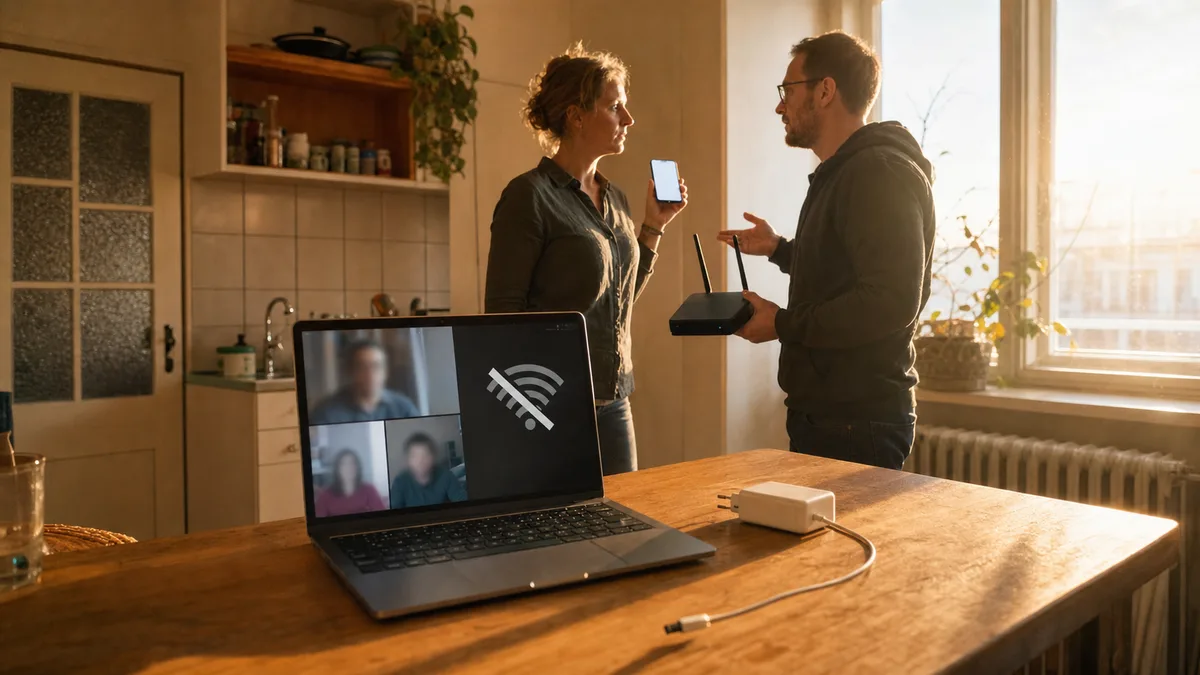
A video call is running, the picture suddenly freezes, and next to the clock the Wi-Fi icon turns into a globe with a “no entry” sign. Meanwhile the phone on the desk carries on, the TV keeps streaming, and nothing dropped for the kids in the next room. A minute later the laptop reconnects on its own — and half an hour later it happens all over again.
The first piece of advice in every forum is “restart your router”. But when a single device is dropping and everything else holds, the router is the last thing I would suspect.
The short answer: If Wi-Fi drops only on the laptop, look for the cause inside the laptop. In order of how often each shows up: power saving that puts the Wi-Fi card to sleep (typically dropouts on battery and after waking), an Intel or Realtek driver broken by an update, an overcrowded 2.4 GHz band in an apartment building, and — on mesh networks — hopping between access points. Work through them in that order; you will not have to touch the router once.
First confirm the laptop really is the culprit
Before you start changing settings, catch one dropout in the act. The moment the laptop loses its connection, pick up your phone and try to load any page on it — over Wi-Fi, not mobile data.
- The phone works → the problem is in the laptop. Carry on with this article.
- Nothing works → the whole network is down and you are dealing with the router or your provider. That is a different diagnosis, walked through step by step in Wi-Fi not working? 5 things to try.
The second useful question is when it drops. The pattern of dropouts points to the culprit more precisely than anything else:
| Dropout pattern | Prime suspect |
|---|---|
| On battery, after waking from sleep, after a spell of inactivity | Wi-Fi adapter power saving |
| Ever since a particular Windows update | Driver |
| At a certain time of day, only in some rooms | Interference and a crowded 2.4 GHz band |
| While moving around a flat or office with several access points | Roaming between units |
| Any time, and the laptop sometimes sees no networks at all | Hardware — card or antennas |
Power saving: the most common culprit you never hear about
On a laptop, Windows tries to save battery, and to it the Wi-Fi card is just another consumer that can be throttled or put to sleep. On plenty of machines the card does not wake from that sleep cleanly — the connection drops and the system spends tens of seconds rebuilding it.
Turning it off takes a minute:
- Right-click Start → Device Manager → Network adapters.
- Double-click the Wi-Fi adapter — it will be named something like Intel Wi-Fi 6 AX201 or Realtek 8852BE Wireless LAN.
- Power Management tab → clear Allow the computer to turn off this device to save power → OK.
The second place to look: the old Control Panel → Power Options → Change plan settings → Change advanced power settings → Wireless Adapter Settings → Power Saving Mode. Set Maximum Performance both on battery and plugged in. Aggressive saving here can throttle Wi-Fi even when you have already cleared the checkbox in Device Manager.
And third: if the dropouts come mainly when the battery saver icon lights up, bear in mind that battery saver also limits background network activity. Turn it off for a few days and watch whether the pattern of dropouts changes.
The effect on battery life is negligible. A stable connection is worth it.
Intel and Realtek drivers: when it all started after an update
The second most common case we see in the workshop: Wi-Fi worked for months and then started dropping “out of nowhere”. Look into the update history and that “out of nowhere” has an exact date — Windows Update swapped the Wi-Fi card driver for a newer or generic one that does not suit the specific model. Intel AX-series cards and Realtek chips run into this again and again.
Telltale signs: short dropouts several times an hour, a “Can’t connect to this network” message, or the adapter vanishing from Device Manager for a few seconds.
What to do:
- Device Manager → Wi-Fi adapter → Properties → Driver tab. Note the version and date.
- If the trouble started after an update, click Roll Back Driver. If the button is greyed out, the previous version is not on the system and you move on to step 3.
- Download the driver from your laptop manufacturer’s website (Lenovo, Dell, HP, Acer — for your exact model), or for Intel cards use the official Intel Driver & Support Assistant. Stay away from “driver updater” sites — they cause more problems than they solve.
- Restart after installing and watch for a few days.
To stop Windows Update from overwriting your freshly fixed driver straight away, driver updates can be paused temporarily — but honestly, this is exactly the half-hour of fiddling where a lot of people give up. If digging around in drivers is not your idea of fun, book us — we usually sort it out remotely, with no visit and nothing taken apart.
A crowded 2.4 GHz band: why the laptop suffers and the phone does not
In Brno apartment blocks we routinely see twenty to thirty networks in range. Yet the 2.4 GHz band has only three non-overlapping channels — every router around fights over them, and the connection then drops in bursts, typically in the evening when the neighbours are home.
The fact that other devices keep working proves nothing: the phone may be sitting on 5 GHz, the TV on a cable, and only the laptop is clinging to the congested 2.4 GHz. Check it by clicking the Wi-Fi icon — in the connection properties Windows shows which band you are currently on.
The fix is to push the laptop onto 5 GHz, or 6 GHz:
- In Device Manager, on the Advanced tab, most adapters offer a band preference setting — on Intel it is Preferred Band (set the 5 GHz preference), on Realtek something similar.
- If the router broadcasts both 2.4 and 5 GHz under one name and the laptop still clings to the slower band, give the two networks separate names in the router’s admin interface and connect the laptop only to the 5 GHz one.
While you are in the router’s admin interface, take a look at the list of connected devices too — anything you do not recognise does not belong on your network. How to go through it and lock the network down is covered in Someone is connecting to my Wi-Fi.
Several access points in one flat: roaming that grinds
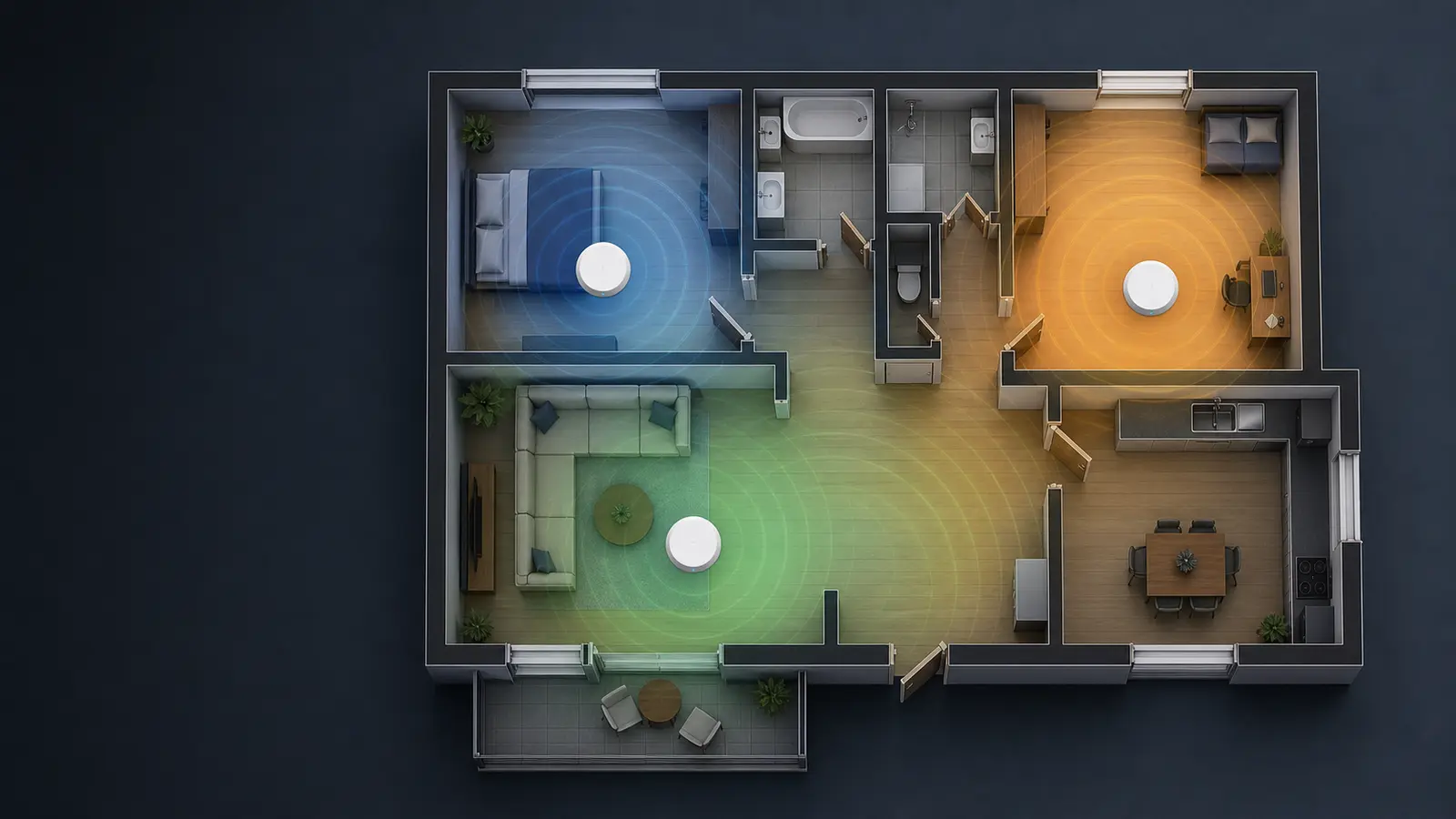
Do you have a mesh system or a router with a repeater? Then add one more suspect. Laptops tend to be “sticky clients” — they hang on to the unit they first connected to even when you are standing two metres from another one with a stronger signal. The switch then happens late and hard: at exactly that moment the connection drops for a few seconds.
Telltale signs: dropouts happen while moving between rooms, or always in the same corner of the flat, while things are quiet near the router.
Intel adapters have a Roaming Aggressiveness setting for this on the Advanced tab: a higher value means the laptop commits to switching sooner. Raise it one step and test — too high a value leads to constant hopping instead, so change it one step at a time. And if the repeater is only papering over a coverage gap and this has been bothering you for a while, read up on when a proper mesh makes sense instead of a patch.
How to catch the culprit when you cannot see a pattern
When the dropouts refuse to fit into a box, let Windows itself do the talking:
- Test during a dropout: in Command Prompt run
ping -t 8.8.8.8and leave it running. At the moment of a dropout you will see whether the response times merely spiked (interference) or “Request timed out” appeared and the connection went down completely. - Wi-Fi report: run Command Prompt as administrator and enter
netsh wlan show wlanreport. Windows generates an HTML overview intoC:\ProgramData\Microsoft\Windows\WlanReport\— the timeline shows every disconnection along with the reason given. - Event Viewer: in the WLAN-AutoConfig log (Applications and Services Logs → Microsoft → Windows) each disconnection carries a reason code — one for the card going to sleep, another for signal loss.
Together, these three clues usually tell you which section above to go back to.
When it really is hardware
Software tuning has its limits. A physical fault is likely when:
- the adapter repeatedly disappears from Device Manager, or the laptop at times sees no networks at all, not even the neighbours’,
- the signal is weak even a metre from the router, while the phone next to it shows full bars,
- the trouble started after the laptop was dropped, had liquid spilled on it, or had the display or hinges replaced — the Wi-Fi antenna cables run through the hinge into the display lid, and the connector comes loose easily during such work,
- the dropouts track the movement of the lid (Wi-Fi holds at one angle and drops at another).
The good news: the Wi-Fi card is usually a separate module in an M.2 slot under a service cover, and as a part it costs a few hundred crowns. A replacement including labour comes to roughly CZK 600 plus the price of the part. On slim models with the card soldered straight to the board, the answer is a good USB adapter or a board-level repair — we will tell you in advance which is worth it for your particular machine.
When tuning does not help: what we do
Honestly — the combination of “power saving + driver + congested band + roaming” can tie a technician in knots, let alone when two causes come together at once. If you have been through the steps above and the laptop still disconnects, there is no point sacrificing another weekend.
Here is how it works with us: we measure signal strength and channel congestion at your place, go through the power settings, the driver and the WLAN-AutoConfig logs, test the card, and depending on what we find either fine-tune the laptop or propose a change to the network outright. Simpler cases we handle remotely; on site we then demonstrate everything on your own devices — details on the Wi-Fi service Brno page.
Indicative prices: setting up Wi-Fi, a router or mesh from CZK 1,200 plus the call-out fee (CZK 700 within the city of Brno), standalone service work CZK 600 per started half-hour. If you decide after the diagnosis not to go ahead with the repair, we charge for the diagnosis only, CZK 600. The full overview is in our price list; book a slot through the order form or by phone on +420 774 777 774.
Wi-Fi that drops on one machine only is neither a mystery nor a reason to buy a new laptop. It is a list of four suspects — and now you know the order in which to question them.
Rather not deal with it yourself?
Book a diagnosis in Brno — you get the price up front and we start only once you agree.
Where to find us
We are a PC and laptop repair shop in Brno-Židenice: diagnostics and repairs of computers and laptops, data recovery from drives, and out-of-warranty Apple repairs (iPhone 12 and newer, MacBook, iPad).
Viniční 3587/216, 615 00 Brno-Židenice, Czech Republic Mon–Fri 10:00–16:00
Call +420 774 777 774 Computer repair and laptop service in Brno
We put the repair price in writing after diagnostics and carry on only once you agree.