You power on a freshly installed Windows 11 PC, type your password, and start working. By that point your computer is already sending its first data to the United States. Not in secret — Microsoft describes it in its own documentation. Most people simply never notice, because nothing asks and nothing blinks.
There is no single “tracking module” you can switch off with one toggle. It’s ten to twelve separate channels: diagnostic telemetry, an antivirus that uploads file samples, an advertising identifier, suggestions and ads in the Start menu, sync through a Microsoft account, web results in search. Each behaves differently, goes to a different domain, and is turned off in a different place. And a few of them cannot be fully disabled on Home and Pro — that part matters, and we’ll come back to it.
We took a clean install of Windows 11 Pro (24H2, build 26100.8457) and measured what actually runs on it out of the box. Then we checked every channel against Microsoft’s official documentation. This article is not a rewrite of some guide on the internet — we walked through the steps on a real machine, and for every strong claim you’ll find a source. Where something is uncertain, we say so.
What we actually measured
On our test machine we ran a read-only audit (we changed nothing, we only looked at what was switched on). Here is the state of a clean Windows 11 Pro install:
- Diagnostic telemetry is running. The
DiagTrackservice (Connected User Experiences and Telemetry) was Running / Automatic. This is the main channel Windows uses to send data about your device to Microsoft. - No telemetry limit was set. The
AllowTelemetrykey was<unset>— meaning the default level applies, and on Pro and Home you cannot drop below it (more on that later). - Collection tasks were sitting ready. In Task Scheduler, the Ready state included, among others,
Microsoft Compatibility Appraiser,ConsolidatorandUsbCeip(the CEIP program),Feedback\Siuf\DmClientandQueueReporting(error reporting). These are the “feeders” that gather data and hand it to telemetry. - The antivirus was uploading samples. Microsoft Defender had
MAPSReporting=2(advanced) andSubmitSamplesConsent=1— so cloud protection plus automatic submission of “safe” file samples were both on. - Ad content in Start was on.
Start_IrisReco=1,CDM_SystemPaneSuggest=1,CDM_SilentInstall=1(silent install of promoted apps allowed),TailoredExperiences=2(personalisation based on diagnostics). The only thing off from the factory was the advertising ID (AdvertisingID_Enabled=0) — but on our machine that was the result of an earlier change, not the default OOBE state. - Outbound connections. At the moment of the snapshot,
svchosthad two connections to Microsoft IP addresses on port 443 (2603:1020:705:8::401,72.145.35.107). The DNS cache was empty at that point, so we can’t directly prove the specific domain (v10.events.data.microsoft.comand similar) from our snapshot alone — that’s where we lean on Microsoft’s documentation. The machine was idle; most channels (file samples, crash reports, a Bing query) only fire on a specific action, not while sitting still.
In short: on a clean Windows 11 Pro install, telemetry, the antivirus cloud, and ad suggestions in Start all run by default, with no limit applied. You turned on none of it.
Now channel by channel. For each one: what is collected, where it goes, and how to turn it off. Ordered from most important.
1. Diagnostic telemetry (DiagTrack)
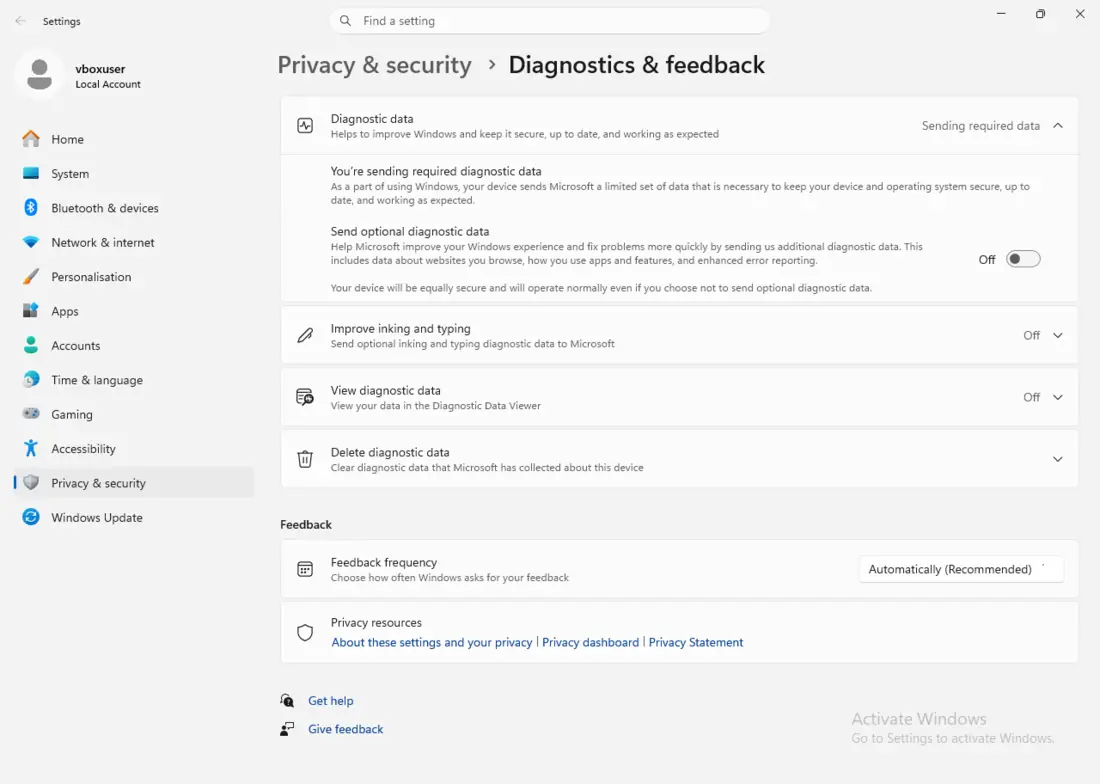
What is collected. This is the core. Windows has two levels of diagnostic data. The default is Required (formerly “Basic”): a hardware inventory (display, battery, network adapters including IMEI, processor, memory, storage, BIOS, OS edition), crash and hang counts, app CPU/memory usage, compatibility of installed programs and drivers, Microsoft Store data. The higher Optional level (formerly “Full”) adds browsing history and search terms in Edge, detailed app activity, and extended error reports including memory dumps on a crash — which, per Microsoft, “might unintentionally contain personal data, for example parts of a document or web page” [source: https://learn.microsoft.com/en-us/windows/privacy/configure-windows-diagnostic-data-in-your-organization]. Optional is opt-in; it does not turn itself on — a fact many guides get wrong.
Where it goes. Encrypted (TLS) to Microsoft’s servers: v10.events.data.microsoft.com, v10c.events.data.microsoft.com [source: https://learn.microsoft.com/en-us/windows/privacy/configure-windows-diagnostic-data-in-your-organization]. The local queue sits in %ProgramData%\Microsoft\Diagnosis. The recipient is Microsoft, on an ordinary home or business machine that isn’t managed through Intune.
Can it be turned off? Partly. And here is the single most important point in this whole article: on the Home and Pro editions, telemetry cannot be fully disabled. The lowest level, “Diagnostic data off (0)”, is only honoured by Microsoft on Enterprise, Education and Server. On Pro and Home, a setting of 0 is effectively equal to Required — you will never fully silence the system through the registry or policy alone [source: https://learn.microsoft.com/en-us/windows/privacy/configure-windows-diagnostic-data-in-your-organization]. The real lever on Pro is therefore to disable the service itself.
How (steps):
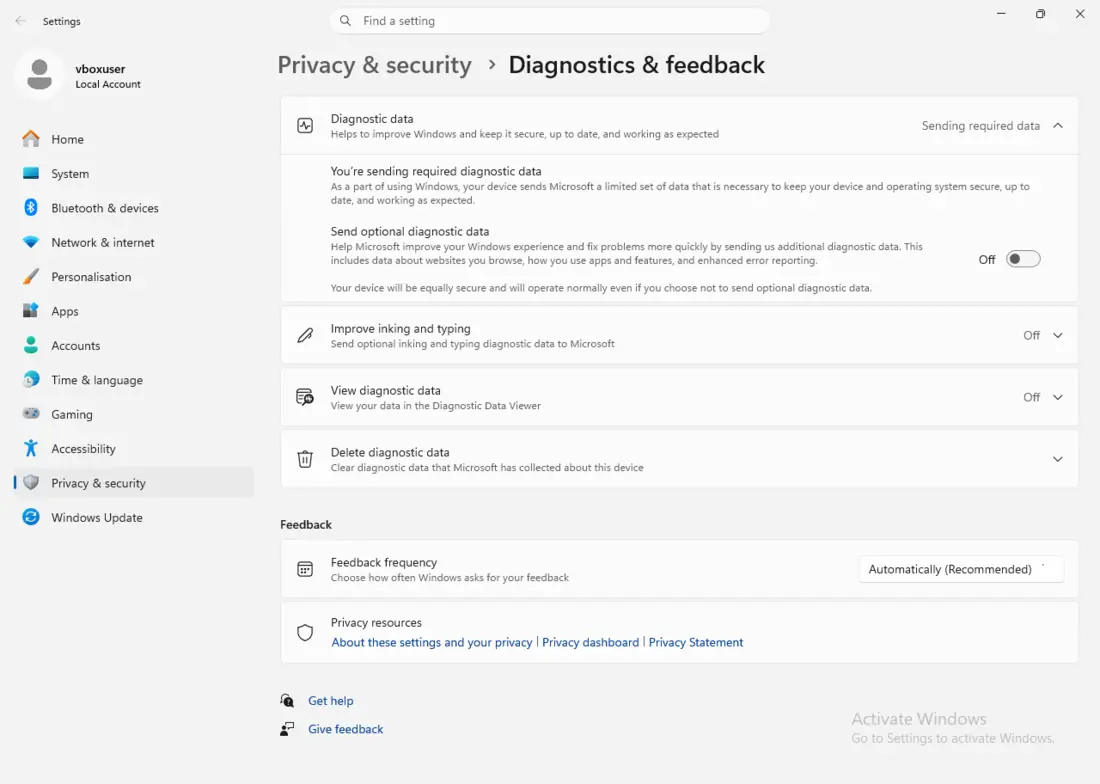
- Drop from Optional to Required: Settings → Privacy & security → Diagnostics & feedback → turn off Send optional diagnostic data.
- Disable the collection tasks (Task Scheduler, or Command Prompt as administrator): turn off
Microsoft Compatibility Appraiser,Consolidator,UsbCeip,Feedback\Siuf\DmClient. - The most effective lever on Pro — from an administrator Command Prompt, stop and disable the service:
sc stop DiagTrack
sc config DiagTrack start= disabled
What does this break? Microsoft states that it then won’t receive information about failed updates, and recommends Required as the minimum. For a home user without corporate management, the impact on usability is minimal — ordinary Windows Update keeps working [source: https://learn.microsoft.com/en-us/windows/privacy/configure-windows-diagnostic-data-in-your-organization]. Heads up: a larger (feature) update of the OS can re-enable the DiagTrack service — check again after an upgrade. And don’t block the settings-win.data.microsoft.com domain — it doesn’t send telemetry itself, it only controls which events get sent [source: https://learn.microsoft.com/en-us/windows/privacy/manage-connections-from-windows-operating-system-components-to-microsoft-services].
2. Defender antivirus — cloud and sample submission (MAPS)
What is collected. The built-in Microsoft Defender sends two things to the cloud. First, metadata about a suspicious file for an instant verdict — hashes, file name and size, signature, the process tree, the IP address the file was downloaded from, but also “Geographical location” and “Locale setting” [source: https://learn.microsoft.com/en-us/defender-endpoint/cloud-protection-microsoft-antivirus-sample-submission]. Second, if metadata isn’t enough, the whole file (a sample) for analysis. “Safe samples” are file types that usually don’t contain personal data (.exe, .dll). In “send all samples” mode, documents and Word macros go out too — so potentially your data. For a file likely to contain personal information, Defender in “safe” mode prompts you to confirm [source: https://learn.microsoft.com/en-us/defender-endpoint/cloud-protection-microsoft-antivirus-sample-submission].
Where it goes. To *.wdcp.microsoft.com, *.wd.microsoft.com, and the sample storage at *.blob.core.windows.net. Most storage is in the US (east/west); European regions exist, but region selection only applies to corporate Defender for Endpoint tenants — an ordinary home machine is governed by the Microsoft Privacy Statement [source: https://learn.microsoft.com/en-us/defender-endpoint/configure-network-connections-microsoft-defender-antivirus].
Can it be turned off? Yes. It’s optional. Metadata (the cloud lookup) does always flow on detection, though, as long as the cloud is on.
How (steps):
- Turn off Tamper Protection first, otherwise your changes are ignored: Windows Security → Virus & threat protection → Manage settings → Tamper Protection = Off.
- In the same place, turn off Cloud-delivered protection and Automatic sample submission.
- Or from an administrator PowerShell:
Set-MpPreference -SubmitSamplesConsent NeverSend(disables samples only) and/orSet-MpPreference -MAPSReporting Disabled(disables the cloud entirely) [source: https://learn.microsoft.com/en-us/powershell/module/defender/set-mppreference].
What does this break? Disabling the cloud reduces Defender’s ability to catch a brand-new threat on first sight (Block at First Sight). For a typical user, consider leaving the cloud on and disabling only automatic sample submission — a compromise between privacy and protection. On 24H2, the Defender cloud sometimes re-enables itself after you turn it off, which is why turning off Tamper Protection first matters.
3. Advertising ID and personalised ads
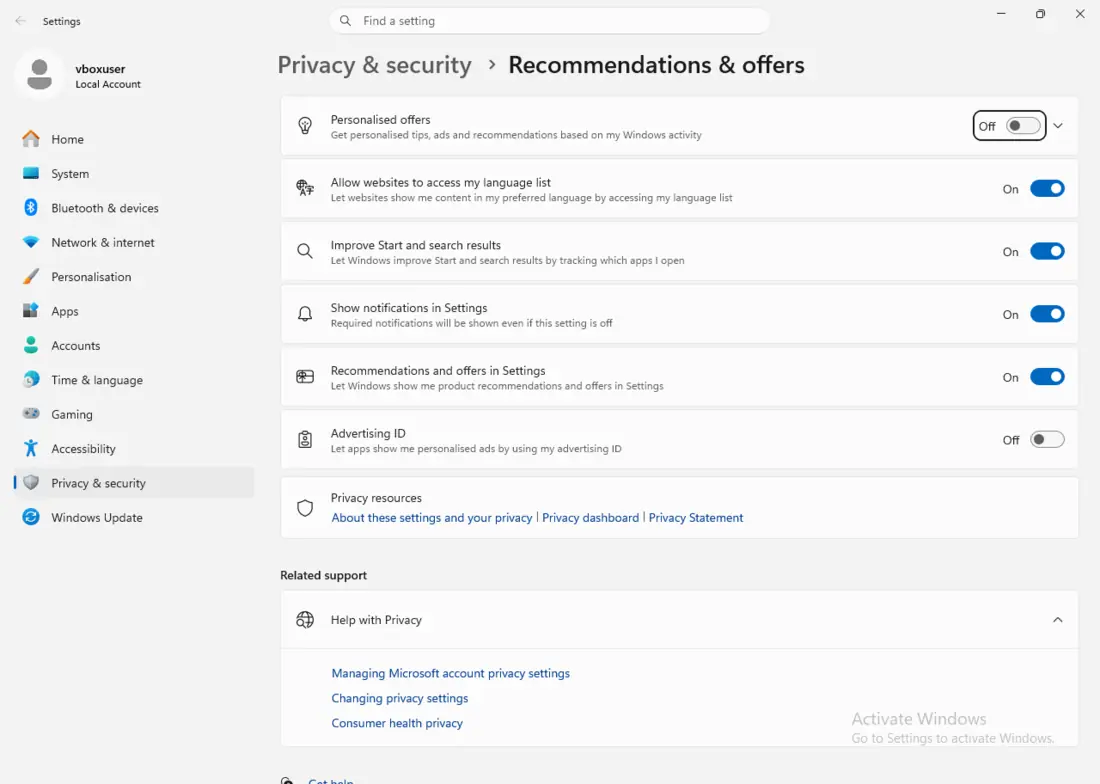
What is collected. Two things. The Advertising ID is a unique identifier tied to your account. Microsoft describes it as the equivalent of a cookie: app developers and ad networks can attach personal data to it and use it to target ads inside apps from the Microsoft Store [source: https://learn.microsoft.com/en-us/windows/privacy/manage-connections-from-windows-operating-system-components-to-microsoft-services]. The second is Tailored experiences — Microsoft uses your diagnostic data for targeted tips, recommendations and ads on the lock screen, in Start, and in Settings.
Where it goes. The Advertising ID is largely a local identifier that apps read; Microsoft doesn’t publish a single specific “ad” domain. Personalised Windows content goes to the Spotlight/Iris cluster of domains: arc.msn.com, ris.api.iris.microsoft.com, and various *.msn.com [source: https://learn.microsoft.com/en-us/windows/privacy/windows-11-endpoints-non-enterprise-editions].
Can it be turned off? Yes, purely optional. Microsoft itself notes that turning off the advertising ID won’t reduce the number of ads — it just makes them less relevant.
How (steps):
- Advertising ID: Settings → Privacy & security → General → turn off Let apps show me personalized ads by using my advertising ID. We recommend turning off the other three toggles on that page too.
- Tailored experiences: Settings → Privacy & security → Diagnostics & feedback → turn off Tailored experiences.
Note: in newer Windows 11 builds (after the October 2025 update) this option is renamed Recommendations & offers and moved into its own entry under Privacy & security. On older 24H2 you’ll find it under the original name. The procedure is functionally the same. Watch out for one inaccuracy other guides repeat: at the Required level, tailored experiences are merely narrowed, not turned off automatically — to disable it fully you have to flip the toggle itself [source: https://support.microsoft.com/en-us/windows/diagnostics-feedback-and-privacy-in-windows-28808a2b-a31b-dd73-dcd3-4559a5199319].
4. Suggestions and ads in Start and on the lock screen
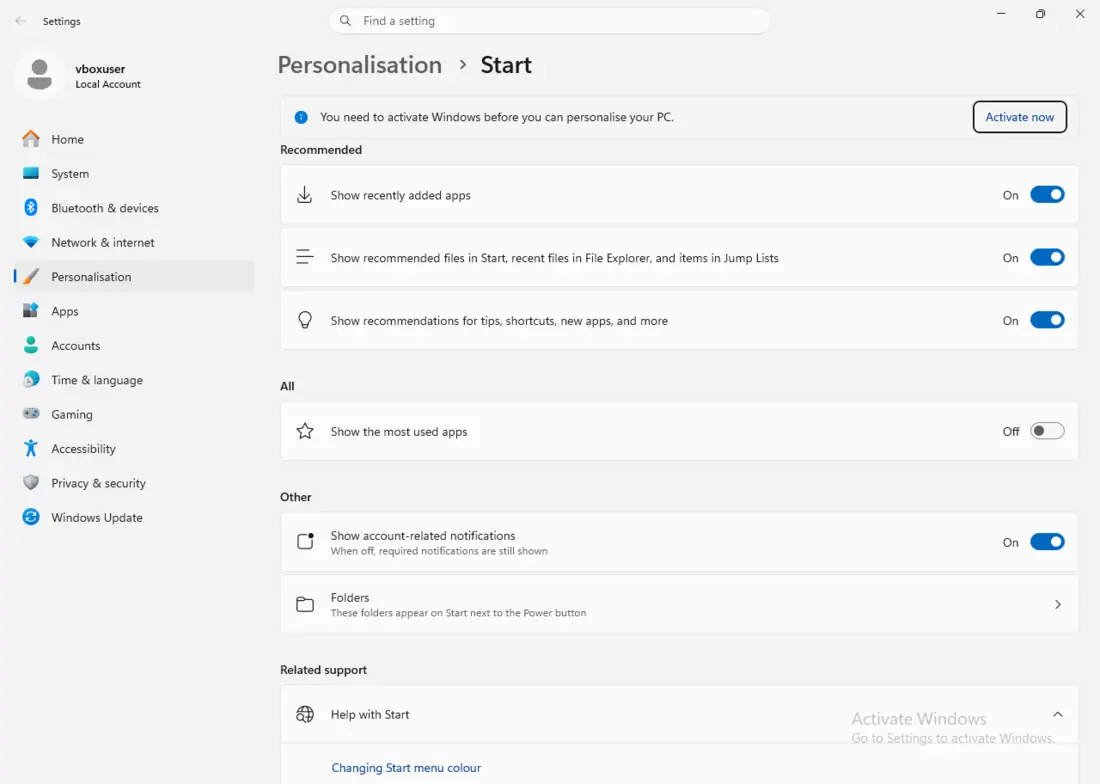
What is collected. The Content Delivery Manager pulls ad content from the cloud: lock-screen tips (Spotlight), suggested and promoted apps in Start, the “Get even more out of Windows” prompt, and above all it silently installs promoted apps (the likes of Candy Crush, Spotify). The request to arc.msn.com sends your country, language, market ID and placement type — that decides which ad you get [source: https://learn.microsoft.com/en-gb/windows/privacy/windows-11-endpoints-non-enterprise-editions]. On our machine these toggles were on by default.
Where it goes. To arc.msn.com, ris.api.iris.microsoft.com, various *.msn.com, and the Store catalog at displaycatalog.mp.microsoft.com [source: https://learn.microsoft.com/en-gb/windows/privacy/windows-11-endpoints-non-enterprise-editions].
Can it be turned off? Yes, safely. Nothing critical breaks — the Spotlight image is replaced by a static wallpaper. This is mostly “annoying ads and silent bloatware installs”, not a major leak of personal data.
How (steps):
- Start: Settings → Personalization → Start → turn off Show recommendations for tips, shortcuts, new apps, and more.
- Lock screen: Settings → Personalization → Lock screen → switch from Windows spotlight to Picture or Slideshow.
- Ads and tips: Settings → Privacy & security → General → turn off all four toggles. And Settings → System → Notifications → at the bottom, uncheck Get tips and suggestions.
- For the silent install of promo apps, the most effective lever is a system policy (on Pro): enable Turn off Microsoft consumer experiences in the Policy Editor, or the registry key
DisableWindowsConsumerFeatures=1.
5. Microsoft account and settings sync
What is collected. If you sign in with a Microsoft account (which Windows 11 pushes you toward during setup), your preferences, theme, language and passwords sync between devices via the cloud. Interestingly, even on a local account (not signed in), Windows still reaches out to login.live.com and settings-win.data.microsoft.com per Microsoft’s documentation — although that traffic alone does not mean personal sync is happening [source: https://learn.microsoft.com/en-us/windows/privacy/windows-11-endpoints-non-enterprise-editions]. Our test machine ran on a local account, so no personal sync took place.
Where it goes. Sign-in to login.live.com, synced data through OneDrive infrastructure (*.storage.live.com, settings.live.net) [source: https://learn.microsoft.com/en-us/windows/privacy/windows-11-endpoints-non-enterprise-editions].
Can it be turned off? Yes.
How (steps):
- Don’t sync: Settings → Accounts → Windows backup → turn off Remember my preferences and Remember my apps.
- Harder (Pro), system policy: Sync your settings → Do not sync = Enabled; registry key
DisableSettingSync=2[source: https://learn.microsoft.com/en-us/windows/privacy/manage-connections-from-windows-operating-system-components-to-microsoft-services]. - Stay on a local account: on Pro, during setup choose Set up for work or school and create a local account. Note: as of autumn 2025 Microsoft removed the known tricks for bypassing the mandatory account (
bypassnro), so on Home a reliable local account is now harder to get [source: https://www.windowslatest.com/2025/10/07/microsoft-confirms-windows-11-to-require-microsoft-account-internet-during-oobe-tested/].
Don’t hard-disable the wlidsvc service (Microsoft Account Sign-in Assistant) — Microsoft warns it can block being offered larger updates [source: https://learn.microsoft.com/en-us/windows/privacy/manage-connections-from-windows-operating-system-components-to-microsoft-services].
6. Web results (Bing) in search
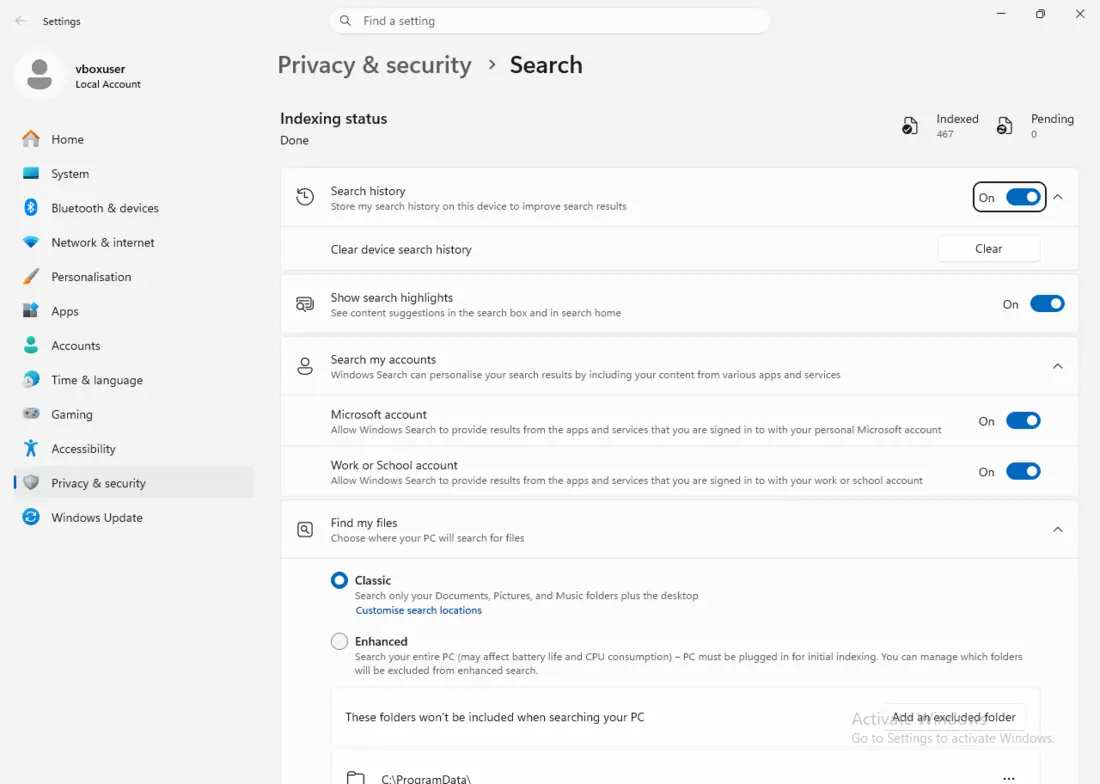
What is collected. When you type into the search box in Start, the text of your query goes continuously to Bing for autocomplete and web results. Alongside it run “Search Highlights” (highlights with promo cards) and, optionally, searching the contents of OneDrive [source: https://support.microsoft.com/en-us/windows/windows-search-and-privacy-99fb8251-7260-1cd6-1bbb-15c2370eb168]. Microsoft doesn’t publish the exact fields of the query it sends; what’s certain is that the query text plus region and language go out.
Where it goes. To www.bing.com and *.search.msn.com [source: https://learn.microsoft.com/en-us/windows/client-management/mdm/policy-csp-search].
Can it be turned off? Yes, but mind the edition. The clean enterprise policy “don’t search the web” works only on Enterprise and Education, not on Pro [source: https://learn.microsoft.com/en-us/windows/client-management/mdm/policy-csp-search]. On Pro and Home the reliable route is a per-user registry key.
How (steps):
- Disable web suggestions (works on Home/Pro too): registry
HKCU\Software\Policies\Microsoft\Windows\Explorer→ DWORDDisableSearchBoxSuggestions = 1. This kills web results and the Copilot card in search. - Search Highlights: Settings → Personalization → Taskbar → turn off Show search highlights.
- Cloud search: Settings → Privacy & security → Search permissions → turn off Microsoft account and Work or School account.
Do not disable the WSearch service (Windows Search) — without it, searching for files on your own computer stops working too.
7. Location services
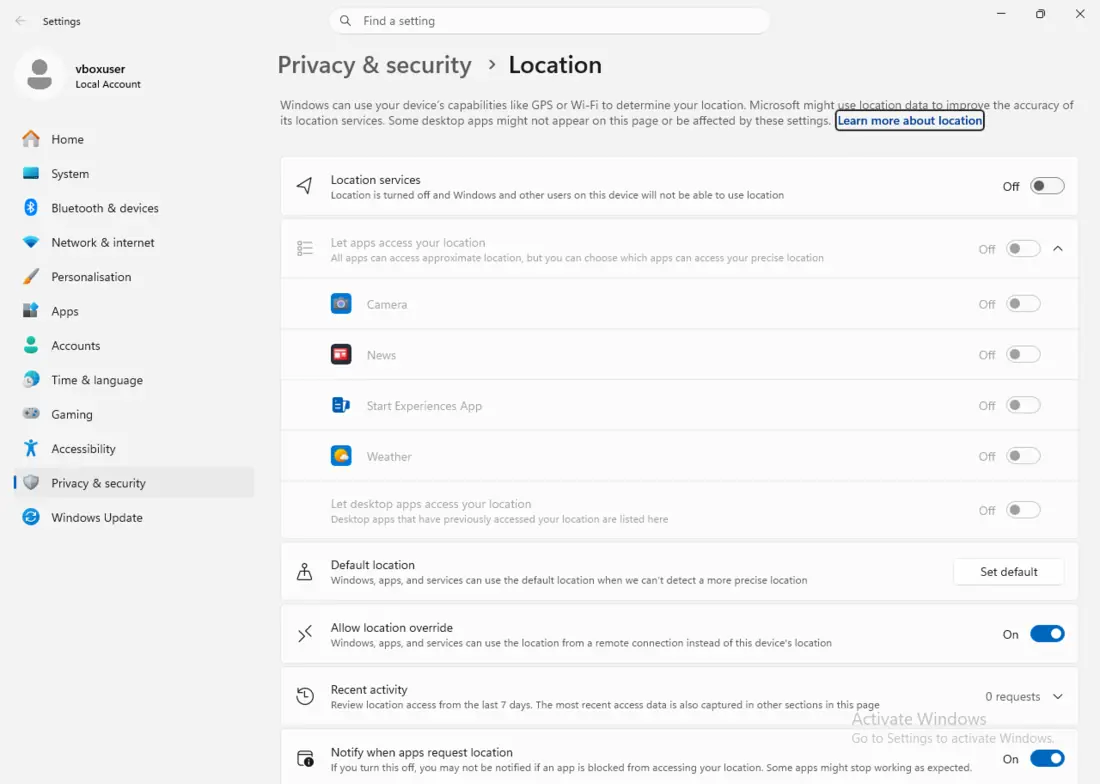
What is collected. Windows determines location from nearby Wi-Fi networks, cell towers, your IP address, and possibly GPS. When enabled, a “de-identified” location plus a list of nearby Wi-Fi networks is sent to Microsoft [source: https://support.microsoft.com/en-us/windows/windows-location-service-and-privacy-3a8eee0a-5b0b-dc07-eede-2a5ca1c49088]. An important clarification: at the network level the data only goes to Microsoft’s servers, but per Microsoft’s own article it in some cases shares that location with the partners HERE and Skyhook [source: https://support.microsoft.com/en-us/windows/windows-location-service-and-privacy-3a8eee0a-5b0b-dc07-eede-2a5ca1c49088]. On our machine, app access to location was set to Deny.
Where it goes. To inference.location.live.net, and maps to maps.windows.com [source: https://learn.microsoft.com/en-us/windows/privacy/manage-windows-11-endpoints].
Can it be turned off? Yes.
How (steps):
- Settings → Privacy & security → Location → turn off the Location services toggle.
- Below it, Clear to delete location history.
- Cloud history is cleared at
account.microsoft.com.
Once disabled, Find My Device, automatic time zone, and location in Weather stop working.
8. Error reporting (Windows Error Reporting / “Watson”)
What is collected. When an app crashes or you hit a blue screen, Windows assembles a report and sends it to Microsoft. By default just metadata: app name and version, error code, configuration. The risk is memory dumps (crash dumps): those are only sent at the Optional level, and Microsoft itself writes that they “might unintentionally contain personal data, such as parts of memory from a document or web page” [source: https://learn.microsoft.com/en-us/windows/privacy/configure-windows-diagnostic-data-in-your-organization]. At the default Required level, dumps are not sent.
Where it goes. To watson.telemetry.microsoft.com and storage at *.blob.core.windows.net [source: https://learn.microsoft.com/en-us/troubleshoot/windows-client/system-management-components/windows-error-reporting-diagnostics-enablement-guidance].
Can it be turned off? Yes. And good news: the most sensitive part (the dumps) doesn’t leave by default anyway.
How (steps):
- Main step — trims the dumps: turn off optional diagnostic data (see section 1).
- Full disable via policy or registry:
HKLM\SOFTWARE\Policies\Microsoft\Windows\Windows Error Reporting→ DWORDDisabled = 1[source: https://learn.microsoft.com/en-us/windows/win32/wer/wer-settings].
9. Typing and speech personalisation
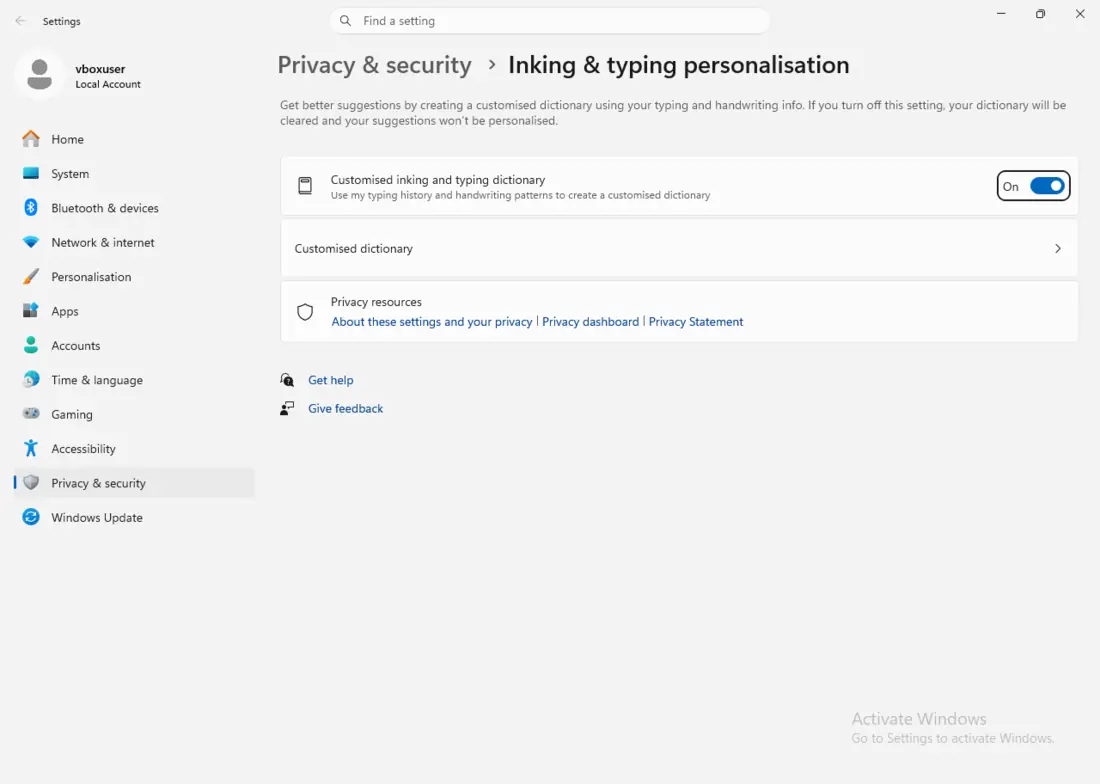
What is collected. Three layers. Online speech recognition (voice typing, Win+H) sends your voice to the cloud — off by default (opt-in). Improve inking and typing recognition sends samples of what you type to Microsoft — also off by default (opt-in). But the custom typing dictionary (local learning from what you type) is on by default — on our machine RestrictImplicit*=0, so collection was allowed. That dictionary stays local.
Can it be turned off? Yes.
How (steps):
- Settings → Privacy & security → Speech → turn off Online speech recognition (if it was on).
- Settings → Privacy & security → Inking & typing personalization → turn off Custom inking and typing dictionary (turning it off clears the dictionary).
- Settings → Privacy & security → Diagnostics & feedback → turn off Improve inking and typing [source: https://support.microsoft.com/en-us/windows/speech-voice-activation-inking-typing-and-privacy-149e0e60-7c93-dedd-a0d8-5731b71a4fef].
10. Recall and Copilot — don’t mix them up
This is where the most confusion lives. They are two completely different things.
Recall (periodic screenshots) works only on so-called Copilot+ PCs — machines with a dedicated AI chip (NPU 40+ TOPS). On an ordinary PC or in a virtual machine it doesn’t exist — on our test machine we found no trace of it, because it lacks the required hardware. If you do have it, the key points are: the snapshots don’t leave the computer, per Microsoft, they’re encrypted, the keys live in the TPM, and the feature is opt-in (you have to switch it on explicitly) [source: https://learn.microsoft.com/en-us/windows/client-management/manage-recall]. For completeness: in June 2024 researchers showed that the original version of Recall stored data in readable form; Microsoft delayed and reworked the feature because of it (encryption, mandatory Windows Hello verification, opt-in).
Copilot (the AI assistant), by contrast, is a cloud service. Whatever you type into it goes to Microsoft’s servers (Azure OpenAI) for processing. That’s the mix-up: “AI in Windows uploads your screen to the cloud” is not true of Recall (which is local), but prompts to Copilot really do go to the cloud [source: https://learn.microsoft.com/en-us/windows/client-management/manage-recall].
How to turn them off:
- Recall (on a Copilot+ PC): Settings → Privacy & security → Recall & snapshots → turn off Save snapshots. Harder: registry
HKLM\SOFTWARE\Policies\Microsoft\Windows\WindowsAI→DisableAIDataAnalysis = 1[source: https://learn.microsoft.com/en-us/windows/client-management/mdm/policy-csp-windowsai]. - Copilot: uninstall the app via Settings → Apps, or
winget uninstall.
If you would rather not touch the settings yourself, we cover it under Windows reinstallation and setup.
Bonus: OneDrive and “nudges to back up”
OneDrive and Office repeatedly nudge you to turn on backup of your Desktop / Documents / Pictures folders to the cloud (Office shows a yellow “BACK UP THIS DOCUMENT” bar). When you agree, the actual files are uploaded, not just metadata [source: https://learn.microsoft.com/en-us/microsoft-365-apps/privacy/manage-privacy-controls]. You turn it off in OneDrive Settings → Sync and backup → Manage backup (set the folders to Off). To block the prompt: registry HKLM\SOFTWARE\Policies\Microsoft\OneDrive → KFMBlockOptIn=1.
How to calm Windows 11 down — the short version
If you don’t want to touch the registry and most of it is enough for you, go through these toggles. It takes ten minutes and breaks nothing:
Settings → Privacy & security → Diagnostics & feedback
- Turn off Send optional diagnostic data
- Turn off Improve inking and typing
- Turn off Tailored experiences (or “Recommendations & offers”)
Settings → Privacy & security → General
- Turn off all four toggles (advertising ID, locally relevant content, app launch tracking, suggestions in Settings)
Settings → Privacy & security → Location
- Turn off Location services (unless you need maps and Find My Device)
Settings → Personalization → Start and → Lock screen
- Turn off recommendations in Start; switch the lock screen to your own picture
Windows Security → Virus & threat protection → Manage settings
- Turn off Automatic sample submission (consider leaving the cloud on)
Settings → Accounts → Windows backup
- Turn off preference and app sync if you don’t use it
If you want to go further (disable the DiagTrack service, the collection tasks, web results in search on Pro), that’s registry and command-line work — described above under each section. And don’t forget: after a major OS update, some toggles flip back, so check again after a while.
Conclusion
By default, Windows 11 sends more than most people expect — and part of it cannot be fully disabled on Home and Pro, only reduced. That’s not a conspiracy; it’s described in Microsoft’s documentation. Still, you can switch off most of the annoying and ad-driven channels in a few minutes through Settings, without breaking anything. The more sensitive items (telemetry via the service, web search on Pro, error reporting) call for a registry change — and there it pays to know what you’re doing, because a badly set policy can break updates or file search.
None of this requires special tools or third-party “privacy” apps — everything above uses settings and components already in Windows. The trade-off is yours to make: how much convenience (cloud protection, sync, search suggestions) you’re willing to give up for how much privacy. Decide it deliberately, rather than letting the defaults decide for you.
Order online: Windows reinstallation — tell us the model and what happens, and we will come back with the next step.
Rather not deal with it yourself?
Book a diagnosis in Brno — you get the price up front and we start only once you agree.
Where to find us
We are a PC and laptop repair shop in Brno-Židenice: diagnostics and repairs of computers and laptops, data recovery from drives, and out-of-warranty Apple repairs (iPhone 12 and newer, MacBook, iPad).
Viniční 3587/216, 615 00 Brno-Židenice, Czech Republic Mon–Fri 10:00–16:00
Call +420 774 777 774 Computer repair and laptop service in Brno
We put the repair price in writing after diagnostics and carry on only once you agree.