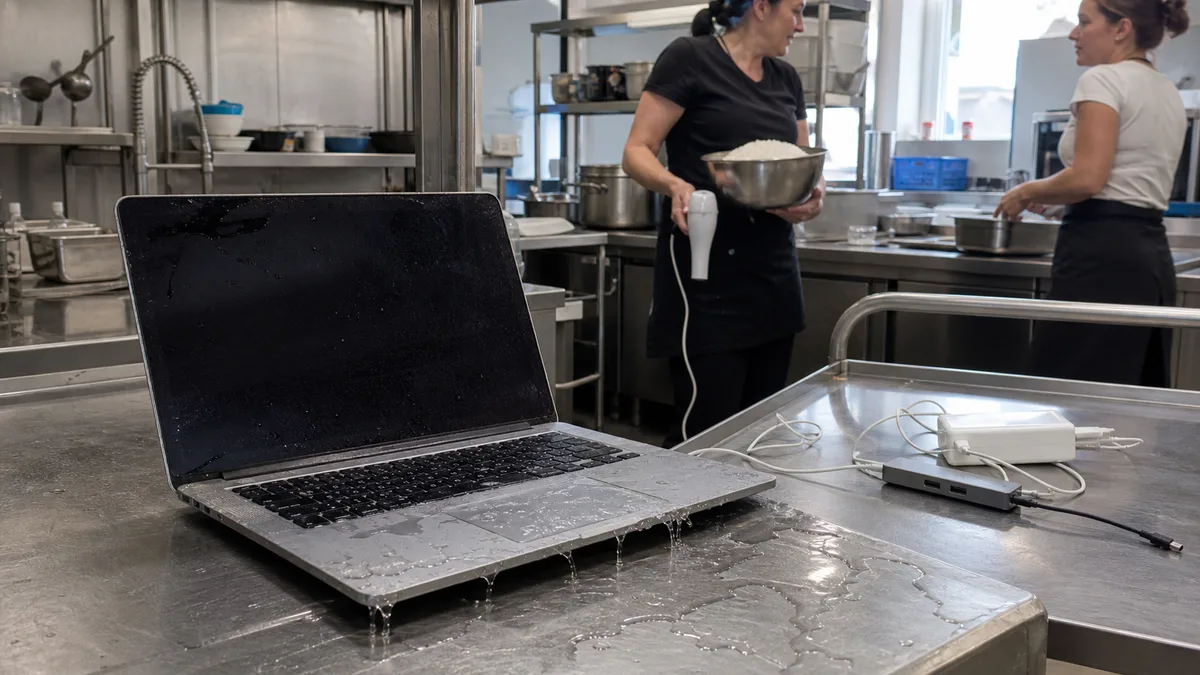
Immediate answer: Turn off the MacBook and disconnect the charger and all accessories. Do not try to start or charge it again. Gently dry the surface without inserting anything into the ports, and note the type of liquid, where it was spilled, and when the incident occurred. Do not use rice, a hair dryer, or compressed air. We do not offer data recovery, so you need to have a backup in place before an accident, not try to arrange one afterward.
The First Few Minutes Matter
Safety takes priority over checking whether the computer still works. If the Mac responds, shut it down normally. If it does not, hold the power button for about ten seconds, then stop rather than making repeated attempts. Disconnect cables by gripping the connector, not the wire, and remove any hubs, docks, and drives as well.
Only blot liquid from the surface with an absorbent material. Do not press or shake the device, and do not turn it in a way that allows liquid to flow deeper inside. Position it so that any remaining liquid can drain out rather than further in. Time still matters after shutdown: corrosion and deposits continue to develop even when the computer has no power, so arranging an inspection today is more sensible than waiting a week.
What You Definitely Should Not Do
- Do not apply heat. Do not use a hair dryer, oven, radiator, or a car left in the sun. Heat can spread the liquid and damage bonded components and the battery.
- Do not blow air inside. Compressed air pushes liquid and small particles deeper into the assembly; using a vacuum cleaner does not solve the problem either.
- Do not put it in rice. Starch dust can enter the ports and gaps, and rice does nothing about liquid already inside the device.
- Do not connect the charger to check whether it has “dried out.” Applying voltage to a wet or contaminated board can turn a repairable fault into an irreparable one.
- Do not insert anything into the ports. Tissues, toothpicks, and paper clips do not belong inside a connector.
- Do not disassemble it at home by following a video for a generation that “looks similar.” Construction differs between product lines, and disconnecting the battery in newer models is not necessarily a straightforward step.
The general first-response procedure for laptops is summarised in the article what to do after spilling liquid on a laptop; this article focuses specifically on MacBooks and the differences between models.
A USB-C Warning Does Not Check the Entire Mac
Newer supported MacBook models may display a warning about liquid in a USB-C port or on a cable connector. Such a warning means you should disconnect the cable immediately and stop using the port. If no warning appears, that does not mean the keyboard, battery, or interior is dry. Detection covers a specific port on supported models, not the entire device. After a spill from above, you therefore cannot rely on the port status at all.
Why the Exact Model Matters After a Spill
The extent of the damage depends less on the volume of the spilled drink than on the construction of the specific device. You can identify the model as follows:
- On a working Mac: Apple menu → About This Mac.
- For more detail: hold Option and select System Information from the Apple menu.
- On a powered-off Mac: the model number beginning with the letter A is engraved on the bottom cover and is usually also shown on the packaging and proof of purchase.
In practice, these product families are distinguished:
- Intel-based MacBook Air models (up to 2020) and MacBook Air with Apple silicon — M1 (2020), M2 (2022 and 2023), and M3 (2024).
- 13-inch and 15-inch MacBook Pro with Touch Bar (2016–2019) and 16-inch Intel model (2019).
- 13-inch MacBook Pro with M1 (2020) or M2 (2022).
- 14-inch and 16-inch MacBook Pro (2021 and later) with Pro- and Max-series chips.
Apple’s “Identify your MacBook Pro model” and “Identify your MacBook Air model” pages can help determine the exact generation (see the sources). Why this matters after a spill: the area beneath the keyboard often contains not only the keyboard itself but also the battery and trackpad flex cable, and in some generations these parts form a single assembly. The article on MacBook battery replacement explains how construction differs between product lines. This is precisely why no reputable technician can tell you over the phone which part will be required.
Also note the type of liquid involved. Clean water, salty broth, and a sugary soft drink all leave different substances behind after evaporation, and residue on the board is often a greater problem than the moisture itself.
Data: What to Make Clear from the Start
A hardware repair is not a promise that data will be preserved or recovered, and we do not offer data recovery as part of this service. You therefore need to have a backup in place beforehand rather than trying to arrange one only after an accident. Do not turn on a spilled MacBook just to “quickly copy the data.” Every additional start with a wet or contaminated board carries a risk that could determine whether anyone can access the contents at all. The extent to which the data remains accessible can only be established after an inspection and cannot be guaranteed in advance.
Do not send your Apple Account password through a form or by email. The article on preparing your device for service explains what is useful to prepare before handing it over.
When the MacBook Appears to Keep Working
The most common mistake after a spill is not panic, but relief. The computer starts, the display looks fine, and the user assumes nothing happened. However, corrosion and sugar or salt residue continue to cause damage, and typical symptoms may appear later: sticky or unresponsive keys, a trackpad that clicks by itself, random shutdowns, a port that stops working, or charging that works only when the cable is held at a particular angle. The longer the computer runs in this condition, the more extensive the damage tends to become.
Stop testing immediately if you notice a burning smell, crackling, smoke, visible deformation of the enclosure, significant heat in one area, or behaviour that worsens after each subsequent startup.
What to Note and What to Bring
- The exact model and year, or the model number from the bottom cover.
- The type of liquid, approximate amount, and the side that was affected.
- Whether the Mac was on, asleep, or shut down, and whether it received power after the incident.
- When the incident occurred and what you have done since then.
- The MacBook and the adapter and cable you were using — damage to the connector may be part of the findings.
Scope and Limits of Out-of-Warranty Diagnostics
We are not an Apple Authorised Service Provider. If the device is under warranty or covered by a manufacturer programme, first discuss the appropriate procedure with the retailer or Apple; we perform out-of-warranty repairs. Before inspection, we cannot promise a specific part, price, turnaround time, or outcome. With liquid damage, these cannot be estimated from either a description or a photograph.
A reliable quotation can only be provided after disassembly and inspection. It includes a description of the findings, the exact model, the proposed work, the replacement-part option and origin, the scope of labour, the testing method, and the repair warranty. The price is approved in advance, not when the device is collected. Honest service also means explaining that the outcome of work on a liquid-damaged device cannot be guaranteed because the full extent of the damage may only become apparent during the repair.
For out-of-warranty hardware diagnostics in Brno, use Apple service, place a service request, or call 774 777 774. For general information about repairs, see the article on MacBook repair.
Sources
- Apple: liquid-detection warning on a MacBook
- Apple: identifying your MacBook Pro model
- Apple: identifying your MacBook Air model
Rather not deal with it yourself?
Book a diagnosis in Brno — you get the price up front and we start only once you agree.
Where to find us
We are a PC and laptop repair shop in Brno-Židenice: diagnostics and repairs of computers and laptops, data recovery from drives, and out-of-warranty Apple repairs (iPhone 12 and newer, MacBook, iPad).
Viniční 3587/216, 615 00 Brno-Židenice, Czech Republic Mon–Fri 10:00–16:00
Call +420 774 777 774 Computer repair and laptop service in Brno
We put the repair price in writing after diagnostics and carry on only once you agree.


