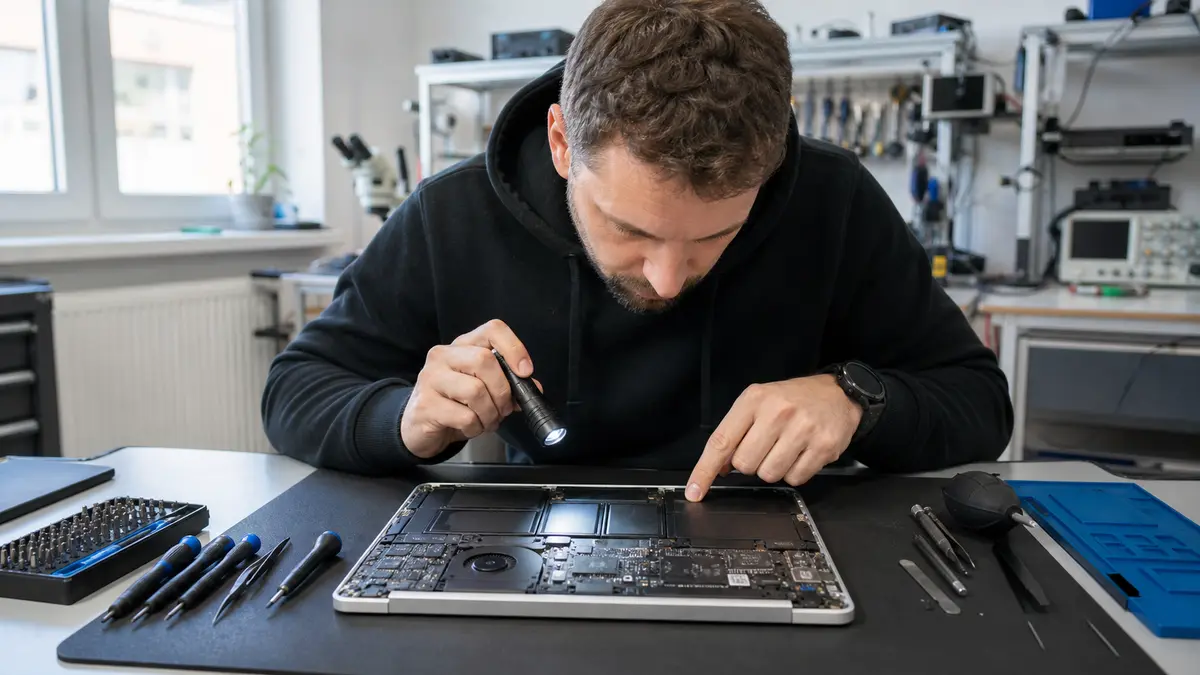
A MacBook Air wobbles on the desk, and its trackpad can be pressed but no longer clicks. Some keys on a MacBook Pro type two letters instead of one. The display works only up to a certain lid angle and then goes dark. Three faults, three repairs of entirely different scope—and in every case, the exact model identifier matters more than the wording on the lid.
Servis PC Brno has been repairing laptops for years and is now extending its out-of-warranty service to MacBooks in a pilot scheme. We are not an Apple Authorized Service Provider or an Apple-certified service center, we do not use the Apple logo, and we do not perform warranty repairs. This article focuses on one essential point: some MacBook faults can be repaired normally, some only with limitations, and some not at all—and the dividing lines run between individual generations.
The short answer: The battery, cooling system, keyboard, and display can be replaced in most MacBooks, but the design of the particular generation—not the model name—determines the scope of the work. In machines with the T2 chip (Intel, 2018–2020) and all Apple silicon models (M1 and newer), the storage is soldered to the logic board and encrypted. This means that the SSD cannot be replaced or upgraded, and if the board is damaged beyond repair, the data is generally inaccessible without a backup. Some repairs also require software configuration and calibration. Without these steps, supported models may report an unfinished repair or an unknown part, and features such as Touch ID may not work. What is and is not possible for your particular machine can be determined only after checking the exact model, the macOS version, and the results of a diagnosis. That is why we provide a price in advance instead of publishing a flat rate online.
How to Determine What Can Actually Be Repaired in a MacBook
“13-inch MacBook Pro” does not refer to a single computer but to roughly ten different designs. Before taking any further steps, identify your exact model. Open the Apple menu and select About This Mac to find the model and year. In System Information, you will find the model identifier, such as MacBookPro16,2 or Mac14,7. The underside of the case also bears a number such as A1989 or A2338. This number—not the marketing name—reveals how the machine is built internally.
| Era | What determines repairability | What this means |
|---|---|---|
| Retina Pro and Air, 2012–2015 | screw-mounted electronics, a separate proprietary SSD module, scissor-switch keyboard | the most repairable era: the battery, SSD, and cooling system can be serviced separately; reading the SSD outside the machine requires the correct adapter and, for an encrypted volume, the appropriate credentials |
| Butterfly era, 2015–2019 (12” MacBook, Pro 2016+, Air 2018+) | keyboard riveted into the top case, glued-in battery, short backlight flex cable in 2016–2017 models; soldered storage in the 12” MacBook and models with a Touch Bar | the keyboard is normally repaired by replacing the top-case assembly; replacing the keyboard alone is a specialized procedure; “stage lights” along the bottom edge of the image indicate a cable fault, not a panel fault; only some models have a removable SSD |
| Intel models with the T2 chip, 2018–2020 | storage chips soldered to the board, encryption handled by the T2, Touch ID paired with the board | the SSD cannot be replaced or upgraded; without a backup, a damaged board generally means data loss |
| Apple silicon (M1 and newer, since late 2020) | unified memory in the processor package, storage on the board, parts recorded by the system | neither RAM nor SSD can be upgraded later; replacement parts are subject to provenance checks |
These categories overlap, which is exactly why the question cannot be answered without examining the particular machine. A 2019 MacBook Air belongs both to the butterfly era and to the T2 generation, so both sets of limitations apply at the same time.
The Five Most Common Faults
| Symptom | What is checked first | What it usually indicates |
|---|---|---|
| The trackpad cannot be clicked and the laptop wobbles | gaps around the lid, a bowed bottom case, battery condition and cycle count | swollen battery—stop charging immediately |
| The image works only at certain lid angles, with bright bands along the bottom | behavior while closing the lid, output on an external monitor, image visibility when a light is shone onto the panel | on 2016–2017 models, typically the backlight cable, requiring replacement of the display assembly |
| A key repeats or does not respond | keyboard generation, whether one key or an entire row is affected, signs of liquid damage | on butterfly-era models, usually the top-case assembly; replacing the keyboard alone is a specialized repair |
| Loud fans and high temperatures | processes consuming resources in Activity Monitor, unobstructed vents, dust accumulation | cooling-system cleaning and new thermal compound—not applicable to fanless Air models |
| The machine will not turn on or charge | charger and cable tested separately, another port, MagSafe LED behavior, signs of liquid damage | anything from cable replacement to board-level repair |
What Does a “Software-Paired Part” Mean?
On newer Macs, simply installing a part and closing the machine is not always enough. Some components are paired with the logic board and require configuration with supported tools after replacement. In practice, this means:
- Touch ID is linked to the Secure Enclave. After replacement without configuration, the button may work as a power switch but will no longer read fingerprints.
- Parts and Service information appears on Apple silicon Macs only in macOS Tahoe 26 or later, and only after the system detects a repair involving a supported part. The scope depends on the model; it is not a universal history of every battery or display replacement. For supported parts, the system may identify a genuine, used, or unknown part or require the repair to be completed.
- The display assembly may include additional sensors and calibration data, depending on the model. After replacement, checking the image alone is therefore insufficient—the camera, automatic brightness, lid-angle sensor, and any available repair-completion procedure must also be tested.
The requirements vary by generation and configuration, so we do not claim that your display or battery can be replaced without limitations until we have checked the specific machine. Before accepting the repair, we will tell you whether the component can normally be replaced, whether it forms part of a larger assembly, whether software configuration is required and available for your model, what can be tested afterward, and when going to Apple would be the more sensible option. That is the crucial difference between a proper repair offer and an offer to “replace the display” without explaining what might stop working afterward.
Battery: Swelling Is Not a Cosmetic Problem
Do not wait until your MacBook can no longer last through a meeting without its charger before addressing the battery. Warning signs also include irregular charging, sudden shutdowns under load, unusual heat, and—most importantly—a change in shape. If the trackpad is lifting, the bottom case no longer fits flush, or the laptop does not sit level on a desk, the battery is almost certainly swollen: stop charging it, do not force the case back into place, and do not carry the machine in an overfilled bag. Our article on what to do with a swollen laptop battery provides detailed instructions—the same safety rules apply to a MacBook.
You can find objective figures directly in the system. System Information → Power shows the charge-cycle count and battery condition, while Settings → Battery reports battery health and may display a “Service Recommended” message. The maximum cycle count varies by model. For most newer MacBooks, it is 1,000 cycles, and Apple states that the battery is designed to retain up to 80% of its original capacity when it reaches this limit. However, even 400 cycles do not rule out significant wear—age and heat also reduce capacity, so the condition, actual runtime, and behavior under load must be assessed together.
The other half of the job is distinguishing a worn battery from a faulty charger, cable, connector, or power circuit on the board. A new battery will not fix a MacBook that is not actually charging. The designs also differ between generations: batteries in older Retina models are glued into the chassis, whereas the cells in 14” and 16” MacBook Pro models from 2021 onward are secured with stretch-release adhesive strips—a major difference when carrying out a repair.
Display: “Stage Lights” Along the Bottom Edge Are Not a Panel Fault
Cracked glass or ink-like pressure marks are easy to recognize. More interesting are cases where the panel itself is intact. In 2016 and 2017 MacBook Pro models, a flat backlight cable runs beneath the hinge cover and is too short for the distance it has to travel. Opening and closing the lid gradually wears it down. Bright patches first appear along the bottom edge of the image, resembling a row of stage lights, and eventually the backlight goes out completely when the lid is opened beyond a certain angle. Apple lengthened the cable in the 2018 model and introduced a service program for some 13” models from 2016. Because the cable is part of the display assembly, the repair requires replacement of the entire assembly rather than the panel alone.
Before ordering a part, we therefore check whether the image is normal on an external monitor, whether the fault changes with the lid angle, whether content remains faintly visible when a flashlight is shone onto the panel—which points to the backlight rather than the panel—what happened before the fault appeared, and whether the camera works. We make the same distinction between the panel, backlight, and graphics hardware during laptop diagnostics in Brno.
Keyboard: Why a Single Key Is Not Replaced in the Butterfly Era
The butterfly mechanism used from 2015 to 2019 has minimal travel and extremely tight tolerances, so even a tiny particle can cause problems. A typical symptom is a single key that repeats or does not respond at all. The difficulty is that the keyboard is riveted into the top case. The standard service procedure therefore involves replacing the top-case assembly. Replacing the keyboard alone is possible, but it is a specialized operation that requires removing and recreating many fastened joints. The trackpad is separately serviceable and does not automatically need to be replaced. Apple returned to the more reliable scissor-switch mechanism, marketed as the Magic Keyboard, in late 2019, although the keyboard remains structurally integrated into the top case.
Liquid damage is a different category. After a spill, do not dry the MacBook with a hair dryer, repeatedly try to turn it on, or connect the charger “just to test it.” Liquid can travel through the keyboard to the connectors and logic board, and corrosion continues even after it appears to have dried. Our guide on what to do immediately after spilling liquid on a laptop describes the first steps. Tell the repair shop what was spilled, whether the machine was on at the time, and what stopped working. This helps determine whether the damage is limited to the keyboard or affects a wider area.
Cooling: Cleaning Helps Only Where There Is Something to Clean
Intel MacBook Pro models from 2016–2020 can be loud and hot during sustained workloads even when they are in good condition. A clogged heatsink and hardened thermal compound can make the difference between merely “loud” and “losing performance to thermal throttling,” and the latter can be addressed. Before opening the machine, launch Activity Monitor and check whether a single process is consuming the available resources. After a data migration, Spotlight indexing commonly drives the fans at full speed and eventually finishes on its own. One important point prevents many unnecessary service bookings: the M1 and M2 MacBook Air have no fan, so they cannot produce fan noise. They heat up during sustained workloads and may deliberately reduce performance as part of their design, but excessive heat while idle or sudden shutdowns warrant diagnosis.
A patient person can open an older Air and blow the dust out of its cooling system. Newer models use pentalobe screws and hidden clips to secure the bottom case, and these clips are easy to break. On some machines, the fans cannot be reached without removing a substantial portion of the internal hardware. If you would rather not attempt it yourself, book an appointment through our Apple service page—we routinely clean laptop cooling systems, and in this respect a MacBook requires the same technical craft as any other laptop.
SSD and Data: From the T2 Chip Onward, a Backup Is the Only Safeguard
This is the most important section of the entire article. Only selected older models have removable storage—the dividing line is the specific design, not the year. Most 2012–2015 MacBook Pro Retina models, MacBook Air models through 2017, and the 13” MacBook Pro from 2016–2017 without a Touch Bar have a separate proprietary SSD module. Reading it outside the original machine requires the correct adapter and, for an encrypted volume, the password or recovery key. By contrast, the 12” MacBook from 2015 onward and most 2016–2017 MacBook Pro models with a Touch Bar have storage soldered to the board. Each machine must therefore be checked using its exact model identifier, such as MacBookPro13,1 or A1708, rather than merely its model year. On Intel Macs with the T2 chip (2018–2020) and every Apple silicon Mac, the storage chips are soldered directly to the logic board and their contents are hardware-encrypted—even if you have never enabled FileVault. FileVault additionally ties access to the encryption key to your password, but the internal storage is encrypted regardless.
This has two consequences. The storage in these machines cannot be upgraded later, so you must choose the required capacity when buying the computer. And if the logic board is damaged, the data is generally inaccessible without a backup. The key is held by the Secure Enclave in that specific chip, so desoldering the storage chips achieves nothing on its own. In some cases, a specialist can repair the original board sufficiently to restore access to the data, but there is no guarantee of success, and some types of damage make even an attempt impossible. The only reliable defense is to maintain continuous backups—Time Machine on an external drive, plus a second copy off-site or in the cloud, as described in the 3-2-1 rule. For a business MacBook, a backup should also cover locally stored email, accounting data, certificates, and keys—not just the Documents folder.
When to Go to Apple or an Authorized Service Provider
Anything covered by a warranty or warranty claim belongs in Apple’s authorized service network. An independent out-of-warranty repair does not replace the warranty process. The same applies if your serial number is covered by one of Apple’s service programs, which you can check directly on Apple’s website.
The situation is less clear-cut for repairs that require part configuration or calibration. Apple makes some of these procedures available outside its authorized network through Self Service Repair and its program for independent repair providers on supported models. Whether we can complete the configuration for your machine depends on the model, the specific part, the system version, and the supported tools available to the service provider. This can only be decided after examining the particular machine. If the required procedure is unavailable for your model, we will tell you in advance.
Independent repair makes sense when the machine is out of warranty, when you first need to identify the actual cause of the fault, when you are deciding whether the repair is economically worthwhile, or when the work involves standard laptop servicing such as cleaning, cooling maintenance, or power diagnostics. If we cannot repair a particular model properly, we will tell you before proceeding. Being able to install a part does not necessarily mean the resulting repair is suitable for a work machine.
What a Repair Quote Should Include
During the MacBook repair pilot phase, we do not publish a price list. We determine the price after diagnosis and provide it before starting the repair. Before approving the work, you should know the confirmed or likely cause, the exact scope of the repair, the type of replacement part, any known post-repair limitations, the total price, and what will happen if further damage is discovered during the work.
For a business machine, there is another calculation to make: its age and configuration, the availability of a replacement laptop, and the value of the data stored inside it. A repair that costs less than a new MacBook may still be poor value if another major fault remains. Conversely, a mechanically damaged display on an otherwise suitable machine is not a reason to replace the entire laptop.
Before Bringing In Your MacBook
- Make a current backup while the machine is still usable. Check that it includes locally stored email, work profiles, certificates, and files outside synchronized folders.
- Bring the original charger and cable if the problem involves charging or shutdowns. USB-C cables fail more often than power adapters, and the service technician must be able to distinguish between them.
- Prepare a description of the fault. “The display goes dark when I open the lid beyond halfway” is ten times more useful for diagnosis than “It sometimes doesn’t work.” Note when the issue began, whether it followed a fall or spill, and what you have already tried.
- We will not ask for your account password—we accept the machine without access to your data. If signing in is required for the final test, we will agree in advance on how to handle it.
- Remember Find My. Any work that requires erasing and reinstalling the system also requires Find My to be turned off. With Activation Lock enabled, the MacBook remains locked to your Apple Account.
Do you have an out-of-warranty MacBook and want to know whether repairing it makes sense? Send us a description of the fault and the exact model identifier through our Apple service page or call 774 777 774. During the pilot phase, we will check the availability of the required part, the necessary configuration, and the scope of testing in advance. If we cannot complete the repair properly, we will tell you before ordering the part.
Sources and Further Reading
- Apple: About Mac parts and service history
- Apple: Self Service Repair and completing a repair
- Apple: Determine battery cycle count for Mac laptops
- Apple Platform Security: Internal storage encryption and FileVault
- Apple: Service program status
Rather not deal with it yourself?
Book a diagnosis in Brno — you get the price up front and we start only once you agree.
Where to find us
We are a PC and laptop repair shop in Brno-Židenice: diagnostics and repairs of computers and laptops, data recovery from drives, and out-of-warranty Apple repairs (iPhone 12 and newer, MacBook, iPad).
Viniční 3587/216, 615 00 Brno-Židenice, Czech Republic Mon–Fri 10:00–16:00
Call +420 774 777 774 Computer repair and laptop service in Brno
We put the repair price in writing after diagnostics and carry on only once you agree.


