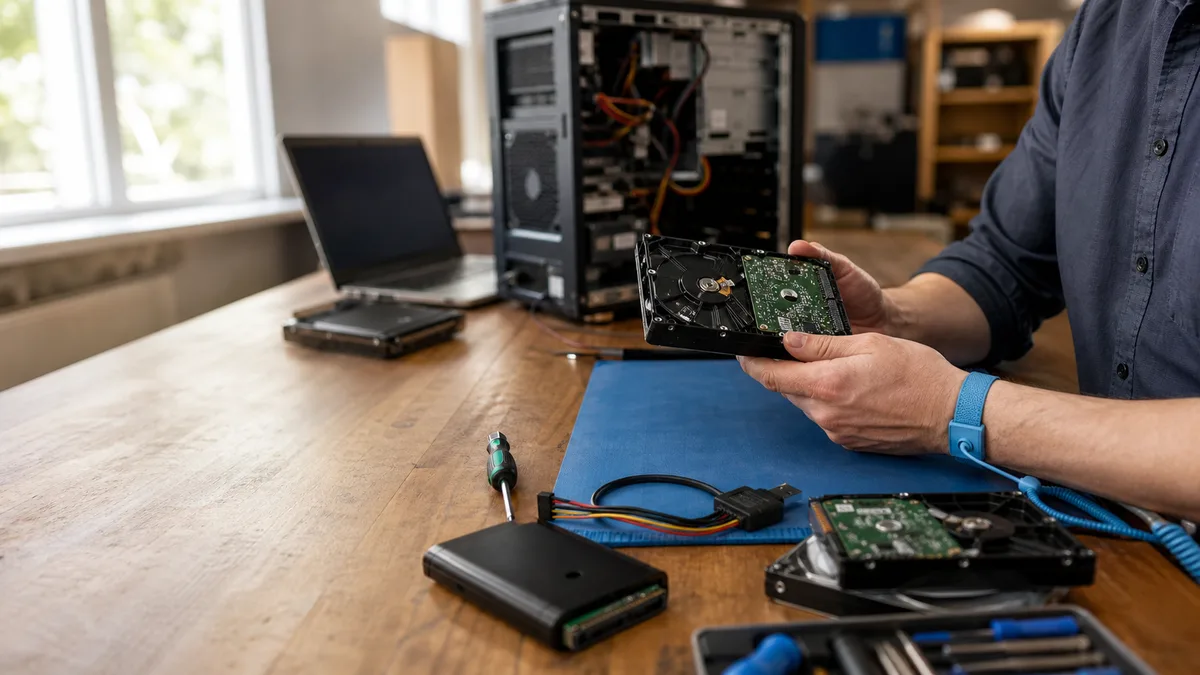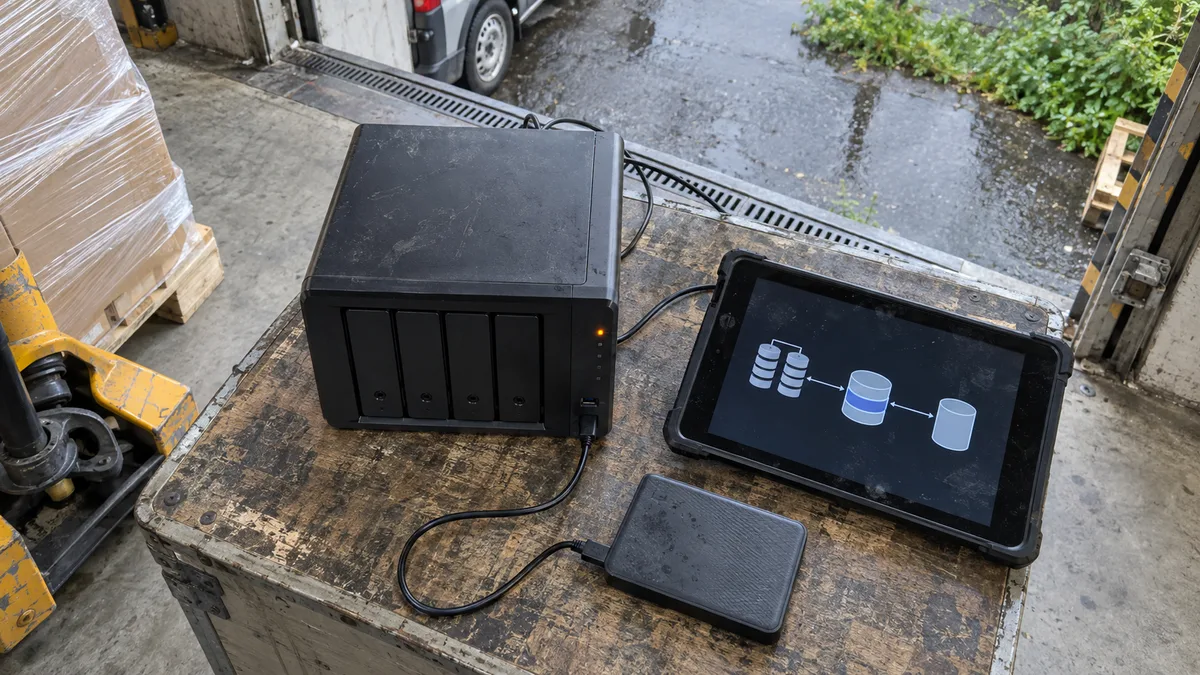
The short answer: Degraded means that a drive is missing or has failed, but the number of failures is still within the array’s tolerance. Error on a RAID group indicates a more serious problem with assembling the array, but it does not automatically mean the data has been erased. First stop unnecessary writes, photograph the current status, and verify your backup; do not start a rebuild or Recover RAID blindly. If the NAS can read data reliably, copy important files elsewhere. If you hear clicking or drives repeatedly disappear, shut the system down and arrange a diagnosis.
Where to take it
Array reconstruction from bit-for-bit copies is performed by the ITHOPE s.r.o. laboratory, which also operates Servis PC Brno, rather than at a general repair bench: QNAP NAS data recovery (ITHOPE).
What QNAP means by Degraded and Error
Distinguish between four things: the drive, RAID group, storage pool, and volume. A disk group error also affects the parent pool and volume, so the colour shown on the main overview is not enough on its own. In QTS, open Storage & Snapshots → Storage → Storage/Snapshots and view the details of the affected pool or static volume.
The following labels are based on the QTS 5.2.x documentation and may differ between versions. QuTS hero is built differently and works with pools and shared folders, so do not mechanically apply QTS volume procedures to it—check the terminology in the manual for your model.
| Status and where it appears | What it means | What not to do |
|---|---|---|
| Ready on both the RAID group and pool | The group, or all groups in the pool, is operating normally. | Do not treat this as a substitute for a backup. |
| Degraded on a group, Warning (Degraded) on a pool | One or more drives have failed, but the number of failures remains within the array’s tolerance. QTS does not have enough spare drives available to rebuild it. | Do not remove another drive based on guesswork. |
| Degraded (Rebuilding), Warning (Rebuilding) | The array is being rebuilt onto a replacement drive. | Do not interrupt it without good reason by disconnecting the power. |
| Error on a RAID group | The array is not normally accessible; one possible cause is that multiple drives were disconnected at the same time. | Do not try Recover RAID without knowing the cause. |
| Not active on a group | The number of failures has exceeded the array’s tolerance. | Do not initialise the drives or create a new array. |
| Warning (Read-Only) on a pool | A RAID group in the pool has the Not Active status. | Do not force writes. |
The QTS manual uses the label Not active for a group, while the recovery procedure works with the Error status. These are not five interchangeable labels for the same object—the exact message and where it appears both matter. For context across different brands, see the main article about RAID and NAS data recovery. If the NAS has simply disappeared from the network instead, look for a different cause, as described in NAS cannot be found on the network.
The first three steps before clicking anything
1. Minimise activity and preserve information
Pause backups to the affected NAS, file synchronisation, downloads, and any applications that write to the array. Do not delete anything “to free up space.” Photograph the pool, RAID group, and drive overviews, and note the NAS model, system version, bay numbers, and serial numbers.
Save any available error logs and write down what happened before the problem appeared. Whether the issue followed a power outage, drive removal, or a gradual increase in read errors determines what should happen next. Until the data is secured, we do not recommend updating the firmware, initialising anything, or forcing the array to assemble over SSH.
2. Check Disk Health, but do not run a surface test yet
In QTS 5.2.x, go to Storage & Snapshots → Storage → Disks/VJBOD → Disks, select a drive, and open Health. The Summary tab summarises the drive’s condition and the results of the latest scan and S.M.A.R.T. test. S.M.A.R.T. Information displays individual attributes, and an attribute’s status changes to Warning when its value reaches the manufacturer’s threshold. IronWolf Health Management provides an additional assessment that QTS offers only for hard drives, not for every type of storage medium in the NAS.
Compare the information for every member of the array, including reports of read errors or disconnections. A green S.M.A.R.T. status does not prove that a drive is faultless—individual values are explained in how to read a drive’s SMART data.
For suspect drives containing data that has not been backed up, make copies first instead of running a long S.M.A.R.T. test, bad-block scan, or scrub. This applies to data recovery; regular maintenance is entirely appropriate on a healthy NAS.
3. Decide whether to copy the data or shut down
If the NAS reads reliably, copy irreplaceable files to another device rather than moving them. Start with the highest-priority folders and verify that the copies can be opened. Another volume in the same affected pool is not a suitable destination.
If you hear clicking, drives repeatedly disappear, or read errors keep increasing, do not continue experimenting. If the NAS is responsive, shut it down properly and arrange a diagnosis. Repeated restarts are not a substitute for finding the fault.
When a rebuild makes sense—and when not to start one
A rebuild copies the required data onto a replacement drive so that the array can once again tolerate a failure. It is not a backup. Replacing a clearly failed member is often the correct solution—provided that the array remains within its failure tolerance, the other drives show no problems, and you have a verified backup. In QTS, a degraded group is rebuilt through Manage → Rebuild RAID Group, and the system requires suitable free drives already installed in the NAS.
Reconstruction must read the required data from the remaining members and write it to the replacement. With high-capacity drives, this puts a prolonged load on the very drives still holding the data. Another unreadable sector may complicate recovery, while another drive failure may exceed the array’s tolerance. It would not, however, be honest to derive a universal failure percentage from this risk.
Do not start a rebuild or forced resync if multiple members are reporting errors, you do not know the original array layout, an unclear replacement has already taken place, or this is the only copy of important data and the cause remains unknown. A resync is not a harmless test—it recalculates redundancy and writes data. Forcing an inconsistent array to assemble means working with corrupted data, while further writes alter the originals that may be needed for recovery.
If a rebuild is already running, do not remove drives or disconnect the power solely because of this article. Monitor the errors; if they increase, arrange a safe shutdown instead of continuing to experiment.
Recover RAID is not data recovery
For a group in the Error state, QTS 5.2.x offers the Recover RAID function: open Storage & Snapshots → Storage → Storage/Snapshots, select the inactive pool or volume, choose Manage, select the RAID group with the Error status, and then choose Manage → Recover RAID again.
The manual is unambiguous about this function’s purpose: it is intended to recover an array after a drive has been accidentally removed or a SATA connector has failed, and all drives must be returned to their original bays. It then adds a sentence worth reading twice: it cannot help if a drive has failed.
Therefore, if the fault is unclear or array members are damaged, do not use Recover RAID as a “maybe it will come back” experiment. The drives and the consistency of their metadata must be checked first. An inactive pool alone also says nothing about which files can be recovered.
The pool reports Read-Only
The QTS documentation defines Warning (Read-Only) plainly: it means that a RAID group in the pool has the Not Active status, so the number of failures has already exceeded the array’s tolerance. The fact that some data can still be read does not guarantee access to every file.
Do not confuse this with user write permissions or the Warning (Threshold Reached) and Warning (Space Low) messages, which concern used capacity and do not by themselves prove that any drives have failed. The exact message and the object on which it appears are what matter.
In this situation, we recommend copying any readable data to another device first, without replacing drives or forcing a file-system repair on the suspect originals.
How many drives can fail in RAID 1, 5, 6, and 10?
According to the QTS documentation, RAID 1 can tolerate one failed drive, RAID 5 also one, RAID 6 two, and RAID 10 one drive in each mirrored pair—not any arbitrary half of the drives. Two failures within the same pair are a critical problem.
These tolerances also assume that the required data on the remaining members can be read. RAID 6 with one failed drive is therefore not in the same position as RAID 5 with one failed drive, even though both arrays report Degraded. None of these tolerances is a reason to skip backups, as explained by the 3-2-1 backup rule.
What to prepare for the service and how recovery works
Arrange in advance whether you will hand over the complete NAS with its power supply or only the drives. Label each drive with the number of its original bay, not a newly chosen order. Prepare all original members, including any removed earlier, and provide information about an SSD cache or expansion unit. Do not replace anything else as a precaution before the handover.
Include screenshots of the reported statuses, a description of how the fault developed, a list of actions already taken, and your file priorities. For encrypted data, arrange a secure way to provide the password or key—do not put it in the job description.
During recovery, the readability of the media is assessed first. Depending on their condition, sector-by-sector images are then created with a record of unreadable areas. The array and file-system structure can subsequently be analysed using working copies instead of attempting further rebuilds on the originals. Recovered files must be saved to separate, healthy storage. A bit-for-bit image alone cannot resolve a mechanical fault or replace a missing encryption key.
For RAID and NAS systems, a straightforward assessment may be free, while more complex analysis is charged and the ITHOPE laboratory will quote the price in advance. The cost of recovery itself depends on the fault and scope; see the data recovery price list for terms.
Frequently asked questions
Can I keep using a QNAP in the Degraded state?
The data may still be accessible, but the array has less protection against another failure. Minimise writes and, if the NAS is reading reliably, copy important files elsewhere first. Stop normal operation if you hear clicking, drives disconnect, or read errors occur.
Should I click Recover RAID when the status is Error?
Not before identifying the cause. QNAP describes this recovery function as a solution for an accidentally removed drive or a faulty SATA connector and explicitly states that it cannot help when a drive has failed. If drives are damaged or the array layout is unclear, diagnosis and securing the data take priority.
Will replacing a drive help when the pool is Read-Only?
Usually not. According to the QTS documentation, Warning (Read-Only) means that a RAID group in the pool is already Not Active, so the number of failures has exceeded the array’s tolerance. Secure any readable data first instead of replacing drives.
How many drives can fail in a QNAP RAID 10?
The QTS documentation specifies a tolerance of one drive per mirrored pair. The array may survive multiple failures, but they must not affect both members of the same pair. A four-drive array therefore cannot be guaranteed to tolerate any arbitrary combination of two failed drives.
Should I bring in the entire QNAP or only the drives?
Arrange the handover first based on the symptoms. To assess both the NAS and its drives, it is useful to bring the complete device with its power supply and all original media, including drives already removed. If you bring only the drives, preserve their original bay labels.
Servis PC Brno does not perform data recovery. The condition of the QNAP and its individual drives will be assessed, and the next steps recommended, by the ITHOPE s.r.o. laboratory, which operates Servis PC Brno: QNAP NAS data recovery, or for arrays in general, RAID array data recovery. For urgent cases, call 775 556 063—24/7.
Sources
- QNAP QTS 5.2.x — RAID Group Status
- QNAP QTS 5.2.x — Storage Pool Status
- QNAP QTS 5.2.x — Recovering a RAID Group with an Error Status
- QNAP QTS 5.2.x — Recovering a RAID Group with a Degraded Status
- QNAP QTS 5.2.x — Disk Health
- QNAP QTS 5.2.x — RAID Types
- Linux Kernel documentation — MD (Multiple Device) driver
Rather not deal with it yourself?
Book a diagnosis in Brno — you get the price up front and we start only once you agree.
Where to find us
We are a PC and laptop repair shop in Brno-Židenice: diagnostics and repairs of computers and laptops, data recovery from drives, and out-of-warranty Apple repairs (iPhone 12 and newer, MacBook, iPad).
Viniční 3587/216, 615 00 Brno-Židenice, Czech Republic Mon–Fri 10:00–16:00
Call +420 774 777 774 Computer repair and laptop service in Brno
We put the repair price in writing after diagnostics and carry on only once you agree.