The short answer: A specification such as “512 GB SSD” tells you nothing about replaceability. Find the full model code (on the label underneath, in the technical data sheet, the machine type for Lenovo, or the year and A-number for Apple) — not just the product family name. Find the manufacturer’s service manual and verify three things: whether the SSD is listed as a separate replaceable component, how many M.2 connectors there are and how many are occupied by the supplied configuration, and which size, protocol, and key type the slot supports. The terms eMMC, eUFS, or soldered NAND mean that standard replacement is not possible. And “1× M.2” usually means replacing the installed drive, not having an additional free slot.
Why This Is Not a Question to Leave Until Later
With a desktop computer, the answer is trivial — open the case and count the ports. A laptop’s design, however, is fixed at the time of purchase and cannot be changed afterwards. Its storage may take one of three entirely different forms: a removable M.2 module in a connector, a single slot that is already occupied, or flash memory soldered directly to the motherboard.
For a business, this is not merely about getting a cheaper upgrade in two years. With a removable drive, a technician can separate the faulty module from the laptop, diagnose it independently, and connect a healthy drive to another computer. With soldered storage, the memory is part of the motherboard — if the power circuitry, controller, or another part of the logic board fails, repairing the board may be necessary just to access the data. And no one can guarantee the outcome of such a repair in advance.
Before placing an order, you therefore need three separate answers, not just one:
- Is the system storage removable or soldered?
- How many SSD slots does the laptop have in total, and how many will remain free after delivery?
- Which size, protocol, and key type does the slot support?
The Exact Model Code Matters, Not the Product Family Name
“Acer Aspire 5” or “Lenovo ThinkPad T14” is the marketing name of a product family that spans several years. The design varies by generation, full model code, and configuration for a particular market — including the exact features you need to know about.
One product family illustrates this clearly. LaptopMedia’s M.2 compatibility database lists the Acer Aspire 5 A515-56 as having a single 2280 slot with a PCIe NVMe 3.0 ×4 interface. The A515-57, however, is listed with two 2280 slots — one PCIe 4.0 ×4 and one PCIe 3.0 ×4. The same name on the lid, but different upgrade options. The older Acer Nitro 5 AN515-42 is listed in the same database as having no M.2 slot at all.
You can find the full code on the label underneath the laptop, in the retailer’s technical data sheet, or in the shopping cart for the exact configuration. For Lenovo, the machine type (MTM) is useful; for Apple, check the year and the A-number in the small print. Without this number, any answer about the available slots is only a guess.
The Service Manual Is the Only Reliable Source
A product page that merely says “M.2 SSD” is not enough. It describes the installed drive, not an available connector. Even a statement such as “supports up to 1 TB” does not prove a physical limitation — it may simply describe the configurations that the manufacturer offered or tested.
Enter the full model code and the phrase “service manual,” “hardware maintenance manual” (Lenovo), or “maintenance and service guide” (HP) into a search engine. In the document, look for the Storage, SSD, Removal and replacement, or Exploded view sections. Then follow these steps:
- Find the exact model and configuration, not just the commercial name.
- Check whether the SSD is listed as a separate component with its own part number — soldered storage does not appear as a separate spare part.
- Count the M.2 connectors and determine how many are already occupied in the offered configuration.
- Verify the module length, interface (SATA versus PCIe/NVMe), and supported key type.
- Only then choose a specific SSD or decide between the laptop’s available storage capacities.
If you are still unsure at this stage or do not have time to investigate, we can verify the design of the exact model for you — whether it is a laptop you are considering or one you already own, including whether buying a new drive makes sense or whether a different laptop would be the better choice.
M.2 Is Neither a Speed Rating nor a Guarantee of Replaceability
M.2 describes the module’s form factor and nothing more. The four digits specify its dimensions: the first two are its width in millimetres, and the remaining two are its length. An M.2 2242 module is therefore 22 mm wide and 42 mm long, while an M.2 2280 module measures 22 × 80 mm.
| Designation | Dimensions | Where You Will Find It |
|---|---|---|
| 2230 | 22 × 30 mm | Short modules in slim and compact devices |
| 2242 | 22 × 42 mm | Some ThinkPads, business HP laptops, and mini PCs such as Intel NUCs |
| 2260 | 22 × 60 mm | A less common intermediate length |
| 2280 | 22 × 80 mm | The most common laptop SSD format today |
After opening a laptop, you will often find mounting positions on the board marked 2230, 2242, 2260, or 2280 — the number beside the standoff hole indicates where a module of that length can be secured. The presence of the hole alone, however, does not confirm that the connector supports the correct protocol.
That is the second trap: M.2 drives of the same length may use either SATA or PCIe/NVMe and may have different notches, known as B, M, or B+M keys. All three parameters — length, protocol, and key — must match. A drive that physically fits into the slot may therefore still be electrically incompatible. The same principle applies to desktop computers, where it is further complicated by lanes shared with SATA ports; this is covered in adding a second drive to a computer and understanding M.2 slots.
One Slot Does Not Mean the Drive Is Soldered
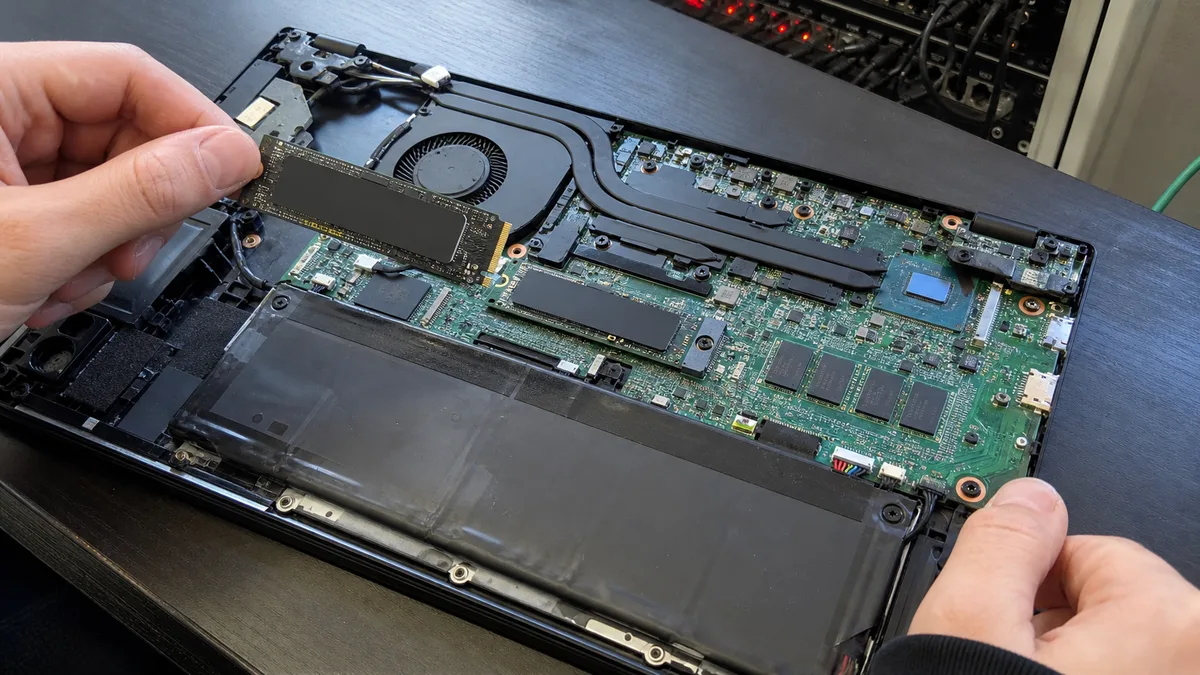
A laptop with a single M.2 slot can still be upgraded — provided the module is removable. You simply have to install the new drive instead of the original one, rather than alongside it. This requires cloning the drive through a USB adapter or restoring from a backup, as well as some downtime while the computer is inoperable.
| Design | Increasing Capacity | What Happens If It Fails |
|---|---|---|
| Two M.2 slots, one free | add a second drive | the faulty module can be removed and read independently |
| One occupied M.2 slot | replace the original drive | the faulty module can be replaced |
| Soldered storage + free M.2 slot | sometimes add another drive | the soldered system storage remains a risk |
| Only soldered eMMC, eUFS, or NAND | a standard upgrade is not possible | the entire board must be addressed, and recovery options are limited |
Before ordering anything, ask the seller to confirm in writing whether “1× M.2” means one connector in total or one additional free connector. A photograph of a different disassembled laptop from the same product family is not proof.
Capacity and speed are a matter of SSD replacement and RAM upgrade — if the particular model allows it. A related step is MacBook repair in Brno.
eMMC and eUFS: Storage You Cannot Remove
eMMC is mainly used in inexpensive laptops, Chromebooks, and tablets. It consists of flash memory and a controller soldered to the motherboard. By 2026, however, checking only for the abbreviation eMMC is no longer enough — eUFS also appears in slim laptops, including some configurations in the Samsung Galaxy Book4 Edge range. It is significantly faster than older eMMC, but from a repair perspective it has exactly the same drawback: it is soldered and cannot be replaced by the user.
Soldered storage is therefore not automatically slow. It does, however, have two consequences. First, if the capacity is too small, buying a larger module will not help because there is no module to replace. Second, if the storage physically fails, you cannot simply remove the drive. An external SSD can provide space for archives, but it cannot replace the system storage or allow the laptop to boot after that storage fails.
MacBook Air M1 and M2: NAND on the Logic Board
MacBook Air models with Apple Silicon M1 and M2 chips do not use an SSD module installed in a connector. Their NAND memory chips are soldered directly to the logic board. The iFixit teardown of model A2681 (the 13″ M2 MacBook Air from 2022) revealed a single NAND chip in the base 256GB configuration — the version with two chips could operate them in parallel and was therefore faster in testing.
The practical consequence is straightforward: you cannot remove this storage, place it in a USB enclosure, and read it on another Mac. When buying, choose a capacity that accounts for the machine’s entire planned lifespan. If a fault occurs, the board must be assessed first, and replacing the SSD in the same way as on a laptop with an M.2 drive is not an option — both are matters for MacBook servicing, where we diagnose the condition of the board.
What Soldered Storage Means for Business Data
A removable drive does not guarantee that data can be recovered. An SSD may fail, and an encrypted partition cannot be opened without the recovery key. Even so, it gives a technician one important additional option: the module can be separated from the faulty laptop and assessed independently, regardless of the condition of the rest of the machine.
That option disappears with soldered storage. If the power circuitry or a controller on the board fails, access to the data depends on whether the board can be repaired — and that can never be promised in advance.
Ask yourself one simple question: what would happen to your accounting records, email, and unfinished documents if the laptop failed to start tomorrow? If the answer depends on a single soldered chip, the problem is not storage capacity but the lack of a second copy. A practical approach that addresses this is described in the 3-2-1 backup rule.
The French Repairability Index as a Buying Filter
Since 1 January 2021, France has required laptops to display a repairability index on a scale from 0 to 10. It assesses documentation, ease of disassembly and access to components, required tools and fasteners, spare-part availability, and spare-part prices.
Treat the overall score as a comparison tool, not as confirmation that the SSD is replaceable — the score also incorporates components such as the battery and display. The detailed scoring sheet is more useful because it allows you to find the item covering access to storage. You can therefore compare two models with the same capacity using public information that is usually absent from Czech product pages.
Buying Checklist for a Small Business
Before placing an order, check the following for every candidate:
- the exact model, generation, and full configuration code;
- the system storage type — removable M.2 or eMMC/eUFS/soldered NAND;
- the total number of slots and the number that will remain free after delivery;
- supported dimensions, especially 2242 versus 2280;
- SATA versus PCIe/NVMe and the key type;
- the availability of a service manual or detailed repairability index;
- the existence of a current backup and a stored encryption recovery key.
If the laptop has only one removable slot, compare the surcharge for a higher factory-installed capacity with the cost of a later SSD plus system migration. If the storage is soldered, treat the selected internal capacity as final. And do not pay for a vague claim that “the SSD can be expanded” without first establishing whether a second drive can be added or the original one must be replaced.
If you already own the laptop and are simply planning an upgrade, do not buy an SSD based on the product family name. Disassembly and installation come with their own pitfalls — hidden screws, brittle plastic clips, and data cables that can tear before you even notice them; these are summarised in what to know before opening your laptop at home. At our service centre in Brno, we can verify the design and compatibility based on the exact model, replace the drive, and assess whether the system and data can be transferred without reinstalling, depending on the condition of the original storage — installation and cloning start at approximately 900 Kč plus the cost of the drive.
Order online: SSD replacement / RAM upgrade — tell us the model and what happens, and we will come back with the next step.
Rather not deal with it yourself?
Book a diagnosis in Brno — you get the price up front and we start only once you agree.
Where to find us
We are a PC and laptop repair shop in Brno-Židenice: diagnostics and repairs of computers and laptops, data recovery from drives, and out-of-warranty Apple repairs (iPhone 12 and newer, MacBook, iPad).
Viniční 3587/216, 615 00 Brno-Židenice, Czech Republic Mon–Fri 10:00–16:00
Call +420 774 777 774 Computer repair and laptop service in Brno
We put the repair price in writing after diagnostics and carry on only once you agree.