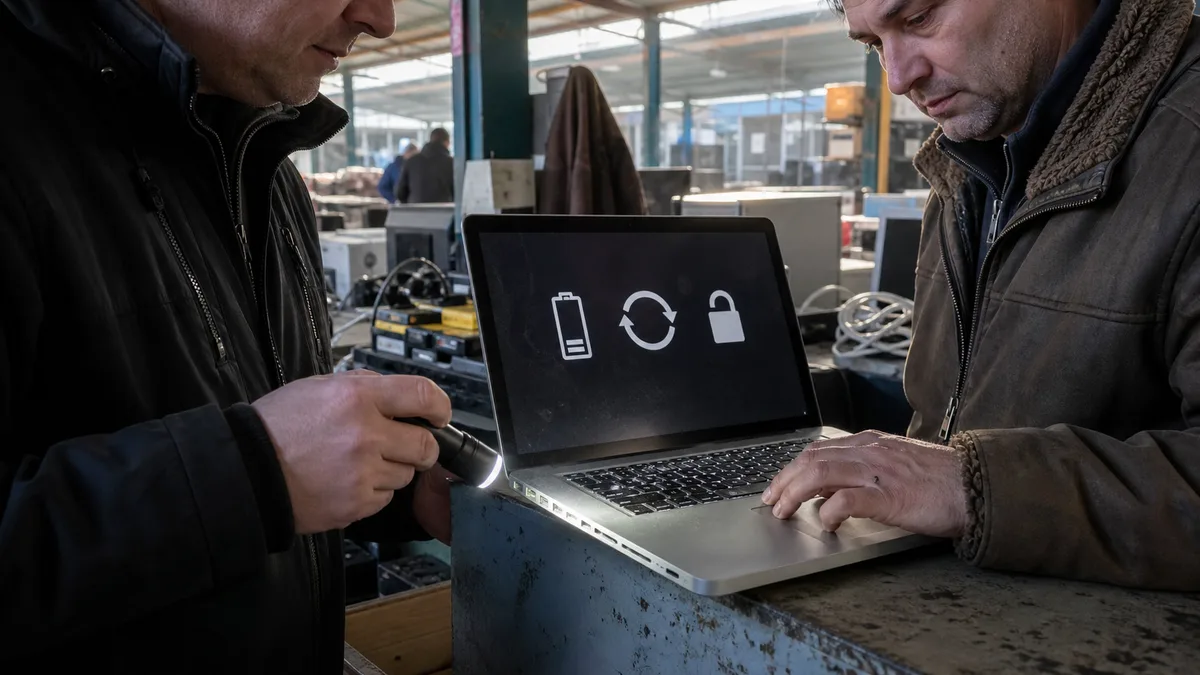
The short answer: Before suspecting the port, rule out the dock, adapter and cable by testing a direct connection. Try the same verified cable in every port and note what each port can do — charging, data transfer and video output must be tested separately. A loose connector, a port that becomes unusually hot or a liquid-detection alert are all reasons to stop testing. Never insert a metal tool into the port or spray cleaning products into it.
Start by isolating the accessories from the Mac
USB-C has one inconvenient characteristic: the same connector carries power, data and video, but not every cable or port supports all three. A faulty cable can therefore look like a faulty port, and vice versa.
- Disconnect the dock, hub, adapter and extension cable, then connect the device directly to the MacBook.
- Take a cable you know works and use it to test each port separately.
- Test charging, data transfer and video output separately. A cable that charges a MacBook may not carry data or video.
- Test the same cable and device with another computer — this isolates the accessory from the Mac.
- Write down what worked in each port. “The rear-left port charges but does not detect the drive, while the right port does nothing” is far more valuable to a technician than “USB-C is acting up.”
Video output has its own rules, covered in our article about connecting an external monitor over USB-C or HDMI. Charging itself, low-power adapter warnings and MagSafe are discussed in MacBook Not Charging over USB-C or MagSafe — this article focuses primarily on the port’s physical condition and data functionality.
Not every port supports the same features
Many cases of a “port not working” are actually model limitations. Apple distinguishes between the types of ports found on Macs and lists the specific models for each:
| MacBook family | Port type according to Apple |
|---|---|
| Intel-based MacBook Air (2018–2020) | Thunderbolt 3 |
| MacBook Air from 2020 to 2024 (M1, M2, M3) | Thunderbolt / USB 4 |
| MacBook Air from 2025 onward | Thunderbolt 4 |
| Intel-based MacBook Pro (2016–2020) | Thunderbolt 3 |
| 13-inch MacBook Pro with M1 (2020) or M2 (2022) | Thunderbolt / USB 4 |
| 14-inch MacBook Pro with M3 (2023) | Thunderbolt / USB 4 |
| 14-inch and 16-inch MacBook Pro from 2021 onward | Thunderbolt 4; from 2024, Thunderbolt 5 on the 16-inch model and on 14-inch models with a Pro or Max series chip |
| MacBook Neo | two USB-C ports, each with a different role |
On the MacBook Neo, it is worth noting that the ports are not equivalent: Apple designates the right-hand port for USB 2 devices and the left-hand port for displays or USB 3 devices. Both ports support charging. A device failing to work in one port does not necessarily indicate a fault — the port may simply not be intended for that purpose. Similarly, among MacBooks, only the 14-inch and 16-inch MacBook Pro models from 2021 onward have an HDMI port.
MagSafe 3 or USB-C only
Understanding the difference helps before you start looking for the culprit. Apple states that MagSafe 3 is used to charge MacBook Pro models from 2021 onward, except for the 13-inch MacBook Pro with the M2 chip from 2022, as well as MacBook Air models from 2022 onward. The port is on the left-hand side near the Esc key.
The MacBook Air with M1 (2020) and the 13-inch MacBook Pro with M2 (2022) are not on this list — power, data and video all travel through their USB-C ports. A damaged port on these models can therefore disable several functions at once, so each function needs to be tested thoroughly. Conversely, on models with MagSafe 3, successful charging tells you nothing about the data functionality of the USB-C ports. One common myth is also worth correcting: Apple states that a Mac always charges through only one port and uses the highest-wattage power source, so connecting two chargers will neither speed up charging nor prove anything.
Liquid-detection alerts
On MacBook Neo, MacBook Air models with the M3 chip or later, and MacBook Pro models with M3 Pro and M3 Max chips or later, macOS Sequoia and newer may display a liquid-detection alert after a USB-C cable or accessory is connected. According to Apple, the MacBook Neo may also display a “Charging Not Available” message until the port, both ends of the cable and the accessory have dried.
Apple recommends a clear procedure: disconnect the cable and accessory, immediately shut down the Mac and unplug it from power, wait at least one day, and only then visually check whether the port is dry. If the alert reappears, leave the Mac to dry for another day in a dry, well-ventilated place. According to Apple, charging with a wet connector can corrode the pins and cause permanent damage. Do not use an external heat source or compressed air, insert cotton swabs or paper towels into the port, or place the Mac in a bag of rice. If the alert appears every time you use one particular cable or accessory, that item may be damaged.
Dirt and cleaning
A clogged port can behave like a damaged one — the connector may not seat fully, may work only at an angle or may disconnect when moved. When troubleshooting charging problems, Apple explicitly recommends checking that the USB-C ports are clean and, if necessary, blowing them out with compressed air. This is also the only form of mechanical cleaning that makes sense to attempt at home. Do not use metal tools, pins or needles, spray cleaning products into the port, or use solvents. Apple’s MacBook cleaning guidance warns against allowing moisture into any openings and says never to spray liquid directly onto the computer. A metal object can also short the contacts inside the port and turn a minor problem into a logic-board repair.
When the port gets hot or feels loose
A slight increase in temperature during charging or data transfer is normal. However, significant heating of one specific port, discoloration around the connector, an unusual smell or crackling are reasons to disconnect everything immediately and stop testing. The same applies if the connector feels loose in the port, can only be inserted partially or maintains a connection only in a certain position — repeatedly inserting it will usually make the damage worse.
Whether the repair involves replacing a separate connector assembly or working directly on the logic board varies from one device to another and can only be determined after inspection. A torn-out port may also damage the surrounding connections, and the scope of the repair depends on what remains underneath it. No reputable repair shop will therefore promise a specific repair method over the phone — a reliable quotation follows diagnostics and specifies the exact model, findings, proposed repair and post-repair testing procedure. For broader context, see our overview of MacBook repairs in Brno.
Decision table
| What the MacBook does | What to check first | When to stop testing |
|---|---|---|
| one port does nothing while the others work | use the same verified cable in every port, without a dock | the connector feels loose or the port gets hot |
| the port charges but does not detect a drive or monitor | try another cable that supports data and video, and another device | the difference persists with verified accessories |
| the connector works only in a certain position | check for dirt and physical damage to the connector | the contacts are visibly bent |
| a liquid-detection message appears | disconnect everything, shut down and leave it to dry for one day | the message returns after drying |
| an unsupported-accessory alert appears | try another cable and accessory, and check that the port is clean | the alert appears with no accessory connected |
| the port becomes unusually hot | immediately disconnect the power supply and all accessories | immediately — do not continue testing |
What to bring to the repair shop
Bring the MacBook and every cable, adapter and dock used when the problem occurs — without them, the connection cannot be verified. Provide the exact model and year, or the A-number from the bottom case, and most importantly a map of the ports: what each port can do and which cable you used to test it. Mention whether the problem followed a fall, a cable being pulled, a spill or a liquid-detection alert. If the computer still works, make a backup. Storage in newer MacBooks is soldered and encrypted, so a hardware repair does not guarantee that your data will be preserved, and this service does not include data recovery. Do not provide your password or Apple Account credentials for the initial hardware assessment.
Servis PC Brno provides pilot out-of-warranty diagnostics for MacBooks and is not an Apple Authorized Service Provider; the scope of the work, part option and price can only be determined from the model and diagnostic findings. If the device is under warranty or covered by a manufacturer programme, contact the retailer or Apple first.
If the port gets hot, the connector feels loose or the liquid-detection alert returns after drying, have the MacBook assessed before connecting it again. Arrange an inspection through Apple Repair Brno, the booking form or by calling 774 777 774. In the description, state the model, which ports do not work and which accessories trigger the problem.
Sources
- Apple: Identify the ports on your Mac
- Apple: Charge your Mac laptop
- Apple: If you see a liquid-detection alert on your MacBook Neo, MacBook Air or MacBook Pro
- Apple: If your USB-C power adapter is not charging your Mac laptop
- Apple: If you see an “Accessory may not be supported” alert on your Apple device
- Apple: How to clean your Apple products
Rather not deal with it yourself?
Book a diagnosis in Brno — you get the price up front and we start only once you agree.
Where to find us
We are a PC and laptop repair shop in Brno-Židenice: diagnostics and repairs of computers and laptops, data recovery from drives, and out-of-warranty Apple repairs (iPhone 12 and newer, MacBook, iPad).
Viniční 3587/216, 615 00 Brno-Židenice, Czech Republic Mon–Fri 10:00–16:00
Call +420 774 777 774 Computer repair and laptop service in Brno
We put the repair price in writing after diagnostics and carry on only once you agree.


