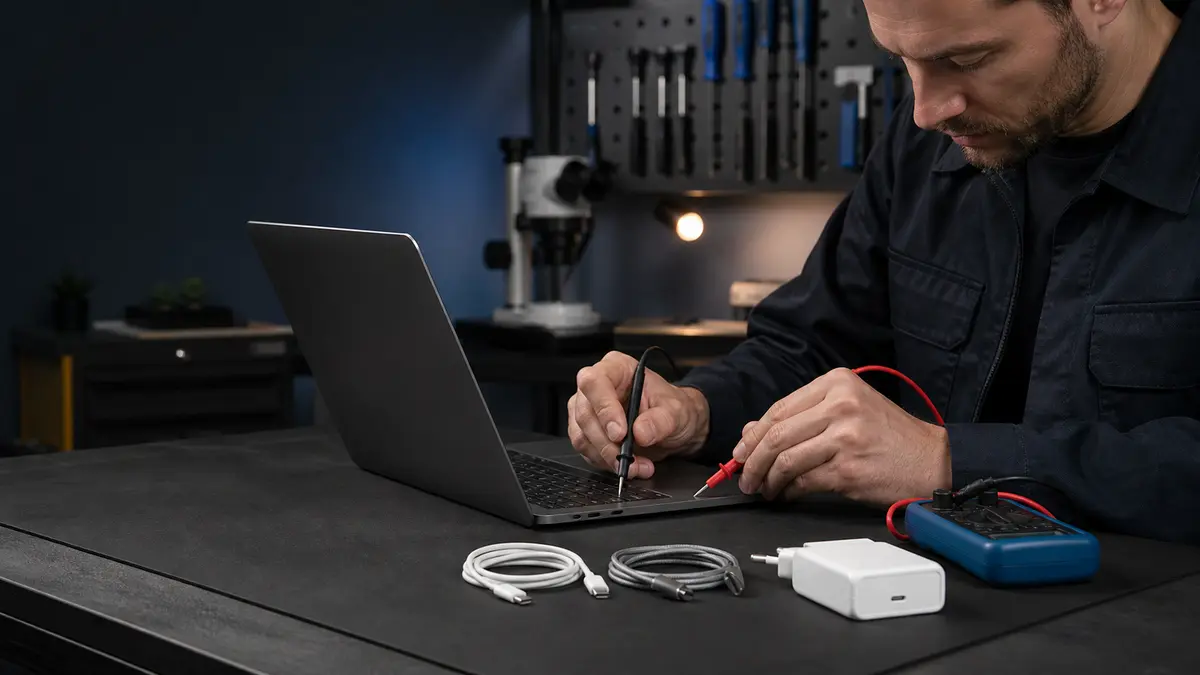
The short answer: Do not order a new battery just because the menu says “Not Charging.” First, try another wall outlet, the correct adapter for your exact model, a known-good cable, and every supported charging port. A MacBook may run from its adapter without charging the battery because of temperature, managed charging, or an underpowered power source; in other cases, the cable, connector, battery, or a power circuit on the logic board may be faulty.
Change only one part of the charging path at a time
Prepare the charger that normally worked with the computer and, if possible, a second known-good compatible setup. Then proceed in this order:
- Plug the adapter directly into another wall outlet.
- Inspect the connectors and the full length of the cable, paying particular attention to the areas near each end.
- With USB‑C, try another cable rated for the required charging power, not one designed only for data transfer.
- On a MacBook with multiple supported charging ports, test each one separately.
- Disconnect any dock, monitor, or hub and connect the power adapter directly.
- Shut down the Mac, leave it disconnected for a while, and repeat the test.
An adapter’s power rating cannot be determined simply by the fact that it “has USB‑C.” A MacBook Air and a large MacBook Pro may use the same connector shape but require power supplies with different ratings. You can find the exact model in About This Mac or by using the serial number, then confirm the appropriate adapter in Apple’s documentation.
What the MagSafe light means
With MagSafe 3, an amber light indicates that charging is in progress, while a green light indicates a full charge. An unlit LED alone cannot tell you whether the cable, adapter, port, or Mac is faulty. For charging problems, Apple recommends unplugging the adapter from the wall outlet, wiping the MagSafe connector and port with a dry cloth, checking for debris, and trying another outlet.
Do not insert metal objects into the magnetic port. A metal shaving caught in the connector can bridge its contacts. Stop using any cable with scorch marks, melted plastic, or a loose connector.
“Not Charging” may indicate protection, not a fault
macOS can temporarily pause charging to help extend battery life. The system may also restrict charging when the temperature is too high or too low. Let the laptop return to normal room temperature, then check its status again under System Settings → Battery.
A low-power adapter warning is a different situation. The Mac may be drawing some power from the adapter, but under heavy load it can consume more than the adapter supplies. The battery percentage may then remain unchanged or decrease even though the cable is connected. This does not automatically mean the battery is faulty—verify that the power adapter and cable are suitable for the specific model.
When to suspect the battery and when to suspect the port
The battery is a more likely cause if the MacBook shuts down with tens of percent remaining, the reported charge level jumps unexpectedly, the battery status recommends service, or the trackpad and bottom case begin to lift. If you notice any deformation, stop charging the device and do not press on it. For more details, see our article on when to replace a MacBook battery.
Suspect the port or nearby components if the same charging setup works in only one MacBook port, the connector works only when held at an angle, or there is visible mechanical damage. On some models, the USB‑C port is a relatively separate component; on others, the repair may involve a larger assembly. Without the exact model, it is impossible to promise a price or repair method.
If every port fails with a known-good adapter and cable, the next step is to measure the power circuitry and test the battery and logic board. Repeatedly connecting random high-powered chargers will not repair this type of fault.
Intel Macs and Apple silicon Macs reset differently
On older Intel-based MacBooks, resetting the SMC may help with certain power-related problems. The exact key combination depends on whether the computer has a T2 security chip and whether its battery is removable, so follow Apple’s instructions for the specific model. MacBooks with Apple silicon do not have a separate SMC reset. Apple recommends shutting the computer down normally, closing the lid, waiting briefly, and turning it back on.
A reset cannot repair a damaged port, cable, or swollen battery. It is worth trying only after ruling out the power source and only when the symptom appeared without a fall, liquid exposure, or physical deformation. Blindly trying various keyboard shortcuts found online is more likely to obscure the diagnosis.
Troubleshooting table
| What the MacBook does | What to check first | When to stop testing |
|---|---|---|
| responds through only one USB‑C port | test the same cable in every supported port | the port is loose or becomes hot |
| runs from the adapter, but the battery percentage does not increase | correct adapter wattage, cable, temperature, and optimized charging | the battery recommends service or begins to deform |
| MagSafe light goes out when the cable moves | debris, the cable, and the magnetic port | scorch marks, a damaged contact, or sparking |
| does not respond at all when connected | another outlet, a known-good charging setup, and a full shutdown | liquid exposure, odor, or significant heat |
| charges through a hub but not directly, or vice versa | remove the hub completely and test a direct connection | the difference persists with known-good accessories |
Write down these results. For a technician, “the rear-left USB‑C port works with two cables, but the right port does not” is far more useful than “the charger sometimes acts up.”
For USB‑C, also test data connectivity and video output separately if the port supports them. Charging may still work through a connector with damaged high-speed contacts; conversely, a faulty cable may transfer data but fail to carry the required power. A test result from a single dock therefore cannot automatically be attributed to the MacBook itself—always remove the hub from the charging path before diagnosis.
Safety limits
Stop charging if the adapter, cable, or port smells, crackles, has scorch marks, or becomes unusually hot. After a liquid spill, shut down the MacBook and do not reconnect the charger just to test it. A raised trackpad or a bottom case that no longer sits flush suggests a swollen battery; it is not a reason to tighten the screws.
Do not insert metal tools into USB‑C or MagSafe ports, and do not clean them with liquid. Surface dust can be removed while the device is shut down and disconnected; a mechanically damaged contact requires professional service.
What to bring to the repair shop
Bring the MacBook, adapter, and cable used when the problem occurs. Note whether the fault changes under load and which port is affected. If the computer still works, create and verify a backup. Newer MacBooks have soldered, encrypted internal storage, so data may become inaccessible if the logic board is damaged beyond repair. We explain the full context in our overview of MacBook repairs in Brno.
What a quote can tell you before the repair begins
A reputable quote should not begin with an automatic battery replacement. It should identify the exact model, the measured fault, the proposed part, and the post-repair test. For a port repair, ask whether the separate connector assembly, the entire port board, or the logic board will be repaired or replaced. For a battery replacement, ask about the part’s origin and what macOS will display after installation.
Be cautious with vague terms such as “original quality” and “OEM.” They do not identify the manufacturer or tell you whether the part is new. The quote should distinguish between a new genuine part, a used genuine part, and a compatible replacement. The warranty on the work and the procedure for handling any additional fault discovered during the repair are equally important.
After the repair, ask to see stable charging with both your own adapter and the repair shop’s known-good setup. The battery percentage should increase, the port should not react to cable movement, and System Information should report the correct battery and power status. If the problem occurred only under heavy load, the test should include a brief workload rather than merely checking for the lightning-bolt icon.
Servis PC Brno provides post-warranty MacBook diagnostics in a pilot program. We are not an Apple Authorized Service Provider, and we refer warranty cases to the authorized service network. Arrange diagnostics through our Apple service page; you will receive a price after we identify the model and fault, without any promise of a while-you-wait repair. You do not need to provide your password or Apple Account credentials.
Sources
- Apple: If your Mac battery won’t charge
- Apple: Identify your Mac power adapter
- Apple: Battery health management on Mac laptops with Apple silicon
Rather not deal with it yourself?
Book a diagnosis in Brno — you get the price up front and we start only once you agree.
Where to find us
We are a PC and laptop repair shop in Brno-Židenice: diagnostics and repairs of computers and laptops, data recovery from drives, and out-of-warranty Apple repairs (iPhone 12 and newer, MacBook, iPad).
Viniční 3587/216, 615 00 Brno-Židenice, Czech Republic Mon–Fri 10:00–16:00
Call +420 774 777 774 Computer repair and laptop service in Brno
We put the repair price in writing after diagnostics and carry on only once you agree.


