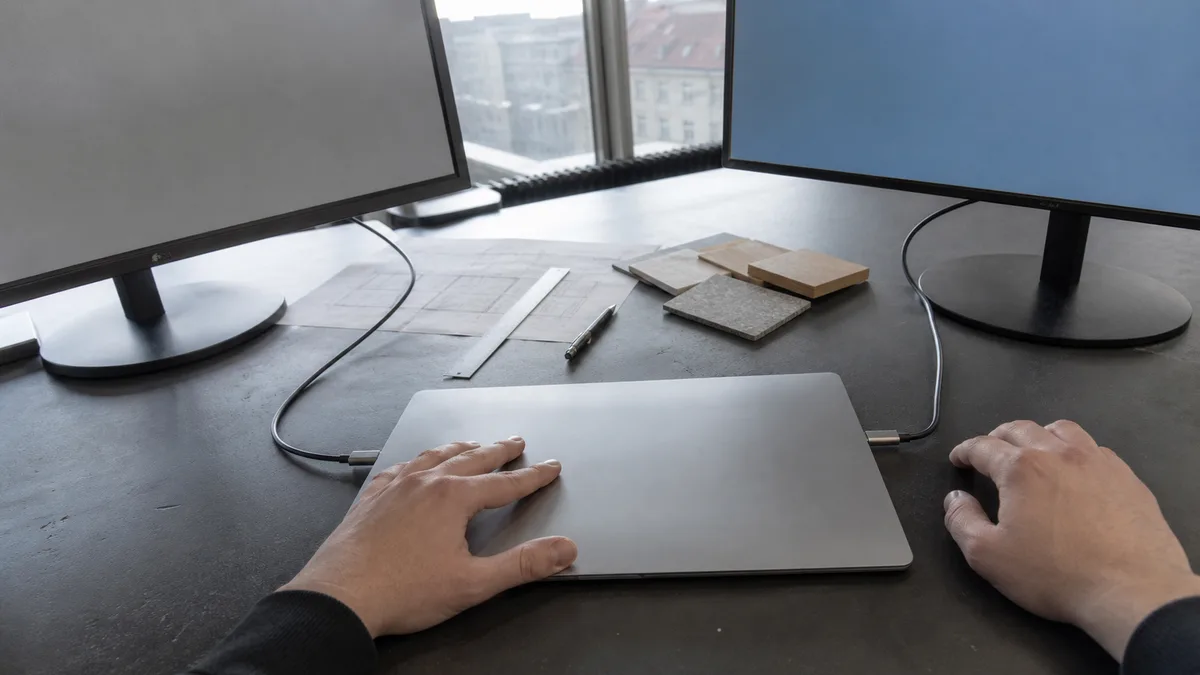
The short answer: Select the correct input on the monitor, disconnect the dock, and connect a known compatible cable or adapter directly to the MacBook. Confirm that your exact model and chip support the required number of monitors and resolution — base M-series chips have a lower limit than 14” and 16” MacBook Pro models. Try another supported port. Whether the external display works or not does not, by itself, identify a specific faulty component.
First check what your model actually supports
Many cases where a “MacBook cannot detect a monitor” are caused by model limitations rather than a fault. The number of supported external displays, maximum resolution, and refresh rate are determined by the chip and model, not the laptop’s screen size. Base M-series chips have a lower limit than 14” and 16” MacBook Pro models with Pro and Max series chips, while some models have special requirements, such as supporting a second display only when the lid is closed. Apple’s page on connecting displays lists the exact specifications for your model (see sources).
Another common trap is the port. Among recent MacBooks, only the 14” and 16” MacBook Pro (2021 and later) has a built-in HDMI port. The 13” and 15” MacBook Pro with Touch Bar (2016–2019), the 13” MacBook Pro with an M1 or M2 chip, and all MacBook Air models with Apple silicon have only USB-C / Thunderbolt ports. Connecting an HDMI monitor therefore requires an adapter or dock — and that is often the weakest link.
Identify the exact model and chip
- On a working Mac: open the Apple menu → About This Mac. You will see the model, year, and chip.
- For more details: hold Option and select System Information from the Apple menu.
- The model number beginning with the letter A is engraved on the bottom case and is usually also printed on the packaging and receipt.
The display output capabilities genuinely differ between these model families:
- MacBook Air with an Intel processor (up to 2020) and MacBook Air with Apple silicon — M1 (2020), M2 (2022 and 2023), M3 (2024).
- 13” and 15” MacBook Pro with Touch Bar (2016–2019) and 16” Intel (2019).
- 13” MacBook Pro with an M1 chip (2020) or M2 chip (2022).
- 14” and 16” MacBook Pro (2021 and later) with Pro and Max series chips.
You can identify the generation of your Mac using Apple’s “Identify your MacBook Pro model” and “Identify your MacBook Air model” pages, or its page explaining how to find a Mac’s model name and serial number (see sources).
Cable, adapter, and monitor input
Manually select the correct HDMI, DisplayPort, or USB-C input on the monitor — automatic input selection fails surprisingly often. Then follow one simple rule: change only one component at a time and test using a short, known working connection path.
- A cable that charges your MacBook may not carry video. Inexpensive USB-C cables are often designed only for charging or data transfer.
- Remove the dock, hub, and any chain of adapters entirely; connect the monitor directly to the MacBook.
- Try another supported port on the MacBook and another input on the monitor.
- Test the same setup with another computer, or connect another monitor using the same cable — this helps determine whether the issue lies with the monitor or the laptop.
- Stop using any damaged, hot, or loose connector.
What to check in macOS
With the monitor connected, open System Settings → Displays. Check whether mirroring is enabled or whether the selected resolution is unsupported by the monitor. Depending on your macOS version, use the option to detect displays; in some versions, the button appears after you hold the Option key. Restarting the Mac once with the monitor connected may also help.
Do not install random drivers. Software for a dock or adapter is relevant only if its manufacturer explicitly confirms compatibility with your model and version of macOS. Update the system only on a stable Mac and after creating a backup.
When the picture disappears after a while
A monitor that initially works but goes blank, flickers, or disconnects after several minutes or hours — or when the Mac wakes from sleep — is a different case. Note whether the problem is linked to the dock, a particular cable, a specific resolution and refresh rate, or the sleep and wake cycle. An intermittent picture caused by operating near the connection’s specification limit, such as high resolution at a high refresh rate through an adapter, behaves differently from a permanently dead output and requires a different approach.
What an external monitor does not prove
An external display can help distinguish between some scenarios, but it does not by itself prove that the built-in panel, display cable, or logic board is faulty. Similarly, a “no signal” message does not automatically mean that the USB-C port is defective — the cause could be the cable, adapter, monitor input, or a limitation of the MacBook model. The basic power test is covered in a separate article, MacBook is not charging; if the same port also fails to charge the MacBook, start there.
When to stop troubleshooting
Stop testing if the connector is visibly damaged, loose, scorched, or unusually hot, if liquid has been spilled on the MacBook, if you notice an unusual smell, or if the problem started after a fall. Inserting objects into the port, cleaning it with metal tools, or spraying cleaning products inside will not help and often leads to a more expensive repair.
What to bring to the repair shop
- The MacBook and the cable, adapter, and dock used when the problem occurs — without them, the connection between the accessories and the fault cannot be verified.
- The monitor, or at least its exact model number and the input being used.
- The exact MacBook model and year, or the model number from the bottom case.
- A description of whether the output never worked, stopped working suddenly, or fails only after some time.
Do not send your Apple Account password through a form or by email. Hardware repair does not guarantee that your data will be preserved or recovered, and we do not provide data recovery as part of this service.
What a fair repair quote should include
A quote should be provided only after inspection and should include a description of the findings, the exact model, the proposed repair, the type and origin of the replacement part, the scope of work, the post-repair testing procedure, and the repair warranty. The price should be approved in advance, not when you collect the device. Reversing this order is a warning sign — for example, being told over the phone that “we will replace the port” or “it will be the logic board” before anyone has inspected the setup. Post-repair testing should verify video output through every affected port, not just one connection.
What the repair shop will check
The repair shop will verify the exact model, supported outputs, known working cables, each individual port, and the Mac’s behavior in macOS, then compare the results with the dock and accessories disconnected. Only then does it make sense to propose a repair. We are an independent out-of-warranty repair shop, not an Apple Authorized Service Provider; if the device is under warranty or covered by a manufacturer programme, contact the retailer or Apple first. We do not promise a specific part, price, or completion date in advance.
For a broader overview, see our MacBook repair guide and laptop repair page. You can arrange diagnostics through Apple repair service in Brno, the booking form, or by calling 774 777 774.
Sources
- Apple: connect displays to a Mac
- Apple: if your Mac battery will not charge
- Apple: identify your Mac model
- Apple: identify your MacBook Pro model
- Apple: identify your MacBook Air model
Rather not deal with it yourself?
Book a diagnosis in Brno — you get the price up front and we start only once you agree.
Where to find us
We are a PC and laptop repair shop in Brno-Židenice: diagnostics and repairs of computers and laptops, data recovery from drives, and out-of-warranty Apple repairs (iPhone 12 and newer, MacBook, iPad).
Viniční 3587/216, 615 00 Brno-Židenice, Czech Republic Mon–Fri 10:00–16:00
Call +420 774 777 774 Computer repair and laptop service in Brno
We put the repair price in writing after diagnostics and carry on only once you agree.


