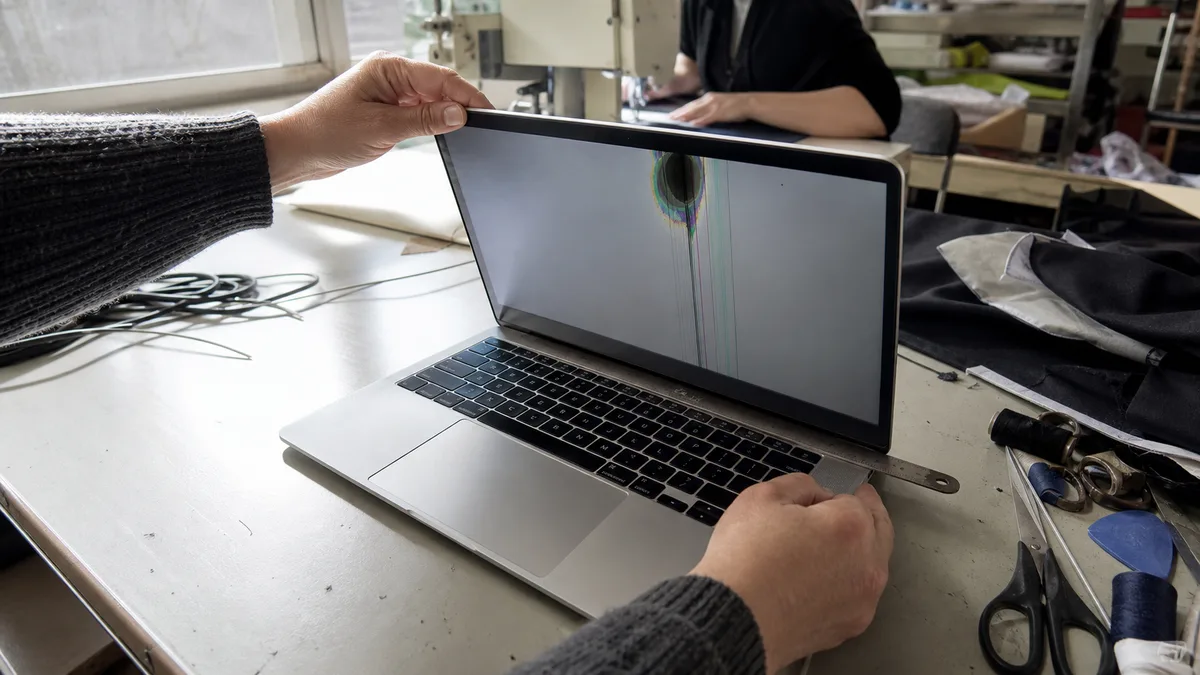
The short answer: A line, a spot, and flickering are not the same fault. Before letting anyone reach for a screwdriver, perform three inexpensive tests: take a screenshot, sign in as another user or start in safe mode, and connect an external monitor. These tests separate problems where “the image is rendered incorrectly” from those where “the image is displayed incorrectly” — the boundary between a logic board repair and a display repair.
Lines, spots, and flickering are not the same fault
Sharp vertical or horizontal lines running across the entire image and looking the same on the desktop and in macOS Recovery usually originate in the panel or its connection. A blurred dark or rainbow-colored spot that grows over several days indicates a mechanically damaged panel — typically caused by pressure on the lid or by closing the laptop with a cable or earphones left on the keyboard.
Flickering across the entire screen is less clear-cut: the backlight, a display controller on the logic board, or software could be responsible. An uneven glow along the bottom edge that changes with the angle of the lid is a separate category.
Make a note of what happened before the symptom appeared: a fall, closing the laptop with an object inside, a liquid spill, a macOS update, a replaced component, or extreme heat inside a car. The repair technician will use this information to determine the order of the tests.
Three tests that narrow down the fault in five minutes
- Screenshot. Press Shift-Command-3 and inspect the resulting image. If the artifact appears in the screenshot, the image itself is already being rendered incorrectly — pointing to the graphics hardware, memory, or software. If the screenshot is clean but the artifact is visible on the display, the panel and its cabling should be investigated next.
- Another user and safe mode. Sign in to another account or create a new test account. Then try safe mode — on a Mac with Apple silicon, hold the power button until the startup options appear, select the volume, hold Shift, and click Continue in Safe Mode; on an Intel-based Mac, hold Shift immediately after turning it on. If the artifact disappears in safe mode, the problem is software rather than the panel.
- The image before sign-in. Watch the startup logo and login window. A fault already visible at this stage is far more likely to be hardware-related than one that appears only after the desktop loads.
If these tests are inconclusive, run Apple Diagnostics — on a Mac with Apple silicon, launch it from the startup options by pressing Command-D; on an Intel-based Mac, press D during startup. The findings are only indicative, but it is useful to record any displayed code.
The external monitor as referee — and what it cannot prove
Connect an external monitor via USB-C or HDMI. A clean image on the external monitor strongly suggests that the Mac is rendering the image correctly and that the problem lies along the path to the internal panel. Bear two points in mind, however: an external monitor does not prove that the graphics hardware is fault-free, as the issue may affect only the internal display channel, and it cannot distinguish the panel from its cable. If the artifact is also visible externally, there is no point in sourcing a replacement panel.
Decision table
| What you see | Likely cause | Safe next step |
|---|---|---|
| sharp lines also visible in the screenshot | the image is being rendered incorrectly inside the Mac | test with an external monitor, logic board diagnostics |
| lines on the display, clean screenshot | panel or its connection | avoid repeatedly opening and closing the lid; take it in for repair |
| blurred spot growing over several days | mechanically damaged panel | stop applying pressure to the lid; replace the panel |
| entire screen flickers only in macOS | software, color profile, or drivers | try another user and safe mode |
| flickering also occurs in Recovery and during startup | backlight or logic board | have it diagnosed; do not keep trying random fixes |
| bright bands at the bottom when the lid is slightly open | lid backlight cabling | have it assessed before the backlight fails completely |
| a few bright or dark dots | possible panel pixel anomaly | assess based on their number and location |
Issues associated with specific models
The 13″ MacBook Pro from 2016 and 2017 (both Touch Bar and non-Touch Bar versions) is a typical candidate for display cable problems. The symptoms are distinctive: with the lid partly closed, uneven bright bands appear along the bottom edge, resembling stage lights shining down from above; when the lid is opened fully, the backlight starts to fade or goes out completely. This is a known design issue documented by the specialist press. The image itself often continues to work but is no longer visible. If you recognize these symptoms on your Mac, do not try to “work it loose” by repeatedly opening the lid — the transitional stage is often brief.
MacBook Air M1 (2020), M2 (2022), and M3 (2024) models and 14″ and 16″ MacBook Pro models from 2021 onward have thin lids that can be damaged by surprisingly little pressure. Most spots and black areas we see on these models result from closing the laptop with an object on the keyboard or from pressure inside a backpack.
Bright and dark dots should be assessed separately. Apple has a dedicated document about LCD pixel anomalies and notes that, in many cases, the cause is a speck of dust or another foreign particle inside the display rather than a defective transistor. The difference between “one dot” and “a cluster of dots” determines whether replacement is worth considering.
When to stop testing
If the display repeatedly brightens and goes dark, if the number of artifacts increases within hours, or if the Mac wakes to a black screen after the lid is closed, further experiments will reveal nothing and may make the fault worse. The same applies after a liquid spill — the steps must be performed in a different order, and time is against you; see liquid spilled on a MacBook.
If the MacBook displays no image at all and does not respond when you try to turn it on, address the startup problem first: MacBook will not turn on.
What to bring to the repair shop
Provide the exact model and year, or the A-number from the bottom case, together with a description of the symptom and the conditions under which it occurs: the lid angle, how long the Mac has been running, whether the problem is visible in a screenshot, and what happened when you connected an external monitor. Take a photo or short video — flickering may not appear on demand at the repair shop. Bring the power adapter and cable you normally use. Do not provide your password or Apple Account credentials for the initial hardware assessment.
Servis PC Brno provides out-of-warranty MacBook diagnostics on a pilot basis and is not an Apple Authorized Service Provider; the scope of work, part option, and price can only be determined after the model and fault have been identified. If the device is under warranty or covered by a manufacturer service program, contact the retailer or Apple first. An overview of other common faults is available in our article about MacBook repair in Brno.
If the tests do not make it clear whether the panel, cable, or logic board is at fault, have the device assessed before ordering a part. Arrange an inspection through Apple repair Brno, the booking form, or by calling 774 777 774. Include the model, year, and whether the artifact is also visible on an external monitor.
Sources
- Apple: Start up your Mac in safe mode
- Apple: Use Apple Diagnostics to test your Mac
- Apple: Mac startup key combinations
- Apple: About LCD display pixel anomalies for Apple products released in 2010 and later
Rather not deal with it yourself?
Book a diagnosis in Brno — you get the price up front and we start only once you agree.
Where to find us
We are a PC and laptop repair shop in Brno-Židenice: diagnostics and repairs of computers and laptops, data recovery from drives, and out-of-warranty Apple repairs (iPhone 12 and newer, MacBook, iPad).
Viniční 3587/216, 615 00 Brno-Židenice, Czech Republic Mon–Fri 10:00–16:00
Call +420 774 777 774 Computer repair and laptop service in Brno
We put the repair price in writing after diagnostics and carry on only once you agree.


