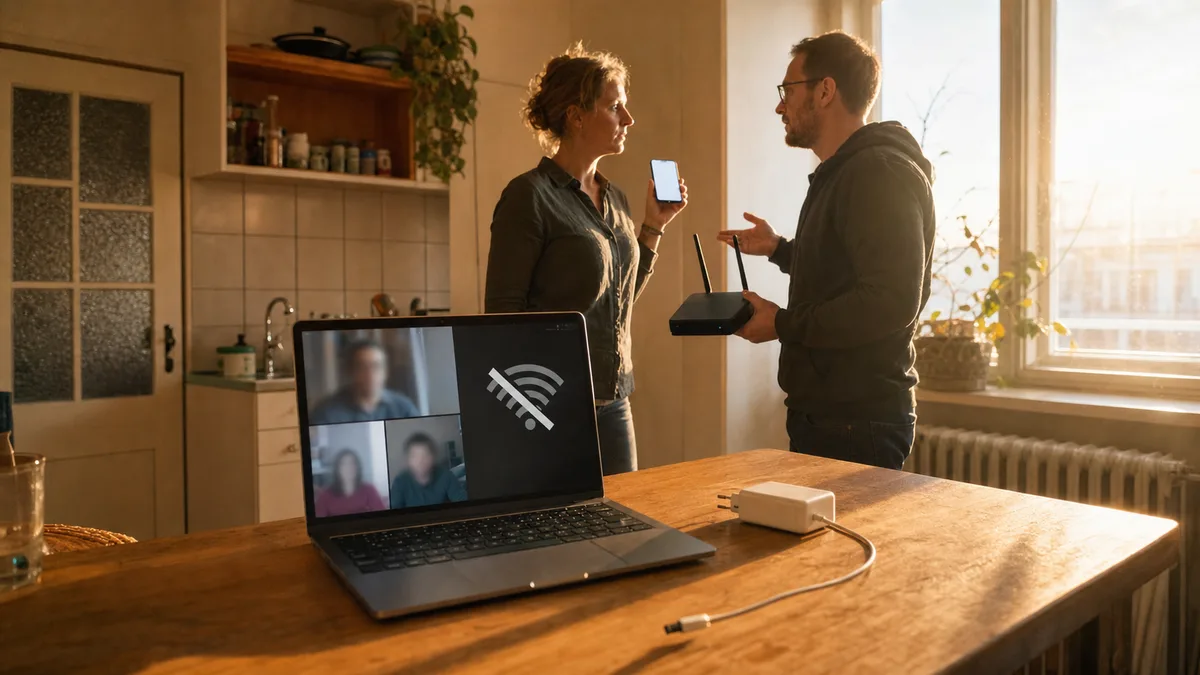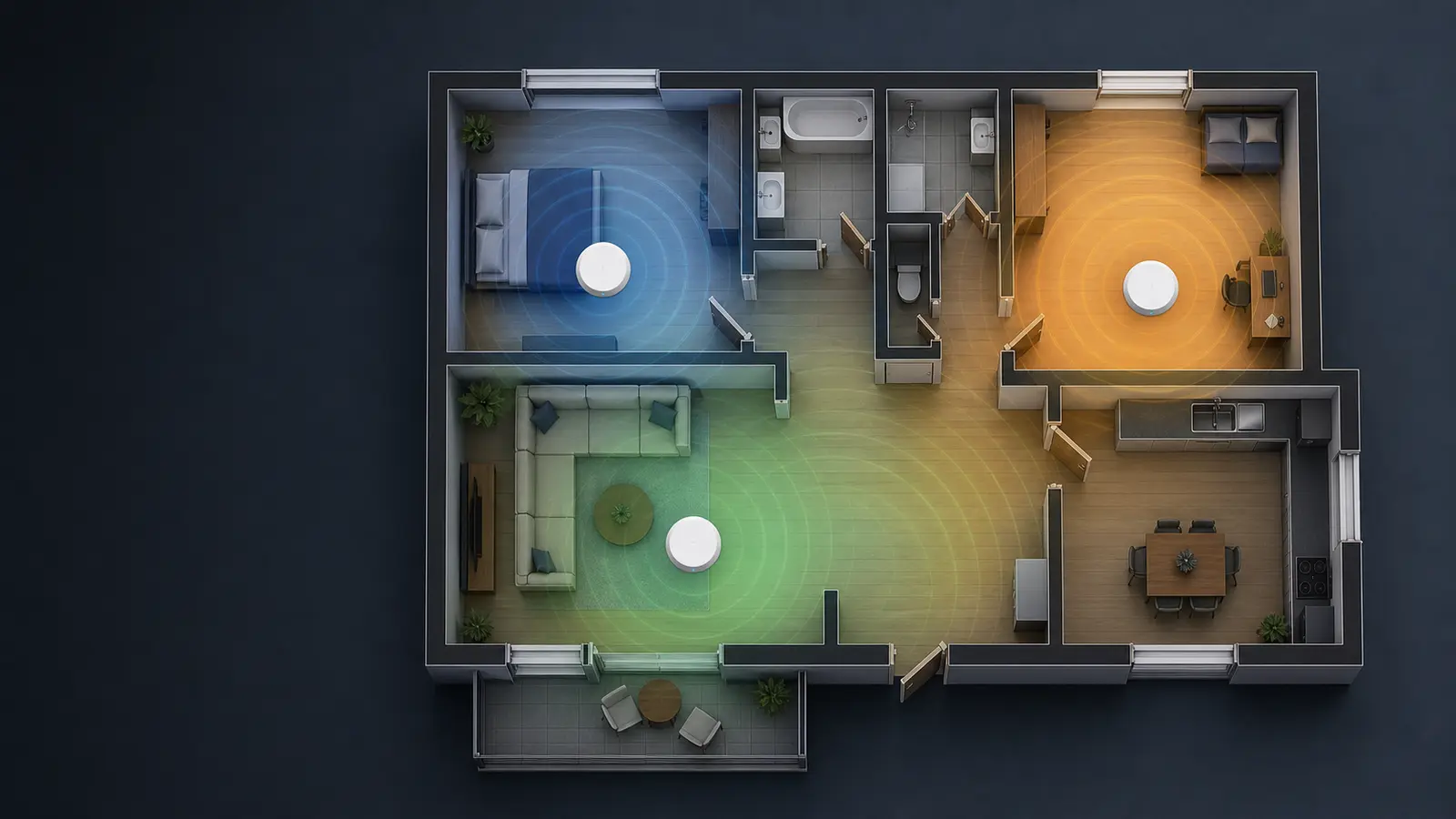
WPA3 is a good choice when your router and the devices you use can support it. If an older device cannot use WPA3 and the router offers it, use WPA2/WPA3 mixed or transition mode. Do not change the first security option you see without checking: the Wi-Fi disconnects briefly, and devices must reconnect afterwards.
WPA2-Personal is not a reason to panic or replace a router immediately. Check the firmware, use a unique strong password, and do not treat a hidden network name or MAC filtering as a substitute for encryption. WPA3 adds stronger password protection, while compatible routers can offer a mixed mode for older devices. TP-Link WPA3 compatibility guidance
Find your router model and admin page first
Before saving anything, photograph the router label: manufacturer, model and any login information. On a Windows computer connected to that network, open Command Prompt and run:
ipconfig
Under the active Wi-Fi or Ethernet adapter, find Default Gateway and open that address in a browser. ipconfig without parameters displays the default gateway for configured adapters in Windows 10 and 11. Microsoft command reference
Before changing security, note the Wi-Fi name, the current password and devices that must reconnect: phones, laptops, printers, TVs, cameras, NAS devices and smart-home equipment. Export a configuration backup if your router offers it. A factory reset is not the normal first step: it can remove ISP connection settings and your own Wi-Fi configuration.
Safe WPA3 or mixed-mode procedure
- Sign in to the router from your own computer. Stay near the router, or use an Ethernet cable if available.
- Check the exact model and an available firmware update in the router interface or the manufacturer’s page. Do not assume WPA3 support from the router’s age.
- In Wi-Fi settings, look for the 2.4 GHz and 5 GHz network and a field such as Security, Wireless Security, Encryption or Authentication Method. Names and locations differ by model and firmware.
- Choose WPA3-Personal if the router and all relevant devices support it. If you need an older device and the router offers WPA2/WPA3 mixed, WPA2/WPA3-Personal or a similar transition mode, use it instead of falling back to obsolete WPA or WEP.
- Set a new unique Wi-Fi password, save it securely, apply the change and reconnect devices using the new password.
Test a phone and one computer first, then printers, TVs and other devices. If one older device cannot connect, do not randomly change more router settings. Check that device’s support; use mixed mode if it is available, or consider a separate network or replacing that device.
Exact path for ASUS routers
For supported ASUS routers, the path depends on firmware. Connect using the router’s LAN address or http://www.asusrouter.com, sign in, then open either Network → Main network profile or, in the older interface, Wireless → General. For the selected Wi-Fi band, set Authentication Method to WPA3-Personal or WPA2/WPA3-Personal, enter a new password and select Apply. Devices need to reconnect afterwards. With AiMesh, verify that every node supports the selected mode. Official ASUS instructions
TP-Link and other brands
TP-Link calls its compatible mixed option WPA3/WPA2-MIX. If the exact model offers it, it can connect both WPA3 and WPA2 devices. If you do not see it, do not force a setting based on a guide for another router. Update firmware, keep WPA2-Personal configured safely and decide on replacement only after checking the model’s actual support.
Hiding the network name or using MAC filtering does not replace encryption and a unique password. Those options can complicate management and reconnection without solving the main security problem.
When to stop and call for help
Stop if you do not know the credentials for an ISP router, the network contains a NAS, cameras, a business VPN or many smart devices, or you have no configuration backup. Do not factory-reset a router without a verified procedure for the exact model. Our Wi-Fi service in Brno checks the router model, firmware and device compatibility, then sets security without leaving the printer, TV or smart home offline.
Rather not deal with it yourself?
Book a diagnosis in Brno — you get the price up front and we start only once you agree.
Where to find us
We are a PC and laptop repair shop in Brno-Židenice: diagnostics and repairs of computers and laptops, data recovery from drives, and out-of-warranty Apple repairs (iPhone 12 and newer, MacBook, iPad).
Viniční 3587/216, 615 00 Brno-Židenice, Czech Republic Mon–Fri 10:00–16:00
Call +420 774 777 774 Computer repair and laptop service in Brno
We put the repair price in writing after diagnostics and carry on only once you agree.