The short answer: Sign in using your PIN or password — that option remains available — and only then troubleshoot biometrics. In Settings → Accounts → Sign-in options, check whether your preferred method is visible at all. If it is, the most likely causes are a need to set it up again after an update, a dirty sensor, or poor lighting. If it is not there or is shown as unavailable, the sensor, driver, or the PIN on which the entire Hello system depends is missing. Do not reinstall the operating system because of this; it will not help.
First, distinguish between three different situations
They are often described in the same way, but each points in a different direction:
- Hello is set up but simply does not recognise you. Facial recognition displays “Couldn’t recognize you,” while fingerprint recognition says, “Your fingerprint couldn’t be recognized. Try using a different finger.” This is a recognition issue, not a fault.
- The option is visible but cannot be enabled or reports that it is unavailable. In this case, the PIN, TPM, and driver need to be checked.
- The option has completely disappeared from Sign-in options. Windows cannot detect the sensor, either in software or physically.
When describing the problem to a repair technician, this distinction is the most valuable information you can provide.
After an update, Hello often just needs to be set up again
Updates that affect security can disrupt Hello in a way that makes it appear faulty. Microsoft describes this directly: if you see a prompt to create a PIN even though you already have one, a security update or system change may be responsible. The solution is to create the PIN again or install any pending updates. If PIN creation ends with an error, Microsoft recommends signing out, signing back in, and trying once more.
The same applies to biometrics. Facial recognition can be improved using Improve recognition, which adds another facial template. Microsoft recommends doing this before removing facial recognition entirely because removing and rescanning it retains only the latest scan. For fingerprints, add fingers through Fingerprint recognition (Windows Hello) → Add a finger, ideally registering more than one finger and scanning them at different angles.
The PIN is the foundation of Hello, not an alternative
This is where most online guides stop at “update the driver.” Microsoft describes the sequence in the opposite order from what many people expect: when setting up Hello, the system requires a gesture — biometrics — paired with a PIN so that there is always a “something you know” factor to fall back on. According to Microsoft, the sign-in keys are created in the isolated environment of the TPM chip.
The practical consequence is that if the TPM is disabled in UEFI, has been cleared, or is reported as a different chip after a motherboard replacement, Windows cannot create a PIN. Fingerprint and facial recognition then fail as well, even if the sensor itself is working correctly. The TPM chip and Windows 11 explains what a TPM is and how to check its status. If you cannot create a PIN even after restarting, check this before investigating the reader.
Face: an infrared camera, not an ordinary webcam
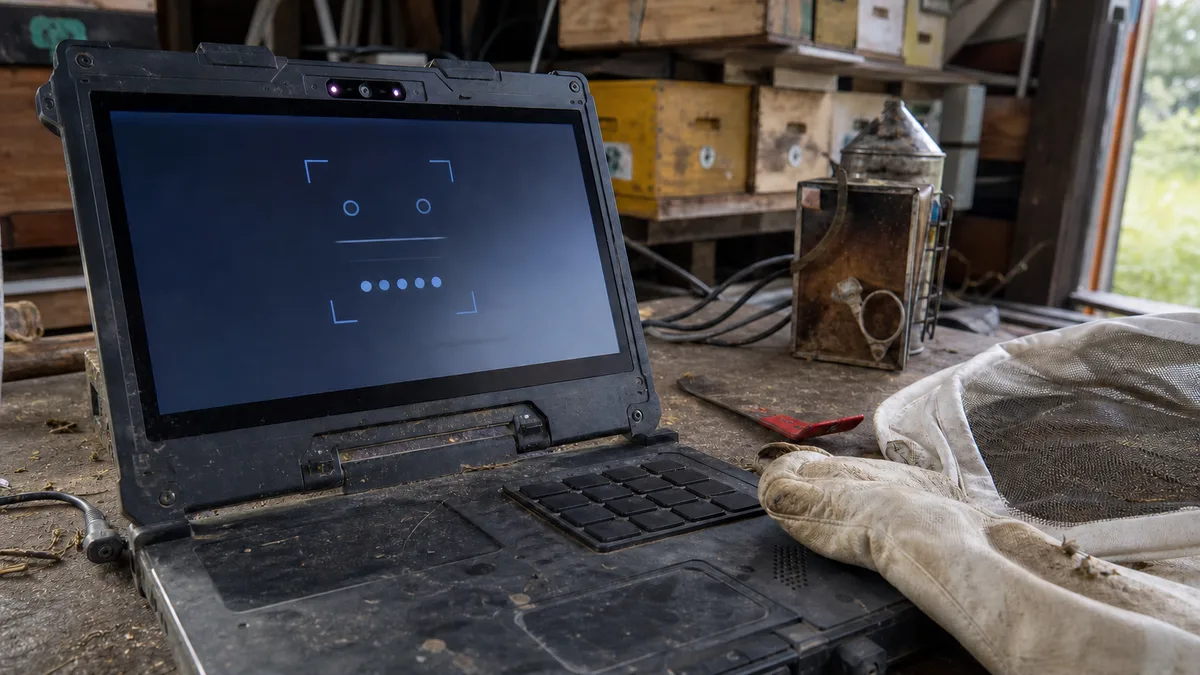
Windows Hello facial recognition does not use a standard webcam. Microsoft bases it on special infrared (IR) cameras capable of distinguishing a real person from a photograph. In a laptop, you can recognise this type of setup by two lenses and illumination LEDs in the bezel above the display. Desktop systems use an external USB IR camera.
The most common causes of recognition problems are:
- A dusty or obstructed camera. A mechanical webcam shutter may cover the IR lens as well.
- Lighting. Harsh or exceptionally bright light from one side makes recognition more difficult. On business laptops, an administrator may enable enhanced anti-spoofing protection, which sets an even higher threshold and can cause problems particularly in dark rooms.
- A change in appearance. New glasses, different facial hair, a hat, accessories that cast shadows across the face, or even certain types of make-up. After such a change, scan your face again.
- A face mask. According to Microsoft, facial authentication is not designed to work with one; use a PIN or fingerprint in such environments.
Fingerprint: a clean, dry reader and more than one finger
A fingerprint reader is a capacitive sensor. It may be integrated into the power button (Lenovo ThinkPad and IdeaPad, HP Pavilion, Dell Inspiron), positioned separately beside the trackpad (older ThinkPads and HP EliteBooks), or connected as a USB reader to a desktop system. For failing fingerprint recognition, Microsoft recommends three things: a clean and dry reader, registering the fingerprint again while capturing the finger at different angles, and checking for device driver updates. Adding several fingerprints is not excessive; it is the only safeguard against a dry or injured finger.
One cause rarely appears in guides, even though it follows directly from how the sensor works: a capacitive reader measures skin conductivity, which is affected by hand cream, sanitiser, degreasers, and fingers that are excessively dry or waterlogged. If your fingerprint only fails at work but functions at home, investigate these factors before blaming the laptop.
When the symptoms do not say what the cause is, the next step is measurement — fault diagnostics in Brno, not blind part swapping.
When the reader or camera disappears from Device Manager
Open Device Manager and look for Biometric devices (the fingerprint reader, commonly using a Synaptics, Goodix, or ELAN driver) and Cameras (the IR camera appears as a separate device alongside the standard webcam). Use what you find to decide what to do next:
| What you see in Device Manager | What it indicates | Safe next step |
|---|---|---|
| the device is present and working without errors | recognition or configuration | scan again, improve recognition |
| the device has an exclamation mark | driver problem after an update | install the driver from the laptop manufacturer’s support site |
| the device is completely missing | sensor, cable, or sensor power supply | hardware diagnostics |
| the device appears and disappears | intermittent connection, usually the flex cable | do not disassemble the laptop further |
| the standard camera is present but the IR camera is not | disabled or damaged IR component | check UEFI, then perform diagnostics |
| a PIN cannot be created | TPM or user profile | resolve this before investigating the sensor |
When the reader is faulty and when it is only the flex cable
In laptops, the fingerprint reader connects to the motherboard through a short, flat flex cable. It tends to break precisely where it bends during disassembly, so the typical case arises after a battery or keyboard replacement or after cleaning: the reader is detected but keeps disappearing, works only when pressure is applied to the palm rest, or vanishes completely. The IR camera, by contrast, is part of the display assembly, and its cabling runs through the hinge area. On laptops with a loose display lid, the hinge should therefore be investigated first.
The sensor itself may also fail, particularly after a liquid spill or a drop. No remote guide can distinguish between a broken driver, an unreliable connection, and a dead sensor; that requires measurement. Until then, make sure you have a working PIN and password. According to Microsoft, biometric data never leaves the device, so fingerprints and facial recognition must be registered from scratch after replacing the motherboard or sensor. This does not protect your online accounts, however; those require their own two-factor authentication.
What to bring to the repair shop
Tell us the laptop’s brand, model range, and year, where exactly the fingerprint reader is located, whether the device has an IR camera, and, most importantly, which of the three situations described at the beginning applies to you. Include what happened immediately before the problem began: an update, a component replacement, a liquid spill, or a system reset. Have your account password available; without it, you will not be able to sign back in after work on the biometric hardware.
We diagnose laptops and desktop computers in Brno based on the findings from each specific device. We do not promise the scope of work or price in advance — we will confirm the diagnosis and price after inspection. Arrange an appointment through the booking form or call 774 777 774. In the description, state whether you can sign in using your PIN and whether the fingerprint reader or IR camera is visible in Device Manager; this can cut the diagnostic process in half.
Order online: Fault diagnostics — tell us the model and what happens, and we will come back with the next step.
Sources
- Microsoft: Windows Hello common issues and troubleshooting tips
- Microsoft: Configure Windows Hello
- Microsoft: Change or reset your PIN in Windows
- Microsoft: Update drivers through Device Manager in Windows
- Microsoft Learn: Windows Hello for Business overview
- Microsoft Learn: Trusted Platform Module Technology Overview
Rather not deal with it yourself?
Book a diagnosis in Brno — you get the price up front and we start only once you agree.
Where to find us
We are a PC and laptop repair shop in Brno-Židenice: diagnostics and repairs of computers and laptops, data recovery from drives, and out-of-warranty Apple repairs (iPhone 12 and newer, MacBook, iPad).
Viniční 3587/216, 615 00 Brno-Židenice, Czech Republic Mon–Fri 10:00–16:00
Call +420 774 777 774 Computer repair and laptop service in Brno
We put the repair price in writing after diagnostics and carry on only once you agree.