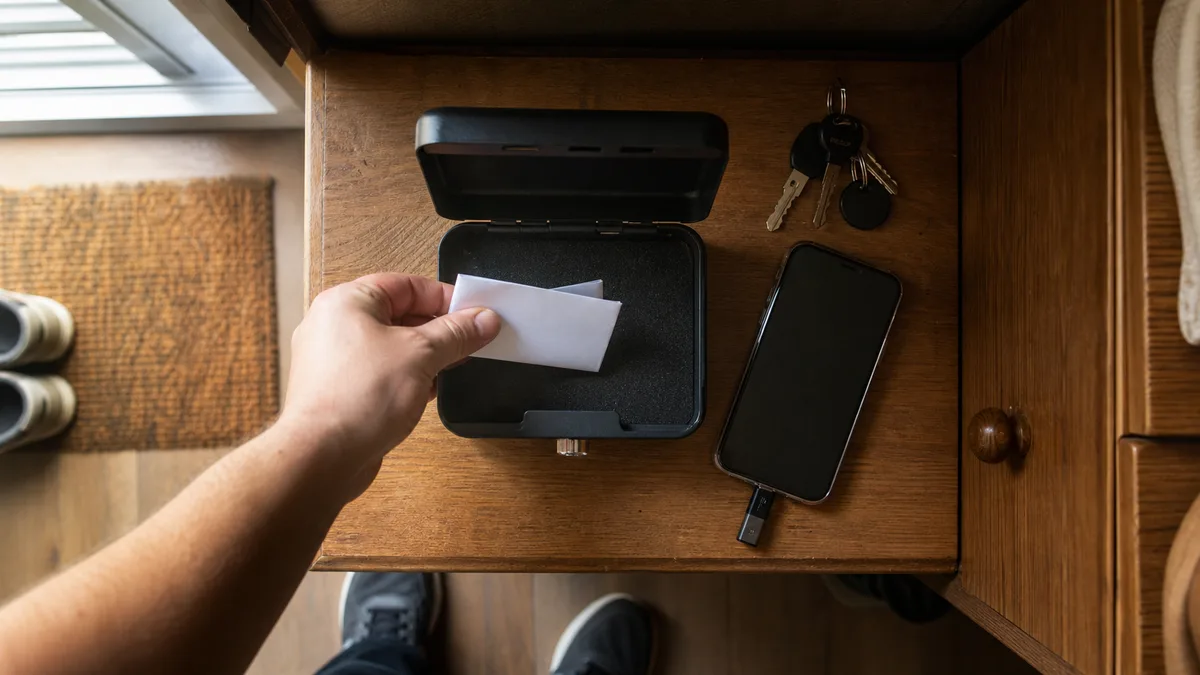
Passwords leak by the million. Not from your computer — from the databases of the services you entrusted them to. An attacker then tries the leaked e-mail + password combination all over the place, and because most people reuse the same password in several spots, sooner or later they hit one. Two-factor authentication stops that scenario: even with the right password, the attacker runs into a second lock they have no key for.
Switching it on takes ten minutes per account. This article walks you through it at the three places that matter most in Czechia: Google, Seznam and your bank.
Quick answer: Start with your main e-mail, not with the bank — the bank requires a second factor by law, while e-mail often runs on a password alone. With Google you switch it on in your Google Account under Security; with Seznam at ucet.seznam.cz in the Zabezpečení (Security) section. Wherever it is offered, pick an app that generates codes or a passkey instead of SMS. And the moment you turn it on, generate backup codes and store them outside your phone — they are your way back into the account the day the phone is gone.
Why start with e-mail and not with the bank
It sounds illogical, but of the three, the bank is the least urgent. Signing in to internet banking has to be verified by two factors by law, so you have long been confirming payments in a mobile app.
Your main e-mail, by contrast, is usually protected by a password alone — and it is the master key to everything else. Whoever takes over your mailbox can have password-reset links sent there for e-shops, social networks and the cloud with your photos. What recovering a compromised account looks like and how many days it takes is described in the article hacked e-mail: what to do — and that is exactly why it is better to invest those ten minutes before you need to.
SMS, an app, or a passkey?
The second factor is not just one thing. The options differ in convenience and in resilience:
| Method | How it works | Weak spot |
|---|---|---|
| SMS code | The service sends a one-time code to your number | The code can be talked out of you over the phone or read off a locked screen, and the number can be transferred to another SIM |
| Confirmation prompt | ”Is this you?” pops up on your phone and you tap Yes | In a hurry you can approve someone else’s attempt by mistake |
| Code app | Google Authenticator and similar apps generate a six-digit code every 30 seconds, even offline | Losing the phone with no backup and no backup codes |
| Passkey / hardware key | The device itself confirms the sign-in with a fingerprint or PIN, cryptographically bound to the genuine website address | Needs a newer phone or computer; the key must not be lost without a spare |
A practical recommendation: for most households the best balance of security and convenience is a code app or a confirmation prompt, with SMS left as the fallback route. Add a passkey wherever the service offers one — it is the only method that holds up even against a perfectly copied fraudulent page, because on a fake address it simply will not work.
Google step by step
- On a computer, open myaccount.google.com and sign in.
- In the left-hand menu choose Security.
- Under “How you sign in to Google”, click 2-Step Verification and confirm with your password.
- Google first offers a prompt on the phones you are signed in on — once it is enabled, every new sign-in shows a question on your phone that you confirm with a tap.
- On the same page add a second method: Authenticator app. Install Google Authenticator (or another code app) on your phone, display the QR code on the computer and scan it in the app. Typing in the six-digit code completes the pairing.
- Scroll down to Backup codes, have ten one-time codes generated and print them out or copy them onto paper. Do not save them in the notes app on that very same phone.
- If you have a newer phone or a computer with a fingerprint reader or Windows Hello, add a passkey in the security section too — you then confirm sign-in with your fingerprint, without typing anything.
From then on, Google asks for the second factor only when you sign in from a new device or browser. You can let it remember your home computer; on someone else’s computer, never confirm that.
Seznam step by step
Seznam Email is still the most widespread mailbox in Czechia — and attackers know it.
- Sign in at ucet.seznam.cz.
- Open the Zabezpečení (Security) section.
- Turn on two-factor authentication. Seznam offers a code by SMS or — more conveniently — the mobile app Klíč od Seznamu (“the Seznam key”): you then simply confirm the sign-in with a tap on your phone, no code copying.
- While switching it on, check that the account has an up-to-date phone number and a backup contact for recovery. An old number whose SIM you no longer have is a common reason for a locked account.
- The same applies here: arrange backup access (codes or a verified number) right away, not once the phone has disappeared.
If you do not want to use the Klíč app, at least keep SMS — with Seznam it is still a fundamental step up from the bare password used by most of the mailboxes being broken into today via leaked databases.
The bank: you already have the second factor, so check it
At the bank you do not switch two-factor authentication on — you have it by obligation. Even so, five minutes of checking pays off:
- Confirmation in an app instead of SMS. Most banks offer their own confirmation app (George klíč, KB Klíč, ČSOB Smart klíč). It is both safer and more convenient than copying SMS codes — if you are still running on SMS, switch over in your banking settings.
- Payment limits. Set your daily limit to match what you actually spend. When something goes wrong, the limit is the last emergency brake.
- Only approve what you triggered yourself. If the app pops up a request to confirm a sign-in or a payment you did not just make, it is an attack — reject it.
- Codes and confirmations are never dictated to anyone. Not to a “banker”, not to the “police”, not to a “Microsoft technician”. This is precisely what telephone scams are built on, and we take them apart in the article is the bank calling? It’s a scam.
And one more thing: bankovní identita (the bank-issued digital identity) now also signs you in to Portál občana (the state citizen portal) and the tax portal. So your bank’s security protects more than money — it is also your official signature. Keep the phone with the banking app locked with a PIN or fingerprint and never hand it over unlocked.
Where else to turn it on
Once e-mail and the bank are done, go through four more groups of accounts where theft hurts:
- Social networks (Facebook, Instagram, LinkedIn) — attackers use a stolen profile to scam your friends, and getting it back tends to drag on.
- Clouds with photos and documents (iCloud, OneDrive, Dropbox) — with Google you solved it together with the mailbox; the others have their own security settings.
- E-shops with a saved payment card and gaming accounts (Steam, PlayStation) — anywhere money can be spent with a single click.
- Datová schránka (the state data box) and government portals — if you do not sign in to them with bankovní identita, check their own verification.
The procedure is the same everywhere: settings, security section, two-factor authentication, code app, backup codes on paper.
Backup codes: insurance for the day the phone disappears
The most common worry goes: “And what if I lose the phone? I’ll lock myself out.” A fair question — and exactly why backup codes are generated when you switch verification on, not after the loss.
Principles that work:
- Print them out. Paper in a drawer or in the envelope with your documents survives both a phone dropped into the bathtub and a stolen backpack. Do not photograph them into the gallery of the phone they are meant to protect.
- Each code works once. When you use one, cross it out; when few are left, generate a new set (the old one stops working at that moment).
- Add a second device. A code app can live on a tablet as well, a passkey on a computer. Two independent routes mean that losing one does not hurt.
When the phone really does disappear: sign in from a computer with a backup code, remove the lost device in the account’s security settings and sign out all active sessions. When you replace it with a new phone, you can carry the code app over — Google Authenticator can export accounts via a QR code or sync them through your Google account.
What to avoid
- Dictating codes over the phone. A one-time code is like the PIN to your card. No legitimate institution wants to hear it.
- Approving prompts you did not trigger. If a confirmation notification arrives “out of nowhere”, someone is trying your password right now. Reject it and change the password.
- Typing a code on a page opened from an e-mail link. A fraudulent page can forward both the password and the code to the attacker within seconds. Type the address by hand or go through your bookmarks — how to spot fake pages is shown in the article phishing: how to recognise it.
- Backup codes in the phone’s photos or notes. If the phone falls into the wrong hands, they fall with it.
- A single method with no backup. SMS alone to a number you will change in a year is a trap. Always at least two routes.
If you would rather not tackle it on your own
Setting up three accounts by the instructions is a patient evening’s work. Often, though, the situation is more tangled: an old recovery number, a mailbox inherited from grandma, the same passwords for ten years, a computer full of toolbars and add-ons. If you would rather not get into it, or you got stuck halfway, order a security check and setup at your home — we will go through e-mail, banking and passwords together, switch verification on, print the backup codes and explain what will happen if the phone is lost. As a guide: setup and installation from 600 CZK, service work 1,200 CZK/h, call-out around Brno 700 CZK — details in the price list.
For sole traders and small businesses, two-factor authentication is just one item on a longer list — who has access to what, what happens when an employee leaves, where the backups are. That is what the small-business IT audit is built for (roughly from 3,600 CZK), and the article securing a small company’s computers in 7 steps sums it up clearly as well.
Ten minutes today, or two weeks of account recovery later. Two-factor authentication is that rare case where security is almost free — you just have to switch it on before you need it.