Quick answer: If your Surface will not turn on, disconnect all accessories, connect a suitable power supply for at least 15 minutes and check the LED on the Surface Connect connector. If the device may be running with no display output, try Windows + Ctrl + Shift + B. Then hold the power button for approximately 20 seconds. Stop charging a Surface with a damaged connector, unusual heat or a bulging screen, and do not open it.
First, distinguish between power, display and battery problems
The same symptom can have several different causes. A completely drained Surface will not respond to a brief press of the power button. A faulty or unsuitable power supply may not deliver enough power. The computer may also be running while the screen remains black. If Windows starts but the battery does not charge or is not detected, a different diagnostic approach is needed.
First, identify which situation applies:
- the Surface does not respond, make any sound or display a logo;
- the device shows signs of running, but the screen remains black;
- Windows starts, but the battery does not charge or is not detected.
The procedure also depends on how the device receives power. Some models use the magnetic Surface Connect connector, others support USB-C charging, and some offer both options. You can therefore assess the white connector LED only when using Surface Connect.
When to stop troubleshooting yourself and how we can help
Stop testing at home if the connector is loose, the cable is visibly damaged, or the Surface gives off an unusual smell or becomes unusually hot. Stop charging the device if the screen is bulging or the casing is separating: a swollen battery may be the cause, and it is unsafe to squeeze, puncture or force it back into place. For further safety guidance, see Swollen laptop battery: what to do.
Our service process has three steps:
- When you bring the device in, we record the exact model, the power supply used, the connector’s condition and the symptoms.
- We run diagnostics to distinguish between faults in the power supply, charging port, battery, display and motherboard.
- We explain the fault we have identified and propose the next steps; we begin repairs only after you approve them.
Whether the battery or another component can be replaced depends on the device’s exact generation and construction. If the basic checks do not help, you can book Surface diagnostics and repair in Brno.
1. Disconnect the dock, USB devices and external monitor
Disconnect everything from the Surface except the power supply:
- Surface Dock and other docking stations;
- USB hard drives, flash drives and receivers;
- the memory card;
- the external monitor;
- adapters, network adapters and other USB accessories;
- the detachable keyboard, if your model uses one.
Then try turning on the Surface without any accessories. A dock, adapter or connected monitor may interfere with startup or route the display output to another screen.
If the device starts, reconnect accessories one at a time. Change only one thing at a time and note which connection causes the problem to return. This helps distinguish a problem with the Surface itself from one involving a powered dock, cable or peripheral.
2. Charge for at least 15 minutes
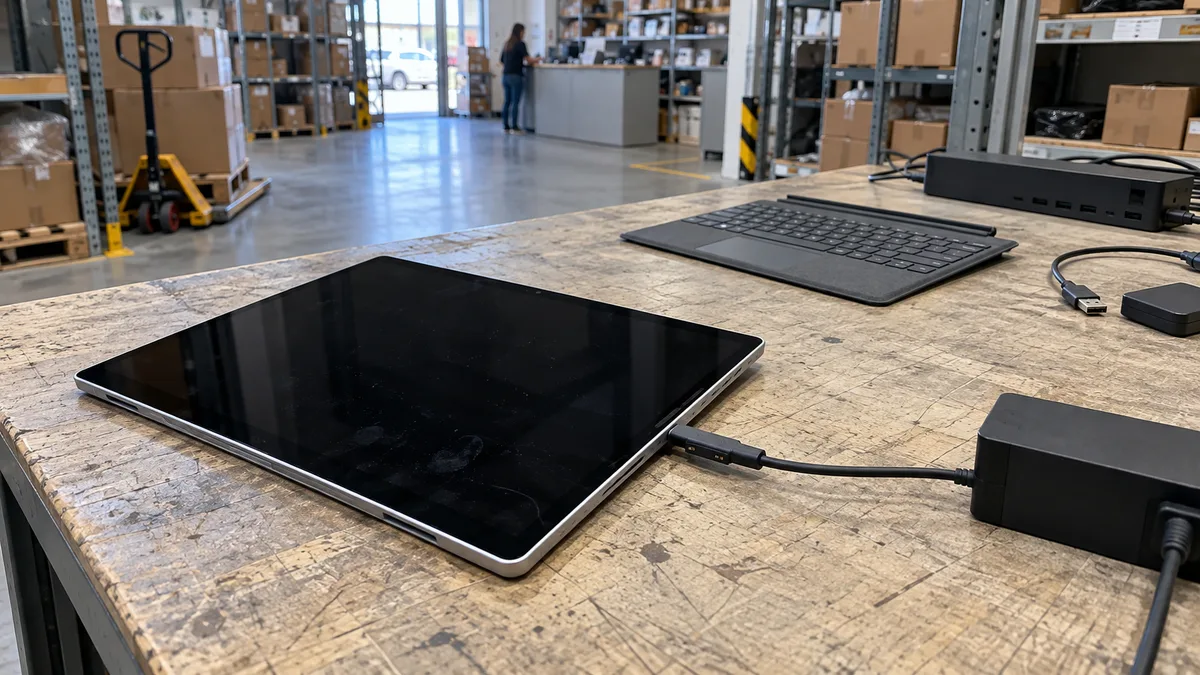
Connect a power supply intended for your model directly to a known working wall socket and let the Surface charge for at least 15 minutes. Only then press the power button.
Fifteen minutes is the minimum recommended charging time before the first attempt, not a guarantee that a deeply discharged battery will recover within that time. If neither the power supply nor the device responds as expected, do not keep reconnecting a damaged cable.
To charge over USB-C, your Surface must support this method of power delivery. The power supply must also provide a compatible USB Power Delivery profile and sufficient wattage. A phone charger with a USB-C connector is therefore not a conclusive substitute for a compatible power supply.
3. Check the Surface Connect LED
The following check applies only to the magnetic Surface Connect connector. This indicator is not available when charging solely over USB-C.
| LED status | What it actually indicates | Next safe step |
|---|---|---|
| Solid white | The connector indicates that a power supply is connected. This does not confirm that the battery, display or motherboard is working properly. | Let the Surface charge for at least 15 minutes, then try waking it or performing a forced restart. |
| Flashing | The connection is unstable; dirt, damage or poor contact may be the cause. | Disconnect the power supply and inspect the connector. Clean it only with a soft, dry, lint-free cloth. |
| Off | Power may not be reaching the connector, or the connection may not have been established correctly. | Check the wall socket, power supply connections, cable and connector. Stop using any visibly damaged part. |
You can disconnect the connector, rotate it 180 degrees and reconnect it. You can also unplug the power supply from the wall socket for at least ten seconds, then plug it back in.
Do not clean the contacts with a metal object, bend them or spray liquid into the connector. The official procedure is available from Microsoft support for Surface power supplies.
4. Check whether the Surface is running with a black screen
The Surface may be running even though you cannot see anything on the screen. Clues may include Windows sounds, a responsive keyboard or slight warmth from the device. However, heat alone is no reason to continue if it is excessive or comes from the area around a damaged connector or battery.
With a keyboard connected, press:
Windows + Ctrl + Shift + B
This shortcut asks Windows to reset the graphics system. It works only if the operating system is actually running. If it has no effect, that does not confirm a faulty display or motherboard.
If nothing changes, hold the power button continuously for approximately 20 seconds, until the Surface logo appears if the device responds. Then release the button. This is a forced restart, not a factory reset. It does not deliberately delete saved files, but unsaved work may be lost.
The current basic steps are described in Microsoft’s guide for a Surface that will not turn on or start. Do not try arbitrary button combinations intended for a different generation of device.
5. If Windows starts, check the battery status
After startup, check the battery icon and the text displayed when you select it. The different statuses do not mean the same thing:
| Status in Windows | What you can conclude |
|---|---|
| No charging symbol appears after connecting the power supply | Windows has not detected charging. The cause may be the power supply, cable, connector or device. |
Battery not detected or a red cross | The system does not recognise the battery. Without diagnostics, it is impossible to determine whether the battery, its connection or the power circuitry is faulty. |
| The Surface works only while plugged in | The battery cannot keep the device running; measurements and diagnostics are needed to identify the cause. |
| A low-power charger warning appears while charging | The connected power supply may not provide enough power to run the device and charge it at the same time. |
| Charging stops at around 80 per cent | This may not be a fault. Smart charging may be active on a supported device to protect the battery. |
| Charging stops at around 50 per cent | Battery Limit mode may be enabled on a supported, managed device. Do not change the setting without consulting your organisation’s IT administrator. |
The Battery not detected message is not sufficient grounds for ordering a battery based on a photograph or product name. Surface Pro, Surface Laptop, Surface Go, Surface Book and Surface Laptop Studio have different designs, and parts may vary even between generations of the same product line. For general causes, see Laptop not charging or holding a charge.
What each result proves
A white Surface Connect LED does not mean the entire device is working properly. It only confirms that the connector is indicating a connected power supply. Likewise, starting up while plugged into an adapter does not prove that the battery is healthy.
Conversely, an unlit LED does not by itself identify a faulty motherboard. The cause may be the wall socket, power supply, cable, contact or power port. Testing is meaningful only with a known working, compatible power supply.
If the Surface turns on after you disconnect the dock, that does not automatically confirm a dock fault. Reconnect components individually and check whether the same problem recurs. Stop testing a loose or overheating power port; similar faults and their diagnosis are covered in Laptop power connector repair.
When your Surface needs professional diagnostics
Stop further troubleshooting at home if:
- no logo appears even after charging and a forced restart;
- the Surface Connect LED keeps flashing after gentle cleaning and rotating the connector;
- the device does not respond with a known working, compatible power supply;
- Windows reports
Battery not detected; - the Surface shuts down immediately when you disconnect the power supply;
- the connector is loose, the cable is damaged or the area around the port becomes excessively hot;
- the casing or screen is lifting or bulging.
Do not open the Surface just to check the battery. Servicing may require removing the display, and improper prying can damage the panel, cables and battery.
Microsoft warranty service or out-of-warranty repair
For a device under warranty, check Microsoft’s service options first. Have the exact model, serial number, proof of purchase and the account under which the device is registered ready. A business Surface may have different service arrangements from a device purchased by a consumer.
Do not open the device before making a warranty claim. Depending on the model and region, the available options may include a service order, support or self-repair for devices for which Microsoft explicitly offers this route.
For an out-of-warranty Surface, it makes sense to identify the fault before deciding on a repair. Without the exact model and diagnostics, it is impossible to promise battery availability, a component price or whether the repair is technically feasible. If you rely on your Surface for work and the repair takes longer, you can rent another laptop in the meantime—the article A replacement laptop while yours is being repaired from ITHOPE’s laptop rental service explains how it works.
What to do after a successful startup
Once the Surface starts again, back up important documents first. If the device uses BitLocker encryption, make sure you can access the recovery key, especially before a firmware update, servicing or a hardware change.
Then install the available Windows and firmware updates for your model. If the problem returns, record:
- the exact Surface model;
- the power supply used and the charging method;
- the Surface Connect LED status;
- the battery status message;
- whether the device works after disconnecting the power supply;
- which accessories were connected when the fault occurred.
For practical ways to copy files and create a system backup, see How to back up Windows 11.
Rather not deal with it yourself?
Book a diagnosis in Brno — you get the price up front and we start only once you agree.
Where to find us
We are a PC and laptop repair shop in Brno-Židenice: diagnostics and repairs of computers and laptops, data recovery from drives, and out-of-warranty Apple repairs (iPhone 12 and newer, MacBook, iPad).
Viniční 3587/216, 615 00 Brno-Židenice, Czech Republic Mon–Fri 10:00–16:00
Call +420 774 777 774 Computer repair and laptop service in Brno
We put the repair price in writing after diagnostics and carry on only once you agree.