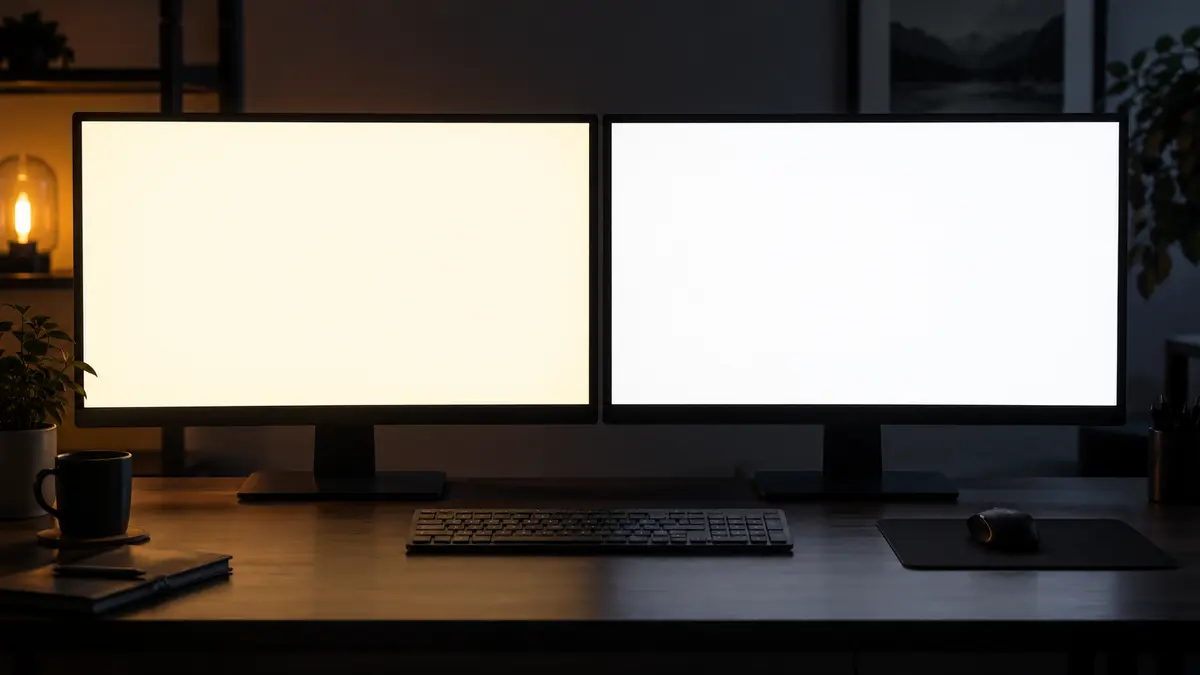
Quick answer: A yellow tint across the entire screen can be caused by Night light, another color setting, or the monitor itself. First, compare the image after temporarily disabling the relevant options. If the yellow tint is also visible in the monitor’s own on-screen display (OSD) or with another device, compare the monitor’s color mode and test another signal source as well. The tint alone does not prove a hardware fault.
What a Screen-Wide Yellow Tint Means—and What It Does Not
This article covers situations in which the color change affects the entire screen: white areas look yellowish or orange, and other colors appear warmer. It does not address signal dropouts, flickering, artifacts, or dead pixels, which are different symptoms requiring different diagnostic steps. Flickering is covered in Monitor bliká nebo na vteřinu zhasne.
Here is the key distinction that can save hours of work: if Windows changes the color temperature, the change affects everything displayed on the monitor except the monitor’s own OSD menu. The OSD is generated by the display’s control electronics and is outside the operating system’s control. This single test divides the diagnostic process into software and hardware branches.
Step 1: Check Night Light First
One possible cause is described in Microsoft’s documentation on display brightness and color: Night light displays warmer colors with less blue light, making white appear yellowish or orange. If scheduling is enabled—either from sunset to sunrise or during custom hours—the feature turns on automatically based on the time. The user may therefore miss the exact moment when the change occurs.
In Windows 11:
- Open Settings → System → Display → Night light.
- Before changing anything, record the current state: whether the switch is on, the schedule setting (off / sunset to sunrise / custom hours), and the strength level. You will need this “original schedule” if the yellow tint turns out to be intentional rather than a fault.
- Temporarily turn the switch off and observe a white area. Expected result: the warm shift produced by the feature changes. The monitor’s default white may still not look perfectly neutral.
- If this change matches the symptom you observed, you have confirmed that Night light affects the image. You can leave the feature off, adjust its strength, or change its scheduled times as needed.
What this test does not prove: that the display is completely fault-free. It only shows the effect of one setting. The following steps are useful if a color shift remains, but they are not mandatory once an intentionally enabled night mode has been identified as the cause.
Step 2: Color Filters—A Different Setting with a Similar Visual Effect
Another possible software cause is accessibility color filters. According to Microsoft’s documentation on color filters, these filters change the screen’s color palette and are separate from Night light. They can also be toggled with Win+Ctrl+C if the shortcut is enabled in Settings, which means they may be activated accidentally. Not every filter changes white in the same way.
Follow these steps:
- Open Settings → Accessibility → Color filters.
- Check whether the feature is enabled and which filter type is selected. Record the current state.
- If a filter is active, turn it off and compare a white area.
- If you use multiple monitors, repeat the check on each display. Some settings have a global effect, but always assess the result on the specific monitor where you noticed the problem.
If you use color filters intentionally, you do not need to disable them permanently. The aim is simply to determine whether the combination of Night light and a filter is producing the observed color change. You can disable just one of the two effects and compare the result.
Step 3: Select the Correct Monitor and Record Its Profile
When more than one display is connected, it is easy to adjust the wrong one. According to Microsoft’s documentation, Windows Settings can manage color profiles separately for each connected monitor under Settings → System → Display → Color profile. Some options therefore apply only to the currently selected display.
Follow these steps:
- In Settings → System → Display, select the rectangle representing the relevant monitor and confirm that it matches the screen showing the yellow tint. The “Identify” button can help you tell the displays apart.
- Record the profile and settings assigned to that monitor, including the Night light and color filter states from the previous steps.
- Repeat the settings check specifically for this display.
Do not replace the ICC profile or color calibration blindly. Record the profile assigned under Color profile for the selected monitor; color management is located elsewhere in older versions of Windows. If you suspect the profile, have an administrator or the person responsible for calibration prepare the next comparison. For color-critical work, do not delete the original profile or assume that a subjectively whiter image is more accurate.
Step 4: Test the Monitor OSD and Another Input—the Software Boundary
Run this additional test of the monitor and signal source:
- Use the monitor’s buttons or controller as described in its manual to open its OSD menu. Also note the active color mode, such as Reading or Low Blue Light.
- Examine white or gray elements in the OSD, including backgrounds, text, and bars.
- Connect another source to the monitor using a different input such as HDMI or DisplayPort—for example, a laptop or media player.
Interpret the results as follows:
- The OSD and the image from another device both look yellowish → the test points to the monitor’s settings or characteristics, but not automatically to a faulty panel. The OSD may use intentionally warm colors of its own. Check the relevant mode in the manual without performing a full factory reset.
- The OSD looks neutral, but the image from another device does not → compare the settings of both source devices and the monitor input. You can then change one variable at a time by testing another cable or input; the tint alone does not prove that the cable is faulty.
- Everything except the OSD looks yellow only when using the original device → return to the software checks.
What this test does not prove: even a neutral-looking OSD does not guarantee perfect calibration. The OSD is only a useful local reference and may not pass through the same processing as the image received from an input. Color perception also cannot be documented objectively with a screenshot: a screenshot captures the data sent by the system, not the physical color actually produced by the panel. Do not use a screenshot as “evidence” of a yellow tint.
Step 5: Check for Spots, Viewing Angle, and Physical Changes
If the yellow area is not a screen-wide tint but a single spot, circle, or region that remains unchanged regardless of the displayed content, check whether it also appears with another source and against several solid-color backgrounds. A persistent local spot increases the likelihood of a physical issue with the panel or backlight. Similarly, a change in appearance when viewed from the side may be a characteristic of the panel technology rather than a software fault. Adjusting the monitor’s position may resolve an ordinary viewing-angle issue. A new, pronounced, or persistent spot should be assessed by a service technician. Tell them where the spot is located, when it appeared, and whether its size changes.
Decision Table
| Observation | Area to investigate | Expected result |
|---|---|---|
| The tint changes after Night light is turned off | Windows settings | The feature’s effect is confirmed; assess any remaining tint |
| The tint remains, but the monitor OSD is white | Software: filters, profile, cable, input | Narrows the cause to the signal path or system |
| The OSD and another source both look warm | Monitor: color mode or panel characteristics | Check the manual, compare modes, and seek service if necessary |
| A single yellow spot remains regardless of content | Physical panel layer | Service is required; software will not help |
| The color changes with the viewing angle | May be a characteristic of the panel technology | Adjust the monitor position and viewing angle first |
| Another computer produces a clean image on the same monitor | Original computer | Continue checking its Windows settings |
Handover Checklist and Final Verification
Before finishing the work or handing the issue over to a colleague or service technician, record:
- Whether the yellow tint covers the whole screen or is limited to one area.
- The original Night light schedule—on/off state, times, and strength—and the color filter state before and after the changes.
- Which monitor and profile were adjusted.
- The results of the OSD test and the test with another input or device.
- Any replacement cables and ports you tested.
To verify the result, display a full white screen, such as a blank document or a new browser tab, and compare it throughout the steps you performed. The white should appear neutral, without a noticeable warm color shift. Also check the feature’s schedule at the time when the symptom would normally appear. For color-critical work, subjective visual assessment is not a substitute for measurement and calibration. Base your final judgment on what you see on the display itself, not on a screenshot.
Frequently Asked Questions
Why Did My Monitor Suddenly Turn Yellow?
One possible cause is scheduled Night light. According to Microsoft, this feature changes the color temperature and can run on a schedule. Check Settings → System → Display → Night light.
Is Turning Off Night Light Enough to Fix It?
This reveals whether the feature is affecting the image, but not the overall condition of the panel. If you suspect another color shift, also check the filters, selected monitor, and OSD before considering the issue resolved.
Can a Screenshot Prove That the Monitor Has a Yellow Tint?
No. A screenshot captures digital image data, not the physical color produced by the panel. It cannot be used as evidence of a yellow tint.
What If the Monitor Looks Yellow Even in the OSD Menu?
Windows does not generate the OSD, but the menu may use its own colors. Check the monitor’s color mode and compare another source. A warm-looking OSD alone does not prove that the panel is faulty.
Should I Replace the ICC Profile Without Testing It?
We do not recommend it. The correct profile cannot be identified without verified calibration data, and replacing it blindly may simply conceal the fault. If you suspect the profile, record the original settings and arrange further testing with an administrator or the person responsible for calibration.
When Professional Service Makes Sense
Describe any persistent fault in the service request, including the exact model, the symptom, when it began, and what you have already checked safely. For device repair and further assistance, you can use ITHOPE PC and laptop repair services. If unbacked-up data is also at risk, address the data first. The price and scope of the work can be determined once the cause has been identified.
Sources and Review Date
Technical sources were reviewed on 7 October 2026.
Rather not deal with it yourself?
Book a diagnosis in Brno — you get the price up front and we start only once you agree.
Where to find us
We are a PC and laptop repair shop in Brno-Židenice: diagnostics and repairs of computers and laptops, data recovery from drives, and out-of-warranty Apple repairs (iPhone 12 and newer, MacBook, iPad).
Viniční 3587/216, 615 00 Brno-Židenice, Czech Republic Mon–Fri 10:00–16:00
Call +420 774 777 774 Computer repair and laptop service in Brno
We put the repair price in writing after diagnostics and carry on only once you agree.