Quick answer: First, generate a Windows battery report using
powercfg /batteryreportand compareFull Charge CapacitywithDesign Capacity. Choose a replacement based on the exact laptop model, the original battery’s part number, supported capacity in Wh, voltage, dimensions and connector. A genuine battery is usually the safest choice for compatibility, but a quality third-party replacement can also be suitable if its manufacturer is traceable and it is explicitly listed for the specific configuration. Stop using a swollen battery and do not force it out.
First, check whether the battery is actually faulty
Short battery life, sudden changes in the charge indicator or shutdowns under heavier load can point to a worn battery. However, a failure to charge can also be caused by an unsuitable power adapter, a damaged cable, a loose power connector or faulty charging circuitry.
Do not buy a battery based solely on a symptom or the laptop’s product name. First, establish whether the computer:
- runs on battery power for much less time than it used to;
- shuts off as soon as the power adapter is disconnected;
- shuts down under load even though the indicator still shows charge remaining;
- shows sudden jumps in the battery percentage;
- fails to detect or charge the battery at all;
- responds to movement of the power cable.
A new battery may not resolve the last two issues. For a more detailed explanation, see Laptop not charging or not holding a charge: common causes.
When to leave it to a professional and how we can help
Stop using the laptop if the touchpad is lifting, the bottom cover is separating, the battery is visibly deformed or the device gives off an unusual smell. Also stop a DIY replacement if the battery is held in place with adhesive, removing it would require prying against a soft battery cell, or you are unsure how to disconnect the ribbon cables.
Our service process has three steps:
- We check the laptop’s symptoms to distinguish a battery fault from a problem with the adapter, connector or charging circuit.
- We identify the exact configuration and original battery using the model and part numbers.
- We explain our findings and propose the next steps; once you approve the replacement, we check charging, battery detection and operation without the power adapter.
If you are not confident about opening the device or choosing the right part, you can book a laptop battery replacement in Brno.
How to generate a battery report in Windows 11
Windows can generate an HTML report on battery usage using the powercfg tool. It is a useful first step, though it is neither a load test nor a definitive diagnosis.
In PowerShell, follow these steps:
- Right-click Start.
- Open Terminal.
- Enter:
powercfg /batteryreport /output "$env:USERPROFILE\Desktop\battery-report.html"
- Open
battery-report.htmlon your desktop.
If you use the classic Command Prompt, the user profile variable uses a different syntax:
powercfg /batteryreport /output "%USERPROFILE%\Desktop\battery-report.html"
The available command options are covered in Microsoft’s powercfg documentation.
Focus on these report entries:
| Entry | What it means | What it can tell you |
|---|---|---|
Design Capacity | The battery’s original design capacity | A baseline for comparison with its current capacity |
Full Charge Capacity | The reported capacity at full charge | An approximate indication of battery wear |
Cycle Count | The number of recorded charge cycles | Supporting information that may not be available on every device |
Battery Capacity History | Changes in reported capacity over time | Whether capacity declined gradually or changed suddenly |
Recent Usage | Recent use on AC and battery power | Whether the system recorded charging and discharging |
Calculate the approximate remaining capacity percentage as follows:
Full Charge Capacity ÷ Design Capacity × 100
This figure alone does not determine whether you need to replace the battery. Actual battery life, stability under load and how you use the laptop also matter. A work laptop may become impractical once it cannot last through a scheduled meeting, while one used mainly at a desk may still serve its purpose.
A battery report will not reveal every form of physical damage or reliably rule out a power supply fault. A visibly swollen battery needs attention regardless of its reported capacity.
When replacement makes sense
Replacement is particularly justified when the report shows a long-term decline in capacity and the laptop’s behaviour confirms it. Typical signs include much shorter battery life, shutdowns before the charge reaches zero, or an immediate shutdown when the power adapter is disconnected. If the laptop has other limitations besides a worn battery, such as insufficient memory or a processor that Windows 11 does not support, compare the cost of replacement with that of another laptop; the XJO.cz article Refurbished laptop batteries: what to check explains what to look for in a refurbished laptop’s battery.
Look for another fault if:
- charging starts and stops when you move the cable;
- the laptop reports an unrecognised or underpowered adapter;
- the system does not detect the battery;
- the computer will not charge even with a suitable adapter that has been checked;
- the connector is loose, gets hot or is physically damaged.
In these cases, the problem may lie with the adapter, USB-C port, barrel power connector or motherboard. A new battery would not fix the underlying fault.
How to find a battery that actually fits
A label such as “battery for Lenovo”, “for Dell” or “for HP” is not enough. Even a single laptop product name can cover multiple configurations with different parts.
Before ordering, find out:
- the laptop manufacturer and exact model;
- the product number, MTM, Service Tag or other configuration identifier;
- the original battery’s FRU, spare number or part number;
- the rated capacity in Wh and voltage;
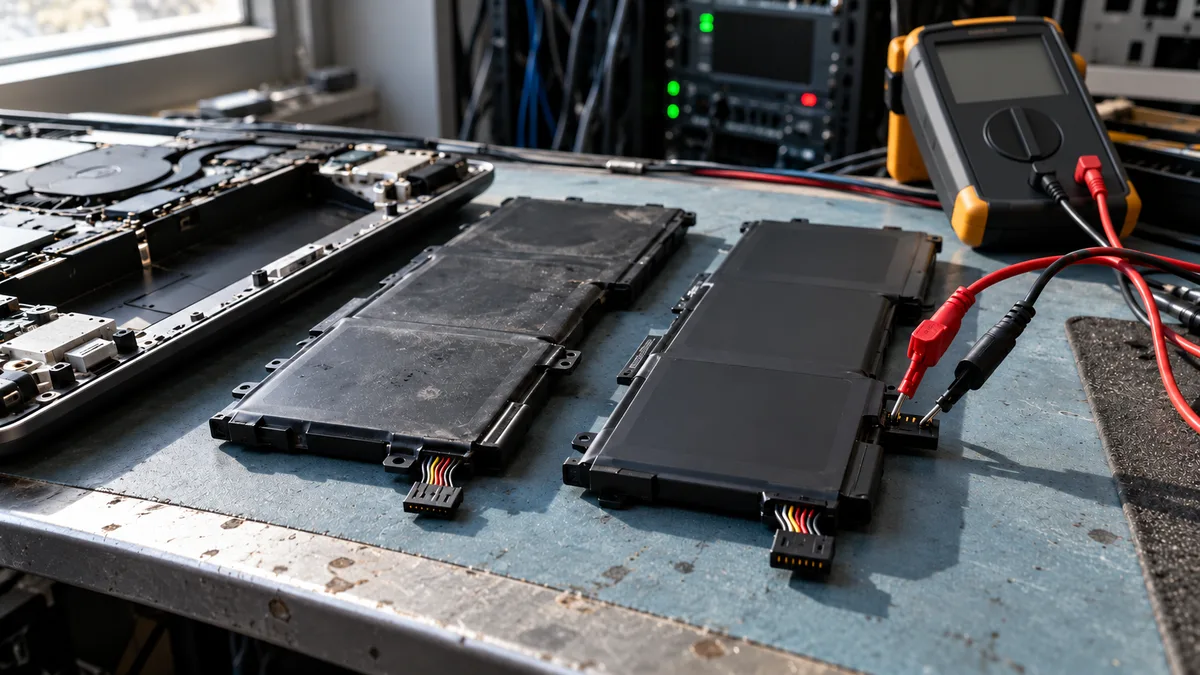
- the shape, dimensions and connector location;
- the positions of the screws, mounting points and cable.
One example is the Lenovo ThinkPad T14 Gen 3 with an Intel processor. Depending on the configuration, the official specifications list an integrated 39.3 Wh or 52.5 Wh battery. The name “ThinkPad T14 Gen 3” alone is therefore not enough; you need to verify the specific version against the device and the Lenovo PSREF specification sheet.
A higher Wh rating does not automatically make a better replacement. The battery must fit the specific chassis and meet the laptop’s electrical and communication requirements. A similar connector or matching nominal voltage alone does not establish compatibility.
A battery pack contains protection and control electronics. The laptop uses these to obtain information about charge level, temperature and battery operation. An unsuitable part may therefore go undetected, trigger a warning or fail to charge correctly. The exact behaviour depends on the model and firmware.
Genuine or third-party battery?
Ordering a genuine battery with the correct part number generally reduces the risk of problems with fit or communication. However, a “genuine” label is no help if the battery is the wrong variant, comes from an unclear source or has spent a long time in storage.
A third-party battery can be suitable, but you must be able to verify its manufacturer, exact application and warranty claim terms. A generic statement in the listing title is not enough.
| What to check | Genuine battery | Third-party battery |
|---|---|---|
| Intended application | A match with the manufacturer’s parts catalogue and the original part number | An explicit match with the exact model and part number |
| Physical design | A supported variant for the chassis | Dimensions, connector, cable and mounting points |
| Capacity | A rating supported by the configuration | Actual specifications, rather than just the highest number in the listing title |
| Electronics | Suitability for the model range | Confirmed communication with the specific laptop |
| Origin | A verifiable supply chain | A traceable manufacturer or importer |
| Warranty claims | The manufacturer’s or supplier’s terms | An invoice, warranty and a way to resolve incompatibility |
For a third-party replacement, ask for a photo of the actual label, the manufacturer’s exact name and a list of supported part numbers. A CE mark or a “100% compatible” claim does not replace checking the part against the specific battery.
For a work laptop, also factor in the risk of having to open it again and the resulting downtime. The lowest purchase price may therefore not deliver the lowest overall cost. Without information about specific manufacturers, however, it would be misleading to claim that every third-party battery has a shorter lifespan than a genuine one.
Is the laptop still under warranty?
Before opening the device, check the terms of the manufacturer’s warranty or service plan. Both the design and the rules vary by brand, exact model, warranty type and country of sale.
Some laptops have batteries with different warranty coverage from the rest of the device. Others may have an official procedure for user replacement, while a slim laptop may have an internal battery that requires chassis disassembly to remove.
For a practical guide to choosing your next step, see Warranty or out-of-warranty repairs for Lenovo, Dell and HP laptops.
Do not use a damaged or swollen battery
A bulging battery can lift the touchpad, keyboard or bottom cover. Shut down the laptop, disconnect the power adapter and do not squeeze, puncture or try to push the battery back into the chassis.
Do not pry a stuck or adhesive-mounted cell with a metal tool. For more detailed safety guidance, see Swollen laptop battery: what to do.
The battery itself is not the only risk. Opening the laptop incorrectly can damage hidden clips, the touchpad cable, the battery connector or wires routed close to the cover. Before attempting disassembly at home, consult the service manual for the exact model, rather than a video of a similar-looking laptop. The article Before opening your laptop at home: hidden screws, clips and cables highlights common design pitfalls.
What to check after replacement
After installation, checking that Windows displays a battery icon is not enough. Check:
- that the system detects the battery without an error message;
- that it actually charges when a suitable power adapter is connected;
- that the laptop runs reliably without the power adapter;
- that the charge percentage does not jump unexpectedly;
- that the cover fits properly and no cables are trapped;
- that the battery and the area around the connector do not get unusually hot.
Monitor the first discharge during normal use and keep important data saved. Repeated deep discharging is not required before using a new lithium-ion or lithium-polymer battery. If the original symptoms return after replacement, the power supply path needs to be checked again before buying another battery.
Rather not deal with it yourself?
Book a diagnosis in Brno — you get the price up front and we start only once you agree.
Where to find us
We are a PC and laptop repair shop in Brno-Židenice: diagnostics and repairs of computers and laptops, data recovery from drives, and out-of-warranty Apple repairs (iPhone 12 and newer, MacBook, iPad).
Viniční 3587/216, 615 00 Brno-Židenice, Czech Republic Mon–Fri 10:00–16:00
Call +420 774 777 774 Computer repair and laptop service in Brno
We put the repair price in writing after diagnostics and carry on only once you agree.