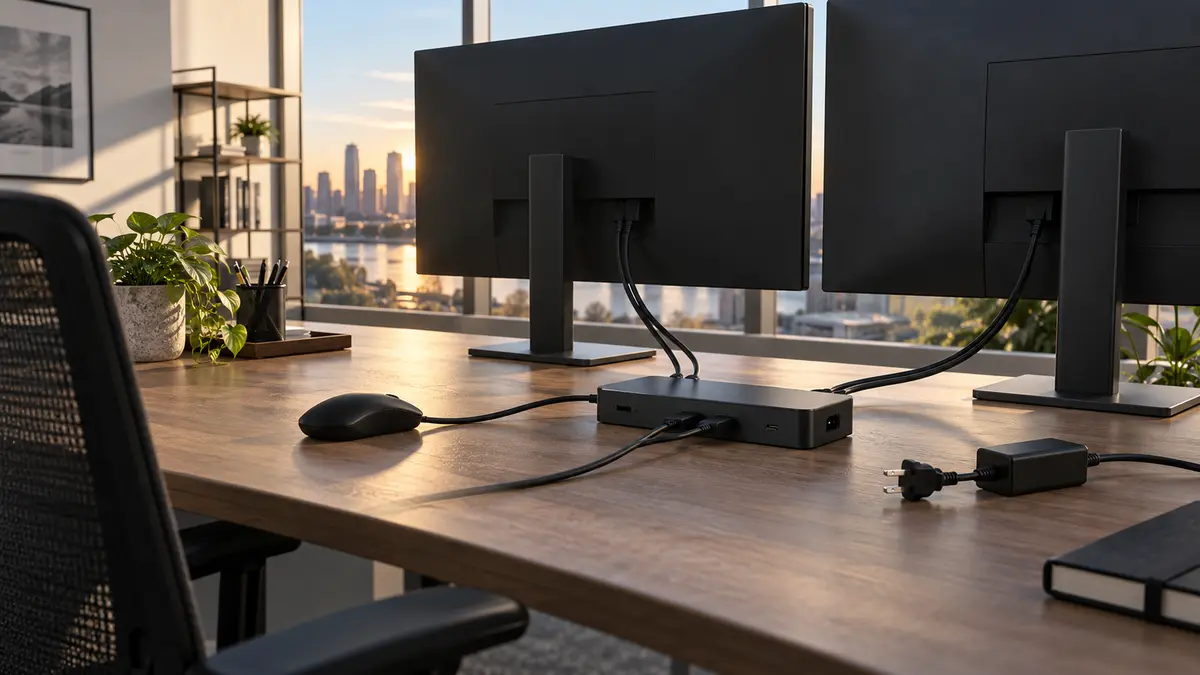
The short answer: If the dock works after startup but the display or peripherals stop responding after sleep, compare a direct connection with the path through the dock while maintaining a stable power supply. The cause could be a driver, firmware, cable, port, or power supply; the timing of the failure alone proves neither that the monitor is sound nor that the dock is faulty.
Record the starting point before disconnecting anything
Before testing anything, write down the exact setup: the laptop model, dock model, type and wattage of the dock’s power supply, the cable connecting the laptop to the dock (USB-C or a proprietary connector), the number of connected monitors and the ports they use, and all peripherals attached to the dock. If you have the opposite problem—the laptop wakes from sleep by itself—see laptop wakes from sleep by itself. Without this list, you will not be able to tell what actually changed between tests, making the results much less meaningful.
Also save any work in progress and use the operating system to safely eject storage devices connected through the dock. The tests involve changing connections and putting the computer to sleep. Do not disconnect the power supply while storage is in use or during an update. Disconnecting a drive during data transfer can damage its file system. With a company laptop, you must also avoid working directly on the sensitive original data stored on faulty media and leave it untouched—it should be handled separately, using a copy.
What the manufacturer’s documentation tells us
For the D1000, D3100, and D6000, Dell describes a related but different scenario: waking the computer itself via USB after it has been disconnected while asleep. Without the appropriate AC power, the system may cut power to the USB ports to conserve battery power. The requirements differ for USB-A and USB-C: when connected via USB-A, the power adapter should be plugged directly into the computer; when connected via USB-C, it should be plugged into the dock. USB wake support must also be enabled in the BIOS. This source does not prove the cause of a monitor failure after the computer has successfully resumed, and its guidance cannot automatically be applied to another product line. Source: Dell: D1000/D3100/D6000 wake from sleep.
According to the WD19DCS Administrator Guide, firmware updates for the WD19 series require the specified power conditions and may restart the dock while in progress. Firmware and drivers are model-specific, and power checks must not be bypassed.
Everything else in this article is a recommended troubleshooting procedure, not information from the manufacturer. It is our own reasoned method for eliminating possible causes step by step—none of it is an approved Dell service procedure.
What the test can and cannot prove
The limits of interpretation must be clear:
- A direct-connection comparison shows: whether the setup works under the tested conditions without the dock. Record any changed ports, cables, and display modes; this compares connection paths rather than fully testing every component.
- A direct-connection comparison does not prove: that the dock is faulty or that the cable or monitor is definitively sound. The direct path may use a different mode and operate under a different load. Any difference directs further investigation towards the setup involving the dock.
- Repeated tests make the finding more precise: record even a single failure. Several successful tests do not guarantee long-term stability.
Step by step: comparing a cold start with wake
- Prepare setup A: connect the dock to its power supply, the laptop to the dock, and the monitor and mouse to the dock. Start the laptop from a fully powered-off state. Expected result: both the display and mouse work. Record the result.
- Put the laptop to sleep rather than shutting it down, and leave it undisturbed for the usual length of time after which the problem occurs. Wake it.
- Record the results: does the display work? The mouse? The network connection through the dock? Whatever fails is the actual symptom—individual dock functions can fail independently.
- Compare a direct connection: if the laptop has suitable ports, disconnect the mouse and monitor from the dock and connect them directly to the laptop. Without changing anything else, put the laptop to sleep and wake it again. Expected result: if everything works when connected directly but the same procedure failed through the dock, the scope narrows to the dock and its behaviour after sleep.
- Keep the power supply controlled: repeat the test through the dock using the correct power supply specified in the manual, without disconnecting it during sleep. Compare this state with the circumstances in which the fault normally occurs. Do not intentionally create an unstable power supply or infer a display diagnosis from documentation about USB wake.
- If it is safe to do so, repeat the test and record both successes and failures. Stop further cycles if overheating, storage errors, or power problems occur.
Safe temporary workaround: if a direct connection has been shown to work, you can temporarily work without the dock while using the laptop’s appropriate dedicated power supply. Do not change power-saving settings or company policies without the administrator. This workaround may let you finish your work, but it does not fix the original fault.
Company environment: do not modify a company laptop yourself. Instead, send the test records to the administrator. In particular, leave any firmware and driver changes to them.
Decision table
| Observed behaviour | What it means | Next step |
|---|---|---|
| Both cold start and wake through the dock work | The problem could not be reproduced | Repeat the test under the conditions in which the problem normally occurs |
| Everything works directly but fails through the dock after sleep | The issue lies in the tested path through the dock; individual components have not been definitively ruled out | Continue with the power-supply test and report the findings to the administrator |
| The same problem occurs with a direct connection | The issue also exists outside the dock | Troubleshoot the laptop and its settings separately |
| The problem occurs only when the dock’s power supply is disconnected during sleep | Power affects the symptom; the cause requires further assessment | Verify the specified power arrangement and report the finding to the administrator |
| The problem affects only one peripheral | Distinguish between the peripheral, port, and connection path | Test that peripheral separately; for a monitor, connecting and configuring a second monitor may also help |
| Firmware update conditions are not met at any point | The update cannot be performed safely | Leave it to the administrator and do not bypass the checks |
Firmware and driver updates: where to draw the line
Updating dock firmware is not a routine troubleshooting step for an end user. According to the WD19DCS Administrator Guide, the specified power conditions must be met, the process may restart the dock, and both firmware and drivers are model-specific. Therefore:
- download firmware only from the manufacturer and only for the exact dock version and model;
- never skip or bypass the installation tool’s power checks;
- on company laptops, updates must be performed by the administrator, not the user.
Guidance for the D6000 must not be applied mechanically to the WD19. They are different product lines with different behaviour, and the scope of the cited source is limited to the models it names: Dell: D1000/D3100/D6000 wake from sleep. We also do not recommend broadly disabling USB selective suspend, blindly changing BIOS settings, or forcing a firmware update outside the conditions checked by its installation tool. Such general advice from online discussions has not been verified for the specific model and may cause another problem.
Handover checklist for the administrator or service centre
- The laptop, dock, power supply, cable, and all peripheral models have been recorded.
- Work has been saved and external drives safely ejected in the operating system.
- A cold start through the dock has been tested and the result recorded.
- Wake through the dock has been tested, including the number of repetitions and duration of sleep.
- Direct connections for the monitor and mouse have been tested using the same procedure.
- The setup has also been tested with uninterrupted power to the dock during sleep.
- The first symptom to fail has been recorded (display, USB peripheral, or network).
- No changes have been made to firmware, the BIOS, or system settings.
- Sensitive data on the dock has not been examined or repaired.
Verifying the result
After corrective action, test repeated sleep and wake cycles using the original setup during normal work. Record the number of cycles and the observation period. Check every monitor, the mouse, and the network connection. Several successful tests are no substitute for monitoring an intermittent fault; document any further failure and report it to the administrator.
Frequently asked questions
Why does the dock fail after waking from sleep but not after startup?
Startup and resuming from sleep are not the same process. The cause depends on the specific setup. For the D1000/D3100/D6000, Dell describes the power requirements for waking the computer via USB; this is not a general diagnosis of monitor failure after wake.
Does a dock failing after sleep mean the hardware is faulty?
No. This symptom alone neither rules out the monitor or cable nor proves that the dock is faulty. Comparing direct and docked connections helps identify the affected path; the cause may also be a driver, firmware, port, power supply, or interaction with the laptop.
Can I simply disable USB selective suspend or change the BIOS?
We do not recommend it. These are broad, unverified measures that do not address a model-specific cause and may create another problem. Troubleshooting should involve one change at a time, not sweeping system modifications.
May an end user update the dock firmware?
Not on company equipment. An update requires the specified power conditions, must use the manufacturer’s software for the exact version, and may restart the dock. It should therefore be performed by the company’s administrator, and power checks must never be bypassed.
What should I do first when the problem occurs?
Save your work and safely eject external drives in the operating system. If the laptop has suitable ports, compare the monitor and mouse using direct connections. Record the result, including any changed cables and modes; one successful test does not prove that every component is sound.
When professional service makes sense
Describe a persistent fault in the service request: include the exact model, the symptom, when it began, and what you have already checked safely. For device repairs and further assistance, you can use the ITHOPE PC and laptop repair service. If unbacked-up data is also at risk, address the data first. The price and scope of the work can be determined once the cause has been identified.
Sources and review date
The technical sources were reviewed on 4 October 2026.
Rather not deal with it yourself?
Book a diagnosis in Brno — you get the price up front and we start only once you agree.
Where to find us
We are a PC and laptop repair shop in Brno-Židenice: diagnostics and repairs of computers and laptops, data recovery from drives, and out-of-warranty Apple repairs (iPhone 12 and newer, MacBook, iPad).
Viniční 3587/216, 615 00 Brno-Židenice, Czech Republic Mon–Fri 10:00–16:00
Call +420 774 777 774 Computer repair and laptop service in Brno
We put the repair price in writing after diagnostics and carry on only once you agree.


