The short answer: The processor must fit the socket and appear on the list of supported CPUs for the relevant BIOS version. The RAM must match the motherboard generation (DDR4 and DDR5 are not interchangeable). The case must accommodate the motherboard, graphics card length and cooler height. The PSU needs sufficient wattage and the correct connectors—estimate its required output from the maximum load of the entire system, add a 20–30% margin and compare the result with the graphics card manufacturer’s recommendation.
Choosing a computer often begins with the question, “Which processor is best?” The right first question, however, is what the computer needs to do, how much it can cost and how long it should last. Only then does it make sense to compare cores, gigahertz, memory capacity or the wattage printed on a PSU label.
You always need to check two things. First, whether the components are physically and technically compatible. Second, whether their performance is balanced for the intended use. A powerful graphics card will not benefit an office computer, and an expensive processor will not rescue a machine with too little memory or a slow drive.
Start with the purpose, not the processor’s name
The same computer will not be ideal for accounting, video editing, gaming and running as an always-on server—each workload places demands on a different part of the system. First, write down which programs you will use, how much data you will process and what matters most: performance, low power consumption, quiet operation, reliability or the option to upgrade later.
| Type of use | What to prioritise | What is usually less important |
|---|---|---|
| Office work, web, school | SSD, sufficient RAM, quiet operation, low power consumption | powerful dedicated graphics |
| Gaming PC | graphics card, balanced processor, cooling, PSU | a very high core count |
| Photography, video, 3D, CAD | CPU and GPU suited to the software, RAM, fast storage | a “gaming” label without considering the application |
| Server and virtualisation | RAM, core count, drives, network, reliability, backups | gaming graphics unless the service uses them |
It is more practical to divide a budget by proportion than by fixed amounts. In an office system, the largest share should go towards the SSD and memory; in a gaming PC, towards the graphics card; and in a workstation, towards the processor and storage. Once a single component consumes most of the budget, the rest of the system will begin to hold it back.
What a desktop computer consists of
- Processor (CPU) — executes program instructions. Important factors include its architecture, number of cores and threads, frequency, power consumption and platform.
- Motherboard — connects everything else. It determines the socket, RAM generation, slots, connectors and BIOS capabilities.
- Random-access memory (RAM) — holds data currently in use. If there is too little RAM, data must be moved to a much slower drive.
- Graphics processor (GPU) — renders images and accelerates parallel computations. Graphics integrated into the processor are often sufficient for everyday work.
- Storage (SSD/HDD) — holds the system, programs and data. An NVMe SSD uses PCIe, while a SATA SSD uses the considerably slower SATA interface.
- Power supply and cooling — the PSU delivers stable voltages, while the cooling system removes heat. Both affect the stability and lifespan of the entire computer.
Five compatibility checks before ordering
Compatibility is about more than choosing the correct socket. You also need to verify the memory, storage, dimensions and power supply.
1. Processor, socket, chipset and BIOS. Choosing the same manufacturer is not enough. The processor must use the same socket as the motherboard, and the specific model must appear on the motherboard manufacturer’s CPU support list. An older board may require a BIOS update for a newer processor—and if the motherboard cannot be updated without a supported CPU already installed, the system will be unusable until then.
2. RAM. DDR4 and DDR5 are not interchangeable: their electrical specifications and notch positions differ. Check the supported generation, maximum capacity, number of slots and recommended module configuration. Two modules sold as a matched kit are a safer choice than mixing different memory modules later. We explain how much you actually need in our article on how much RAM you need.
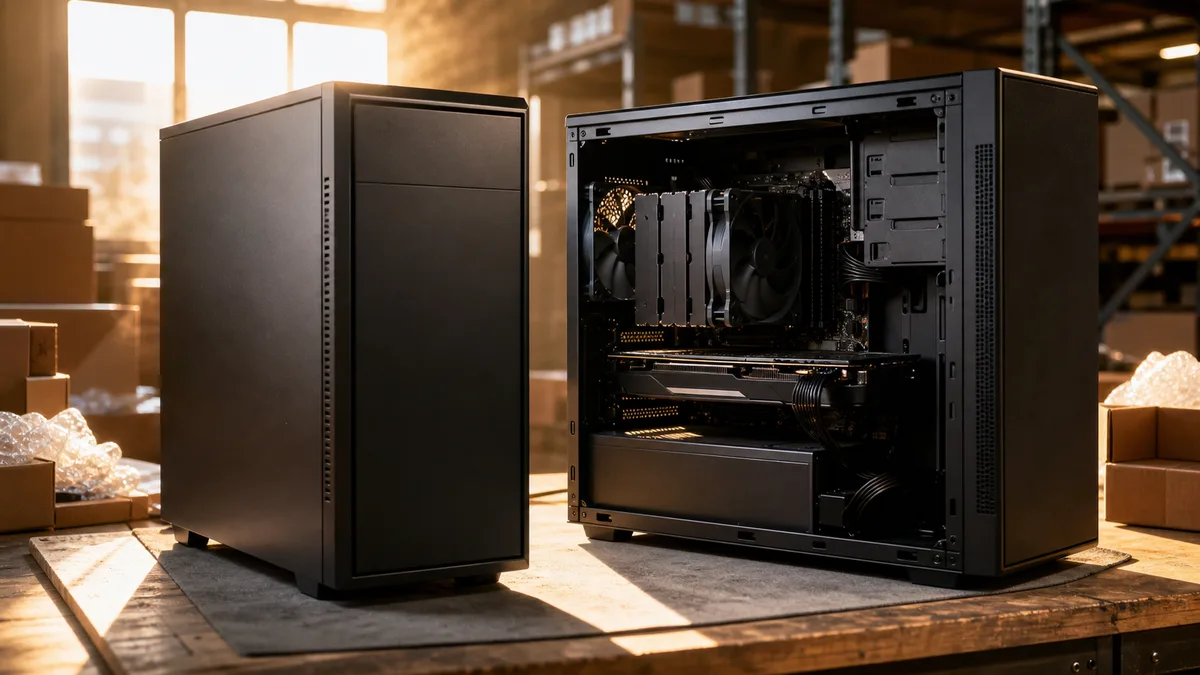
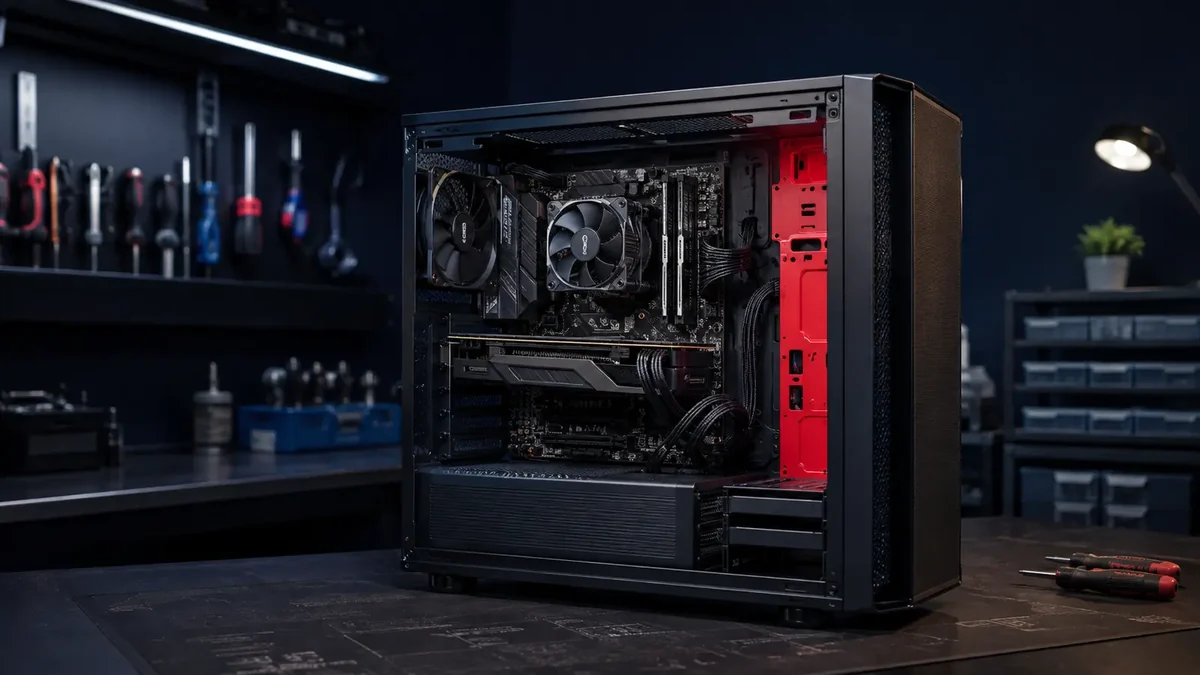
3. Case, form factor and dimensions. The case must support the motherboard’s form factor (ATX, microATX or Mini-ITX) while also accommodating the graphics card’s length, the cooler’s height, any radiator and the PSU form factor. The abbreviation “ATX” can refer to both a motherboard and a power supply—these are two separate compatibility checks.
4. Drives and expansion slots. M.2 is a physical form factor, not automatically a protocol. Some M.2 slots support NVMe over PCIe, others support only SATA and some support both. The motherboard manual will also often state that installing a drive in a particular slot shares PCIe lanes or disables a SATA connector, so read the manual before ordering the drive (we also offer installation and replacement services—see SSD replacement).
5. PSU, connectors and graphics card. The PSU must provide enough wattage, the main motherboard connector, CPU power and the correct number and type of graphics card connectors. For more powerful cards, check the manufacturer’s recommendation and the required cable arrangement.
The most common mistake in practice: the customer checks the processor socket but overlooks an unsupported BIOS, a different RAM generation, an excessively tall cooler or a missing PSU connector.
What cores, threads and GHz actually mean
A core is an independent computing unit within the processor that executes instructions. More cores allow the computer to work on more tasks at once—but the software must be able to divide its workload between them. A thread is a sequence of instructions; simultaneous multithreading technology can make better use of a physical core, but two threads are not the same as two full physical cores.
Frequency is measured in hertz, or cycles per second:
| Unit | Conversion | Cycles per second |
|---|---|---|
| 1 Hz | base unit | one |
| 1 kHz | 1,000 Hz | one thousand |
| 1 MHz | 1,000,000 Hz | one million |
| 1 GHz | 1,000,000,000 Hz | one billion |
A simplified example: 4 cores × 4 GHz = 16 billion core clock cycles per second. However, this applies only when all four cores are actually running at 4 GHz—and it is the sum of their clock cycles, not 16 billion completed operations.
A clock cycle is not an instruction. A processor uses a pipeline and multiple execution units, so it can complete some instructions quickly while others require several cycles. Cache size, RAM speed, cooling and configured power limits also affect the result. That is why a 5 GHz processor is not necessarily faster than another running at 4.5 GHz, and clock frequencies are most useful when comparing processors within the same generation and product line.
Volts, amps, watts and kilowatt-hours
| Quantity | Unit | Simple analogy | What it means in a computer |
|---|---|---|---|
| Voltage | volt (V) | the “pressure” driving the current | the PSU supplies the voltages required by the components |
| Current | ampere (A) | the amount of charge flowing through a circuit | the current drawn by a component increases with its load |
| Power | watt (W) | the rate at which energy is supplied or consumed | a device’s instantaneous power draw or a PSU’s output capacity |
| Energy | Wh, kWh | power multiplied by time | electricity is billed in kWh |
The basic relationship is P = U × I (power = voltage × current). For example: 12 V × 10 A = 120 W. You can use the same relationship to calculate current as I = P ÷ U and voltage as U = P ÷ I.
A watt and a kilowatt-hour are not the same thing. Watts describe instantaneous power, while kilowatt-hours measure an amount of energy over time. If a computer draws 300 W from the outlet under load and runs for five hours, it consumes 0.3 kW × 5 h = 1.5 kWh. Actual power draw varies according to activity—it is considerably lower at idle than while gaming or rendering. A plug-in power meter will measure it accurately.
How to calculate the required PSU wattage
Do not choose a PSU based on the processor alone. The graphics card is usually the largest contributor, but the motherboard, drives, fans, water-cooling pump, expansion cards and USB-powered devices must also be included.
- Find the power limit or typical maximum power consumption of the processor and graphics card.
- Add the approximate consumption of the motherboard, RAM, drives, fans and other equipment.
- Add a margin for power spikes, PSU ageing and possible future upgrades.
- Compare the result with the PSU wattage recommended by the graphics card manufacturer.
- Check the connectors, cable lengths, PSU dimensions, warranty and independent reviews of the specific model.
Illustrative estimate:
| Item | Estimate |
|---|---|
| Processor under heavy load | 105 W |
| Graphics card | 220 W |
| Motherboard, RAM, SSD and fans | 75 W |
| Total system load | 400 W |
| 25% margin → 400 × 1.25 | 500 W |
| Sensible choice based on available models and the manufacturer’s recommendation | 550–650 W |
This is an educational example, not a universal recommendation: short power spikes in modern high-performance graphics cards can exceed their normal consumption, and the manufacturer may recommend a higher-wattage PSU.
Does a 650 W PSU always draw 650 watts? No—that is its maximum output capacity. If the computer needs 180 W, it receives 180 W. The PSU will, however, draw slightly more from the outlet because some energy is lost as heat: at 90% efficiency, supplying 360 W to the components requires approximately 400 W from the outlet (360 ÷ 0.9), with the remaining 40 W converted into heat.
When a system will not start, the PSU is often the second suspect. We explain how to distinguish this from a faulty motherboard in our article desktop computer will not turn on.
Five hardware calculations used by the operating system
The specifications printed on the box are one thing; the figures used by the operating system are another. These conversions explain most of the “mysteries” people bring to us.
1. Why a 1 TB drive shows only 931 GB. The manufacturer defines 1 TB as 10¹² bytes, while the system divides by powers of 1024:
1,000,000,000,000 B ÷ 1024³ = 931.32 GiB
Windows labels the result as “GB”, even though the unit is actually gibibytes. Nothing is missing; the capacity is simply measured using a different unit. Formatting and system partitions may use a few hundred additional megabytes. The same rule applies to a 2 TB drive (1,862 GiB) and a 500 GB SSD (465 GiB).
2. Bits versus bytes on a network. A 100 Mb/s connection can transfer 100 ÷ 8 = 12.5 MB/s. That is why downloading a 1 GB file over a 100 Mb/s connection takes at least 80 seconds, no matter how fast the server is. Connection speeds are measured in bits, while file sizes are measured in bytes—the ratio is always eight to one.
3. How long copying takes with different drive types. Transferring 50 GB of data, or 51,200 MB:
| Storage | Real-world speed | Transfer time |
|---|---|---|
| 7,200 rpm HDD | ~150 MB/s | ~341 s (5.7 min) |
| SATA SSD | ~550 MB/s | ~93 s |
| NVMe SSD (PCIe 4.0) | ~5,000 MB/s | ~10 s |
The SATA interface itself imposes a ceiling: SATA III operates at 6 Gbit/s, which after overhead works out to around 600 MB/s. That is why faster SATA SSDs do not exist—higher speeds require NVMe over PCIe lanes.
4. How much memory the system needs in reserve. When the combined memory usage of running programs exceeds the available physical RAM, the system begins moving inactive pages to a page file on the drive. The difference in speed is measured in orders of magnitude: access to RAM takes tens of nanoseconds, while access to an NVMe SSD takes tens of microseconds—roughly a thousand times longer. This is why a computer with too little memory “freezes” even if it has a fast drive and a modern processor; the drive may also appear to be at 100% utilisation, as we explain elsewhere.
For a server, memory requirements are calculated by adding together the memory needed by the host system, the total memory allocated to virtual machines and a reserve. Four virtual machines with 4 GB each on a host requiring 2 GB need 4 × 4 + 2 = 18 GB, even before allowing for load spikes and disk cache.
5. How much energy the system consumes in a year. A computer with an average power draw of 300 W, running eight hours a day for 250 working days:
0.3 kW × 8 h × 250 days = 600 kWh per year
Insert your own price per kWh from your electricity bill to obtain the annual operating cost of one workstation. Across ten workstations, the difference between an efficient and unnecessarily oversized configuration becomes worth calculating—and for a server that runs 8,760 hours a year, it is a cost that cannot be ignored.
How hardware relates to the operating system
The operating system distributes processor time among programs, allocates memory and manages files, drivers, the network and peripherals. Weak or poorly designed hardware therefore directly limits the number of services, users and applications the system can handle.
Distinguish between minimum and recommended requirements. The minimum usually means that the system can be installed and started—it does not mean that it will comfortably run a browser with ten tabs, a development environment or a virtual machine. Windows 11, for example, requires a compatible 64-bit processor with at least two cores and a clock speed of 1 GHz, 4 GB of RAM, 64 GB of storage, UEFI with Secure Boot and TPM 2.0. For real work, however, you must add the requirements of your applications and leave room for updates and data.
Server performance should be planned around the service. A web server hosting a few internal pages, a database server, backup storage and a virtualisation host all have entirely different requirements. Decide the following in advance:
- Processor: how many simultaneous tasks and virtual systems must it handle?
- RAM: how much memory do the system, services and all virtual machines require together?
- Drives: is capacity, speed, fault tolerance or a combination of these the priority?
- Network: how much data will the server transfer, and does it need a redundant connection?
- Power and cooling: will it run continuously, and what happens during a power outage?
Try it yourself: designing a system step by step
We give this exercise to final-year secondary-school students in our operating systems course—and it is exactly what we do in the repair shop before every component order. Work through it on paper before buying anything.
- Define the purpose and budget. Office work, gaming, video editing or a small server? Without this step, the rest is meaningless.
- Choose all components from one retailer and write down the exact model number of each one—compatibility cannot be verified without it.
- Perform the five checks from this article: socket and BIOS, RAM generation, dimensions, M.2 and SATA lanes, PSU and connectors.
- Calculate the required PSU capacity using the method above and compare it with the graphics card manufacturer’s recommendation.
- Document the design: include a parts table, links, total price, PSU calculation and an explanation of why you chose each component.
- Defend your choices. For every component, you should be able to explain what would happen if you selected a cheaper or more expensive alternative.
The sixth step is the most valuable. A configurator can assemble a list of parts, but only someone who understands the relationships between the components can justify the decisions—and that is precisely what distinguishes a technician from a salesperson.
The most common mistakes when buying components
| Mistake | What may happen | How to prevent it |
|---|---|---|
| Choosing solely by GHz | an older processor with a higher clock speed may be slower and less efficient | compare processors from the same generation and benchmark results in the relevant applications |
| Same socket but unsupported BIOS | the computer may not start | check CPU support and the minimum BIOS version with the motherboard manufacturer |
| Wrong RAM generation | the module cannot be installed or is not supported | check DDR4/DDR5, capacity, module count and the compatibility list |
| Choosing a PSU solely by a high wattage rating | unstable voltages, noise, missing protections or connectors | assess the specific model, reviews, warranty and required cables |
| Case is too small | the graphics card or cooler will not fit, or cooling will be inadequate | compare all dimensional limits and fan mounting positions |
| One component consumes the budget | the rest of the system holds back an expensive processor or graphics card | divide the budget according to the actual workload and target performance |
Checklist before ordering
- I have defined the intended use, applications and maximum budget.
- The processor is supported by the motherboard and the specific BIOS version.
- The RAM matches the motherboard generation and planned capacity.
- The motherboard, graphics card, cooler and PSU fit inside the case.
- The drive uses the correct M.2 or SATA connector and does not take lanes needed elsewhere.
- The PSU has sufficient capacity, an appropriate margin and all required connectors.
- The cooling system suits the processor, graphics card and airflow inside the case.
- The system meets the requirements of the operating system and the applications I use.
- I know which components can be upgraded later and which would need to be replaced.
- Before paying, I have checked the entire parts list as a single system.
Not sure whether your components are compatible? Send us your parts list before ordering—we will check the sockets, power supply, cooling and whether the system suits the way you intend to use it. We can also assemble the computer and install the operating system; indicative prices are available in our price list, while the exact price always depends on the scope of work and the specific configuration.
Send an enquiry · ☎ 774 777 774 · Brno-Židenice branch
Rather not deal with it yourself?
Book a diagnosis in Brno — you get the price up front and we start only once you agree.
Where to find us
We are a PC and laptop repair shop in Brno-Židenice: diagnostics and repairs of computers and laptops, data recovery from drives, and out-of-warranty Apple repairs (iPhone 12 and newer, MacBook, iPad).
Viniční 3587/216, 615 00 Brno-Židenice, Czech Republic Mon–Fri 10:00–16:00
Call +420 774 777 774 Computer repair and laptop service in Brno
We put the repair price in writing after diagnostics and carry on only once you agree.