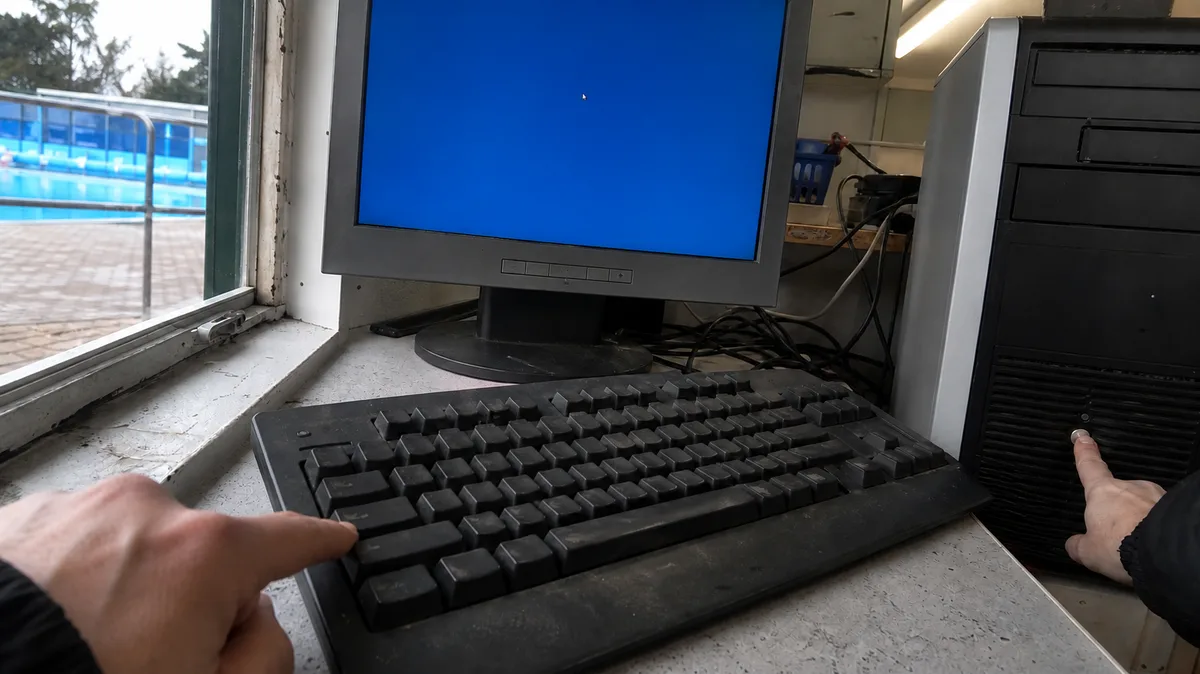
The short answer: First, distinguish between two different faults. A brief stutter means that the computer stops for a few seconds and then carries on—the system is still running but waiting for something. A complete freeze means that nothing responds and only a forced restart helps. You can tell the difference using Caps Lock: if the keyboard indicator changes, the system is still alive. Before reinstalling or changing anything, note the time of the freeze and check Task Manager and Event Viewer. If you suspect the drive, back up your data before trying anything else.
Brief stutters and hard freezes are not the same
A brief stutter looks like this: the pointer moves normally, but a window stops responding, music gets stuck in a loop, and after two to ten seconds everything starts working again. The system has not crashed—it is waiting for something. This is typically a drive that cannot respond quickly enough or a driver that is holding up the rest of the system.
A hard freeze is different: the pointer does not move, Ctrl+Alt+Delete does not respond, and the computer remains stuck until you turn it off with the power button. Microsoft describes a simple test for this situation: press Caps Lock and watch the indicator light on the keyboard. If the light does not change, the computer has suffered a hard freeze.
This distinction determines what to do next. Brief stutters can be observed while the system is running and almost always leave some trace behind. During a hard freeze, the system often has no time to record anything at all, so the cause must be investigated differently—based on what was happening immediately beforehand.
Answer the basic questions before reaching for diagnostic tools
Microsoft’s troubleshooting process for freezing computers begins with questions, not software: which computer freezes, what activity triggers it, how often it happens, and whether it occurs on only one machine. The answers will narrow down the search faster than an hour of trial and error.
Take a sheet of paper and, for several freezes, note the exact time, what you were doing, and how long the freeze lasted. Pay particular attention to whether it is linked to a specific situation: system startup, opening a large file, connecting an external drive, launching a game, or, conversely, leaving the computer idle. A pattern of “it always happens when…” is half the diagnosis.
Task Manager: what is running when the stutter occurs
Open Task Manager using Ctrl+Shift+Esc. The key is to leave it running in advance, because it may not open quickly enough during a stutter. Switch to the Processes tab and click the column headers to sort the processes first by Disk, then by CPU, and finally by Memory.
What to look for:
- Disk constantly at 100%—the most common cause of brief stutters. The system is waiting for the storage device, and the entire computer stalls with it. See our detailed analysis and troubleshooting guide in Disk usage at 100% and Windows running slowly.
- Full memory and increasing paging activity—when memory usage approaches the physical capacity, the system starts moving data to the page file on the drive. Microsoft describes the page file as a normal part of memory management, but on slow storage, paging can cause exactly these multi-second stutters.
- One process using all available resources—a browser with dozens of tabs, a backup utility, indexing, or an updater. End the process and watch whether the stutters stop.
Event Viewer: what the system recorded around that time
Open Event Viewer through Win+X → Event Viewer (or run eventvwr.msc). Open Windows Logs → System and find the time you noted. Focus on Critical and Error events recorded within a few minutes of the stutter, rather than examining the entire log.
Microsoft recommends checking both System and Application. In the Application log, look for entries such as Application Error. In the System log, look for service errors and any entries with Srv/Server as their source (IDs 2019 and 2020). The perfmon /report command is also useful, as it generates a summary diagnostic report on the state of the system.
Pay particular attention to an entry with Kernel-Power as its source and event ID 41. Windows records this when the computer was not shut down properly beforehand. If it contains a non-zero BugcheckCode, a blue screen occurred—it may simply have been hidden by an immediate restart.
Decision table
| What you observe | What it suggests | Safe next step |
|---|---|---|
| the pointer moves, but a window does not respond for a few seconds | waiting for the drive or a driver | leave Task Manager open and watch the Disk column |
| Caps Lock does not respond and everything is stuck | hard freeze | note the time and activity, then check the System log after restarting |
| stutters accompanied by clicking or files taking a long time to open | possible drive failure | back up before testing |
| freezing only after sustained load, with the fan running at full speed | temperature and cooling issue | measure temperatures and consider cleaning |
| the computer always freezes in one program | faulty application or its driver | check the Application log, uninstall the program, and test without it |
| Kernel-Power 41 with a code appears in the log after the freeze | a blue screen occurred | treat it as a system crash, not merely a stutter |
Data comes before diagnostics
As soon as you suspect the storage device, the order of the steps changes. Testing places additional load on a drive that may already be close to failure, and every further attempt could be its last. Back up first, investigate second. We explain the typical symptoms of a failing drive and how to create a backup when the computer is behaving unreliably in SSD failure: warning signs, data backup, and when to act.
The same applies to older mechanical drives. Warning signs include not only poor performance, but also regular clicking or a brief pause whenever the system accesses a particular folder.
Temperature, drivers, and a single faulty program
If the computer starts freezing only after sustained load and behaves normally again once it has cooled down, investigate the cooling system. Our article Laptop or desktop PC overheating and shutting down explains how to measure temperatures and when cleaning or replacing the thermal paste may help.
The second common culprit is the graphics driver. Typical symptoms include the display briefly freezing, flashing black, or stutters linked to video playback and games. Update the drivers through Device Manager using Microsoft’s procedure or install the package supplied by the graphics card manufacturer. Never install drivers from random download websites.
The third possibility is the simplest and most frequently overlooked: a single faulty program. If the freezes are always linked to the same application and the Application log reports an error at the same time, there is no reason to test the hardware—try using the computer without that application.
When the symptoms do not say what the cause is, the next step is measurement — fault diagnostics in Brno, not blind part swapping.
When freezing turns into a system crash
Freezing can sometimes precede a blue screen: first there are a few brief stutters, followed by a longer freeze, and finally a crash with an error code. If a blue screen has already appeared or the computer restarts on its own, stop treating it as a performance issue. Microsoft has a separate procedure for unexpected restarts and Stop Code errors, which are handled differently from a slow system. Write down the complete text shown on the error screen, including the code; without it, finding the cause is considerably more difficult.
What to tell us when you bring in the computer
Bring your notes: when the freezes began, what you were doing when they occurred, how long they lasted, and whether they were preceded by an update, a hardware replacement, or the installation of a new program. It is also useful to tell us what you have already tried, as this avoids repeating the same steps. If the drive contains data that is not stored anywhere else, mention it during the first contact because it changes the order of the entire process.
Servis PC Brno will assess the computer, check the condition of its storage and operating temperatures, and review the event logs. We do not promise the scope or price of the work in advance—we can confirm the diagnosis and repair price only after inspecting the specific machine.
If your computer freezes regularly and you do not want to spend an evening watching Task Manager, have it checked before the stutters turn into a crash. Arrange an appointment through our booking form or call 774 777 774. In the description, tell us whether Caps Lock responds, what activity triggers the problem, and whether your data is backed up.
Order online: Fault diagnostics — tell us the model and what happens, and we will come back with the next step.
Sources
- Microsoft Learn: Advanced troubleshooting for Windows freezes
- Microsoft Learn: Event ID 41 — The system has rebooted without cleanly shutting down first
- Microsoft Learn: Introduction to the page file
- Microsoft: Troubleshooting unexpected Windows restarts and Stop Code errors
- Microsoft: Updating drivers through Device Manager in Windows
Rather not deal with it yourself?
Book a diagnosis in Brno — you get the price up front and we start only once you agree.
Where to find us
We are a PC and laptop repair shop in Brno-Židenice: diagnostics and repairs of computers and laptops, data recovery from drives, and out-of-warranty Apple repairs (iPhone 12 and newer, MacBook, iPad).
Viniční 3587/216, 615 00 Brno-Židenice, Czech Republic Mon–Fri 10:00–16:00
Call +420 774 777 774 Computer repair and laptop service in Brno
We put the repair price in writing after diagnostics and carry on only once you agree.


