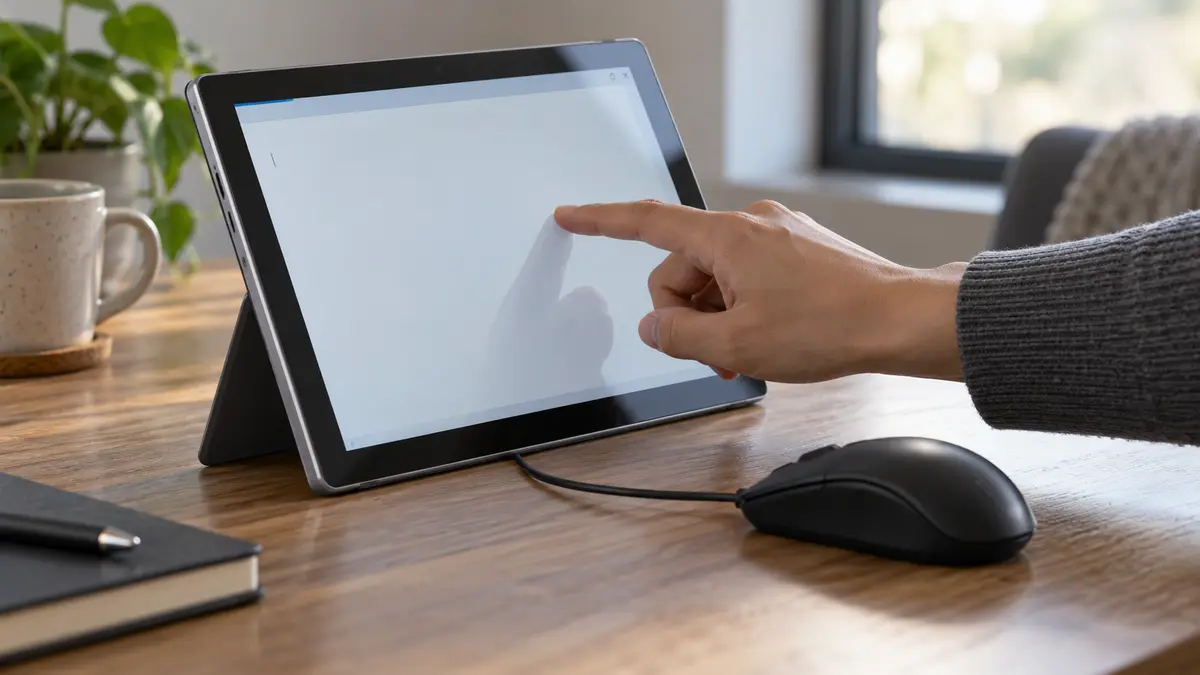
The short answer: If the display and mouse work but the touchscreen on your Windows laptop does not respond, the cause may lie in the driver, configuration, or the panel’s touch layer. Start by restarting the device and installing optional driver updates from the manufacturer of your specific device. Do not delete anything blindly or reset the entire computer.
This guide is intended for Windows 11 touchscreen laptops and computers where the display works normally and the mouse or keyboard remains functional. It does not cover touchpads, iPads, or other tablets. An iPad touchscreen uses a different system and requires a different repair and diagnostic procedure, so it is outside the scope of this guide.
First, confirm that you actually have the touchscreen version
Some laptop ranges are available both with and without a touchscreen. Two otherwise identical-looking models may differ, and one may not have a digitizer at all. Before troubleshooting, find the exact model or serial number. It is usually printed on a label on the underside of the device or shown in System Information. Then check with the retailer or in the manufacturer’s documentation that your specific configuration supports touch input.
If the device does not have a touchscreen, no driver or restart will add one. Confirming this can save hours of unsuccessful troubleshooting and an unnecessary trip to a repair shop.
Next, visually inspect the device for physical damage. Cracks or signs of a fall warrant professional inspection. A lifting display or casing may also indicate a swollen battery. Dell recommends that you stop using a device with a swollen battery and do not press on the battery: turn the device off, do not charge it, and do not push the casing back into place. Do not continue with restarts or updates in this situation; arrange for the device to be delivered safely to a repair shop.
Step 1: Restart with a USB mouse connected
Because the touchscreen is not working, control the computer using an external USB mouse and keyboard. Restarting the device is a basic software diagnostic step. Microsoft lists a restart as the first step when troubleshooting touchscreen problems in Windows (Microsoft: touchscreen Windows).
Procedure:
- Connect a USB mouse and confirm that it works.
- Fully restart the computer (Start menu → Power → Restart); do not merely close the lid or put the device to sleep.
- Once Windows has loaded, test the touchscreen.
Expected result: touch input works again. If it does, note when this happened—the problem may have been a one-off driver error after the device woke from sleep.
Safe path if the touchscreen still does not work: continue to the next step. Do not make any system changes yet.
What this test does not prove: whether the digitizer hardware is working or faulty. A restart may clear a temporary condition, but it cannot identify its cause.
Step 2: Windows updates and optional driver updates
Microsoft places system and optional updates immediately after a restart in its troubleshooting steps for an unresponsive touchscreen. Under Advanced options, it also recommends enabling updates for other Microsoft products (Microsoft: touchscreen Windows). Apply updates selectively rather than installing everything at once.
Procedure:
- Open Settings using the Start menu and your mouse.
- Go to Windows Update.
- Click Check for updates and install the available system updates.
- In Windows Update, open Advanced options → Optional updates.
- Under driver updates, select only items relevant to your device and computer manufacturer—typically drivers for the touchscreen controller, HID devices, or chipset supplied by the laptop manufacturer.
- Do not select every item automatically. If you are unsure whether an update is relevant, check with the manufacturer or your system administrator. Do not install random packages from driver download websites.
- Restart the computer after installation and test the touchscreen.
Expected result of this path: the relevant update is installed and you know whether it changed the touchscreen’s behaviour after the restart. There is no guarantee that the update will resolve the problem.
What this test does not prove: if the touchscreen still does not work, the panel is not necessarily faulty. If no optional update is available for your model, the required driver may have been supplied through another channel.
Step 3: Device Manager—inspect only, do not delete
Open Device Manager (Start → search for “Device Manager”). Find the Human Interface Devices category and locate the touchscreen entry. In an English-language installation, it is called “HID-compliant touch screen”; other Windows localisations use an equivalent name for an HID-standard touchscreen.
What to look for:
- A downward arrow symbol—the device is disabled.
- A yellow warning symbol—the device is reporting an error.
Right-click the entry → Properties and read the device status. Stop the inspection there. Do not delete all HID devices at once—the category also contains the keyboard, mouse, sensors, and other components that are working correctly. Avoiding blind deletion is an important safeguard: removing an unrelated device could also disable the controls that still work.
Record the status you found. It will help determine the next step—see the table below.
What this test does not prove: a missing entry may be caused by a driver problem or by the device not being detected. It does not identify a faulty panel or connector by itself. The device’s visible status in Device Manager is a clue, not a verdict.
Step 4: Test outside Windows—Surface only
If you have a Microsoft Surface, you can test touch input independently of Windows directly in UEFI. Microsoft provides a specific procedure: with the Surface turned off, press and hold the volume-up button while pressing the power button until the Microsoft or Surface logo appears on the screen; UEFI will then open (Microsoft: Surface touch issues). Do not change any settings there. This is purely a test of whether the screen responds to touch in this environment.
Interpretation:
- Touch input works in UEFI → the panel hardware is probably communicating, and the problem is likely in the software path (driver, update, or Windows configuration). Return to steps 2 and 3.
- Touch input does not work in UEFI → Microsoft says this most likely indicates a touchscreen hardware fault, although only a professional inspection can confirm it. At this point, the device should be examined by a repair technician.
Important limitation: this procedure applies only to Surface devices, according to their documentation. Other laptops use different methods to enter UEFI, and a UEFI touchscreen test is often unavailable. Do not apply this step to other brands.
What not to do: system reset and data risks
Microsoft warns that resolving Surface touchscreen problems may ultimately require resetting or replacing the device and therefore recommends backing up your data beforehand (Microsoft: Surface touch issues). A reset should therefore not be among the first steps. Do not reset Windows because of a touchscreen problem until you have completed steps 1–4 and consulted a professional.
Distinguish between two things:
- Data—documents, photographs, licences, and settings. These can be backed up. If the original data is stored on a failing drive, do not attempt to repair or repeatedly scan the drive yourself.
- Device—the hardware and operating system installation. Before anyone works on the device, establish how the intervention could affect the drive’s contents and whether the data must be preserved.
If an intervention could put your data at risk, such as a reset, reinstallation, or work on the drive, choose a repair shop that offers data backup. Before even considering a reset, confirm the model and follow the safe diagnostic steps appropriate for it. Skip those steps if there is mechanical damage or a suspected battery problem.
Back up your current data regularly, not only when a crisis occurs.
Decision table
| Finding after steps 1–4 | Likely cause | Next step |
|---|---|---|
| Touch input works after a restart | temporary software error | monitor whether it happens again |
| Touch input does not work, and an optional manufacturer update is available | missing/incorrect driver | install, restart, test |
| The touchscreen device reports an error in Device Manager | the error code will help narrow down the cause; it may be software or hardware | consult a repair technician and provide the recorded status |
| Touch input works in UEFI on a Surface but not in Windows | software | repeat steps 2–3, then consider professional service |
| Physical damage or a lifting casing | mechanical fault or suspected battery problem | turn off, do not charge, arrange safe delivery to a repair shop |
| The device was never supplied in a touchscreen configuration | missing feature, not a fault | stop troubleshooting |
Repair handover checklist
Before taking the device to a repair shop, prepare:
- The exact model number and confirmation that it is the touchscreen version.
- A description of when the touchscreen stopped working and whether it followed a fall, update, or another event.
- The result of step 1 (restart), step 2 (installed optional updates), and step 3 (the device status in Device Manager).
- For a Surface, the result of the UEFI test.
- Confirmation that your data is backed up, or an explicit warning to the repair shop that no backup exists.
- A list of accounts that will need to be set up again (never send passwords anywhere—not through chat, email, or a form).
Verifying the result
Only consider the diagnostics complete when:
- The touchscreen responds after a full restart, not only after waking from sleep.
- It responds across the entire screen, including the edges and corners.
- The touchscreen device in Device Manager reports no error.
- Its behaviour remains stable after a second restart and an extended period of use.
If any of these conditions are not met, return to the table and choose the appropriate path. Do not repeat the same installation without new information. After an unsuccessful targeted test, record the result and provide it to the repair technician.
Frequently asked questions
The touchscreen works briefly after a restart, then stops. What now?
Install optional driver updates from the device manufacturer through Windows Update → Advanced options → Optional updates, then restart again. Install only relevant items, not third-party drivers.
Will deleting all HID devices in Device Manager help?
No. The HID category also includes your working keyboard and mouse. Use it only to inspect the status of the touchscreen entry; deleting devices in bulk could also disable the controls that still work.
Is a UEFI test sufficient on any laptop?
No. The procedure for testing touch input in UEFI applies specifically to Surface devices and their documentation. Other manufacturers use different methods for entering UEFI, and the test may not be available, so do not apply this procedure to them.
Should I reset Windows because the touchscreen is not working?
No. A reset may affect your data, so it should not be one of the first steps. Start with a restart, updates, and Device Manager; only consider a reset after consulting a repair technician and backing up your data.
How can I tell whether it is a hardware fault?
Suspect a hardware fault if you have confirmed the exact touchscreen model, updates and the Device Manager inspection did not help, there is visible physical damage or a raised casing, or touch input on a Surface does not work even in UEFI. Take the device to a repair shop for inspection. This is not a definitive diagnosis, but it is sufficient reason to have the device examined professionally.
When professional service makes sense
Describe the persistent fault in the service request: include the exact model, the symptoms, when they began, and what you have already checked safely. For device repairs and advice on the next steps, you can use ITHOPE PC and laptop repair services. If unbacked-up data is also at risk, address the data first. The cost and scope of the work can be determined once the cause has been identified.
Sources and review date
Technical sources were reviewed on 7 October 2026.
Rather not deal with it yourself?
Book a diagnosis in Brno — you get the price up front and we start only once you agree.
Where to find us
We are a PC and laptop repair shop in Brno-Židenice: diagnostics and repairs of computers and laptops, data recovery from drives, and out-of-warranty Apple repairs (iPhone 12 and newer, MacBook, iPad).
Viniční 3587/216, 615 00 Brno-Židenice, Czech Republic Mon–Fri 10:00–16:00
Call +420 774 777 774 Computer repair and laptop service in Brno
We put the repair price in writing after diagnostics and carry on only once you agree.


