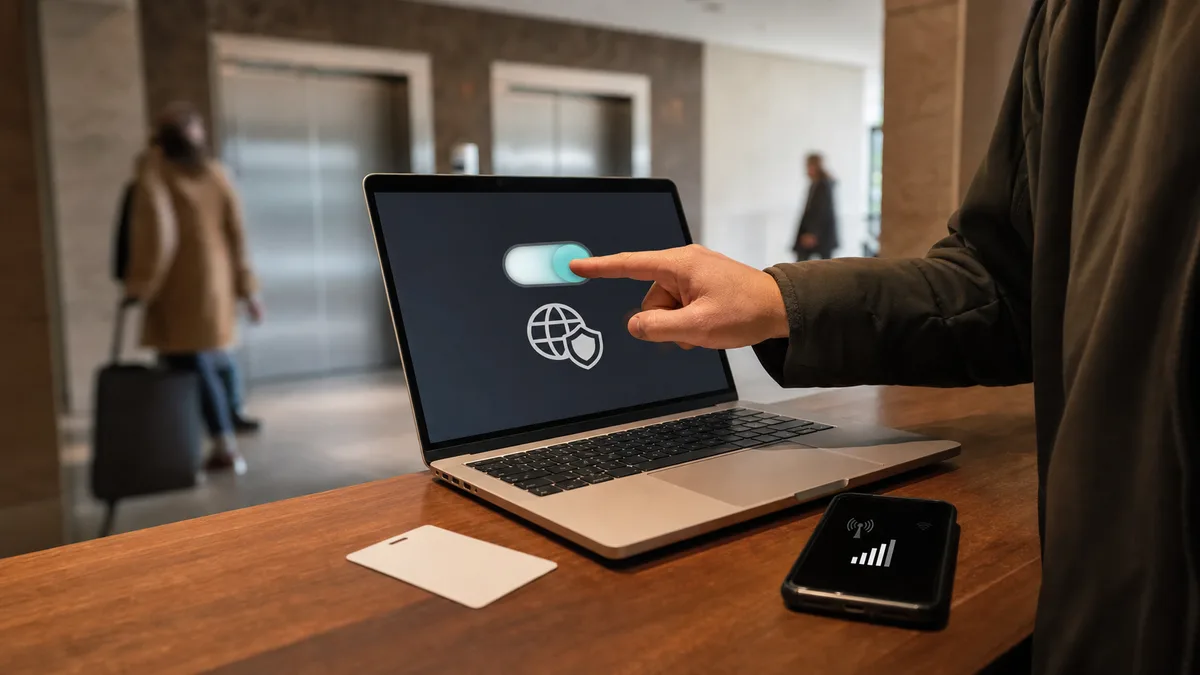
You sit down in a café and the Wi-Fi password is written on the board. At the hotel, reception points you to a network named after the hotel and a welcome page asking for your room number. You connect — and somewhere in the back of your mind a ten-year-old maxim pipes up: on public Wi-Fi you mustn’t do anything at all, because “a hacker can see everything you type”.
That maxim no longer holds. But neither does the opposite — that it makes no difference at all.
The short answer: The vast majority of websites and apps now communicate over encrypted HTTPS, so an outside network can’t read the content — passwords, messages, payments. The real risks in 2026 are different: a fake hotspot with a name similar to the genuine one, a fraudulent welcome portal angling for passwords, and a laptop configured as if it were at home, offering up shared folders on an outside network. So on someone else’s Wi-Fi: set the network profile to “Public”, never click through certificate warnings, enter passwords only on pages with the padlock — and handle banking over mobile data instead. A VPN is a useful bonus, not a requirement.
Why public Wi-Fi is no longer the bogeyman it once was
Articles from ten years ago described the reality of the time: a large share of websites ran over unencrypted HTTP and anyone on the same open network could read the content of your communication, login credentials included.
In the meantime the web moved to HTTPS across the board. Browsers actively flag unencrypted pages as “Not secure”, banks, e-shops, mail and social networks encrypt without exception, and banking apps additionally verify for themselves that they are talking to the bank’s real server. When you type a password into a page with a padlock in the address bar on café Wi-Fi today, neither the network operator nor the neighbour at the next table sees the content.
What does stay visible is metadata: which domains you connect to and when. The café, the hotel or an attacker on the same network can tell that you opened your mail, your bank and a news site — but not what you wrote there. For most people that’s acceptable; it’s just worth knowing.
What actually threatens you on an outside network
| Risk | What it looks like | Defence |
|---|---|---|
| Fake hotspot (an “evil twin”) | A network with the same or a similar name as the genuine one, often with no password | Verify the exact name with the staff, turn off automatic connection |
| Fraudulent captive portal | The welcome page asks for your e-mail password, card, or an app install | Enter your name, e-mail and room number at most; never a password |
| Eavesdropping on an open network | A network with no password at all sends data through the air unencrypted | HTTPS protects the content; do sensitive things over mobile data or a VPN |
| Other devices on the network | A laptop set to the “Private” profile offers shared folders to everyone around | Network profile “Public”, file sharing turned off |
| The venue’s outdated router | An unpatched access point with obsolete security | Out of your hands — all the more reason to stick to the rules above |
Notice what isn’t in the table: no “a hacker takes over your computer remotely just because you’re on the same Wi-Fi”. An updated system with the firewall switched on practically rules such an attack out. Almost every real disaster on a public network begins with someone typing or clicking something themselves.
The fake hotspot: a twin with the same name
Anyone with a phone can stand up a network called “Hotel_WiFi_Free” next to the genuine “Hotel_WiFi”. Guests’ devices connect happily — especially those set to join known and open networks automatically. The attacker then passes the traffic along and hopes something unencrypted falls into their lap, or slips in a login page of their own.
How to avoid the twin:
- Ask for the exact network name and password. The staff know it. An extra network with a very similar name and no password is a warning sign.
- Don’t trust the signal. A fake hotspot can broadcast more strongly than the real one — “the strongest network at the top of the list” is no proof of authenticity.
- Turn off automatic connection. When joining a public network, untick Connect automatically. Your laptop then won’t join anything that happens to share the name on its own.
- Forget the network after you leave. In the list of known networks, choose Forget for the hotel or café Wi-Fi — a saved open network is exactly what twins lie in wait for.
The captive portal: what it may legitimately ask for
The welcome page that pops up after you connect — the captive portal — is a perfectly normal thing in itself. Hotels use it to pair guests with rooms, cafés collect agreement to the terms, airports an e-mail address for marketing.
The line is simple. Fine: name, e-mail, room number, ticking a consent box. But a portal must never ask for:
- the password to your e-mail, Google, Facebook or bank (“sign in with your account” on a Wi-Fi portal is a classic trick),
- payment card details for a network that’s supposed to be free,
- the installation of an app, profile or certificate “to secure your connection”.
Fraudulent portals use the same tricks as fraudulent e-mails — urgency, a copied logo, an address that’s one letter off. The tell-tale signs are identical to the ones we describe in how to spot a phishing e-mail. And if you’ve already entered a password on such a portal, change it immediately over mobile data and follow the article hacked e-mail: what to do.
What you can happily do on public Wi-Fi
So that this doesn’t come across as “you mustn’t do anything on someone else’s network”: ordinary use is fine these days.
- browsing sites with a padlock in the address bar, messages, maps, timetables,
- video and music — streaming services encrypt and you enter nothing sensitive along the way,
- e-mail through an app or a web interface over HTTPS,
- social networks, messengers — WhatsApp, Signal and Messenger encrypt on their own,
- downloading system and app updates from official sources.
One iron rule: when the browser shows a warning about an invalid or untrusted certificate, never click past it on an outside network. At home it’s usually a harmless misconfiguration. On public Wi-Fi it can mean someone is standing in your way — close the page and be done with it.
What to leave for mobile data
Mobile data from your operator is a simpler and safer choice for sensitive tasks than any outside Wi-Fi — it removes the whole chain of risks, from the fake hotspot to the fraudulent portal. Use mobile data (or a hotspot from your own phone when working on a laptop) for:
- online banking and confirming payments — not because the bank’s encryption doesn’t work, but because it wipes out every other risk in one stroke,
- logging in to work systems, if you don’t have a company VPN,
- managing a domain, e-shop or accounting — anything where a stolen login would hurt,
- anything after the network behaves oddly — a strange portal, a certificate warning, a sudden sign-out from your accounts.
Hotel Wi-Fi for an evening film, yes. Hotel Wi-Fi for a payment order — a needless risk when you have LTE in your pocket.
VPN: when yes, and what to watch out for
A VPN encrypts all the traffic between your device and the VPN server, so the local network sees not even the metadata — only that you’re going through a VPN. It makes sense when:
- you work on outside networks regularly (business trips, working from cafés),
- you transfer company data — a company VPN should be a given there,
- you don’t want the network operator to see which sites you visit.
Watch out for the other side of the coin, though: an unknown free VPN is a risk in itself. You’re sending all your traffic through someone else’s server, and the “free” operator often makes a living precisely off your data. The same goes for VPN browser add-ons of dubious origin — we go into why browser extensions are a frequent route to trouble in the article dangerous browser extensions. If a VPN, then an established provider with clear ownership, or a corporate one.
Your laptop before the trip: five minutes of setup
Most of the protection travels with you in your settings. In Windows 11, go through this before you leave:
- Network profile “Public”. Once connected, open Settings → Network & internet → Wi-Fi, click the properties of the connected network and under Network profile type choose Public network (recommended). Windows then tightens the firewall and turns off your computer’s visibility on the network.
- Sharing off for public networks. Under Settings → Network & internet → Advanced network settings → Advanced sharing settings, check that Network discovery and File and printer sharing are both off in the Public networks section.
- Random hardware addresses. Under Settings → Network & internet → Wi-Fi, turn on Random hardware addresses — outside networks then can’t track your laptop over time by its address.
- Updates and firewall. Update the system and browser at home, not on hotel Wi-Fi; leave the firewall on (with the “Public” profile it’s stricter automatically).
- Two-factor authentication on your e-mail and bank. Even if a password leaks somewhere, on its own it won’t be enough for an attacker.
Don’t fancy clicking through all that, or not sure what you already have switched on? Order a laptop travel setup — we’ll go through network profiles, sharing, updates, two-factor authentication and a backup, from roughly CZK 600. We can do it remotely or at your place.
When you suspect something has happened
Did you enter a password into a strange portal, click past a warning, or start getting sign-in alerts from unfamiliar places shortly after a trip? Don’t panic, but act:
- switch to mobile data and change the password to the affected account from there,
- sign out other sessions — Google, Microsoft and banks all list signed-in devices in their security settings,
- turn on two-factor authentication if it isn’t already running,
- work through the detailed steps in the article hacked e-mail: what to do.
And one more connection: the rules in this article protect you on someone else’s network. At home the role is reversed — there you are the operator, and the foundation is a properly secured router. We describe how to do that in the article WPA2 vs. WPA3: how to set up Wi-Fi securely on your router.
When you need a professional
A security check and travel setup for a laptop is routine work for us: configuring network profiles and sharing, checking updates and the firewall, two-factor authentication on the main accounts, a VPN where needed, and a backup before the trip. Roughly from CZK 600 for the setup, a call-out around Brno CZK 700 — you’ll find the full price list on the pricing page. For companies whose people travel with laptops regularly, a small business IT audit from roughly CZK 3,600 makes sense — setting up laptops for travel is a natural part of it.
Public Wi-Fi is no reason to panic. It’s a tool — and as with any tool, you just need to know what it’s for and what it isn’t.