Quick answer: Before upgrading your laptop’s RAM, identify its exact model and configuration. Use Task Manager for an initial check of slot usage, but confirm your choice against the manufacturer’s documentation before buying. You need to know the number of physical slots, the amount of soldered memory, the supported capacity and the correct SO-DIMM type. DDR4 and DDR5 are not interchangeable, and a laptop without a memory slot cannot be upgraded in the usual way.
First, distinguish memory slots from soldered RAM
Knowing that a laptop has 8 GB of RAM does not tell you whether it can be upgraded. Inside, there might be one module and a second empty slot, a combination of soldered memory and one slot, or only soldered chips with no option for replacement.
The laptop’s exact generation and configuration determine what is possible. A general name such as ThinkPad T14, Dell Latitude or HP EliteBook is not enough, because different generations and processor variants may use different memory layouts.
In Windows, open System Information by entering msinfo32 and note the System Model entry. For Lenovo laptops, the machine type model, or MTM, can also be useful. If you are still deciding how much memory you need, see our overview of how much RAM you need in 2026.
When to leave it to a professional and what we do
Do not open the laptop yourself if its casing is bulging or damaged, you do not know the correct procedure for disconnecting the internal battery, or the bottom cover is secured with hidden screws and tight clips. Also postpone work on an organization-managed company device unless you have the administrator’s approval and have confirmed access to the BitLocker recovery key.
Our service follows three steps:
- We check the slots, soldered memory, supported memory type and maximum capacity for the exact model and configuration.
- We check that the module is suitable and safely open the chassis using the procedure appropriate for the laptop’s design.
- After installation, we check the recognized capacity and basic stability; we submit any additional work for approval first.
If you are unsure about choosing a module or opening the chassis, you can book a laptop RAM upgrade in Brno.
Three checks before ordering a module
| Check | Where to start | What you need to confirm |
|---|---|---|
| Memory slot usage | Task Manager → Performance → Memory | How many slots the system reports and how many it considers occupied |
| Soldered RAM | Specifications for the exact model | Whether the memory is replaceable, partly soldered or entirely soldered |
| Module type | Manufacturer’s documentation and the label on the existing memory | DDR4 or DDR5, SO-DIMM form factor, supported speed and capacity |
Task Manager gives you a quick overview, not a definitive description of the motherboard. Only buy memory after checking the documentation for your exact model.
1. Task Manager provides only an initial clue
In Windows 11, press Ctrl + Shift + Esc, open Performance and select Memory. Alongside the total capacity and speed, the system may display a Slots used entry.
Note this information, but do not assume it tells you how many physical connectors are available. Windows gets hardware information from the device’s firmware, and on some systems with soldered memory, the display may not accurately reflect the physical layout.
A reading of “1 of 2” does not, by itself, confirm that removing the cover will reveal an empty slot suitable for any module. Your next step must be to check the specifications for the exact configuration.
2. The manufacturer’s specifications reveal the actual memory layout
The most reliable reference is the manufacturer’s product specification or service manual. The difference between two laptops from the same brand shows why searching by product range alone is not enough.
| Model | Memory layout according to Lenovo PSREF | Upgrade options |
|---|---|---|
| ThinkPad T14 Gen 3 Intel | Soldered memory and one DDR4 SO-DIMM slot | A module can be added or replaced within the limits of the supported configuration |
| ThinkPad X1 Carbon Gen 11 | Soldered memory with no slot | RAM cannot be upgraded by replacing a standard module |
The ThinkPad T14 Gen 3 Intel specifications list one DDR4 SO-DIMM slot and soldered memory. The version with 8 GB soldered supports up to 40 GB in total, while the version with 16 GB soldered supports up to 48 GB. The maximum therefore also depends on the motherboard’s original configuration.
The ThinkPad X1 Carbon Gen 11 specifications, by contrast, list soldered memory with no memory slots. Buying a SO-DIMM module will therefore not increase this model’s RAM capacity.
Do not apply these specifications to other ThinkPad generations. Always check the documentation for the specific model and processor variant.
3. DDR4 and DDR5 are not interchangeable
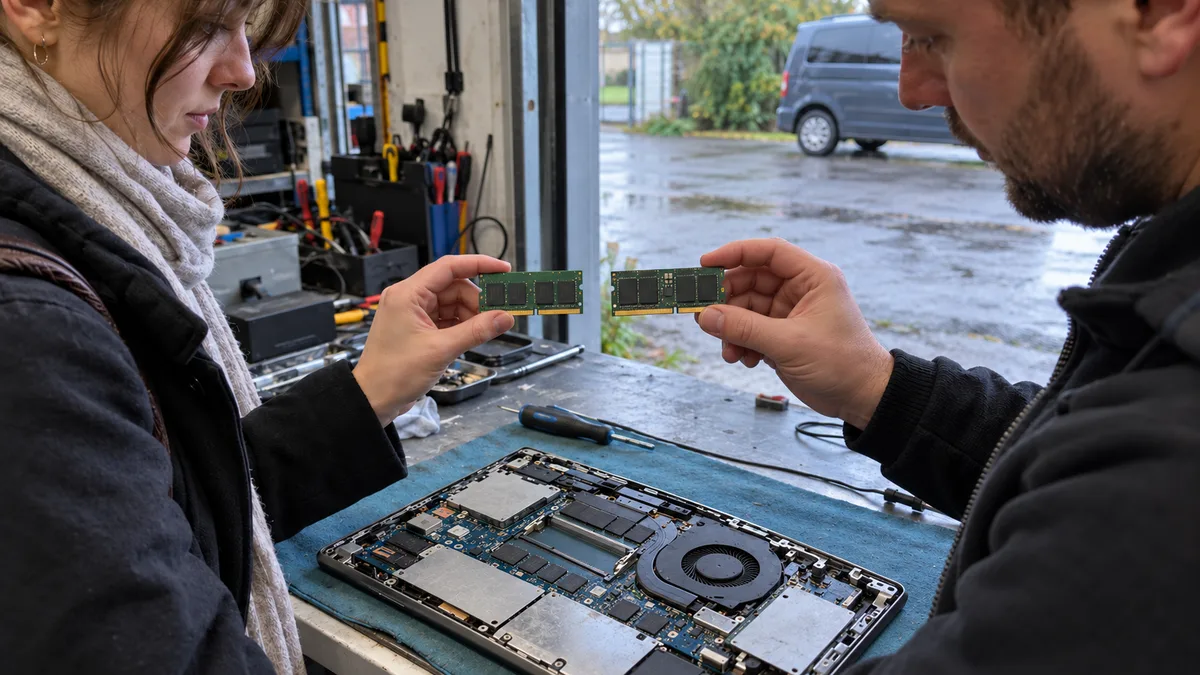
Replaceable laptop memory usually comes in the smaller SO-DIMM form factor. However, that designation alone does not identify the memory generation.
DDR4 and DDR5 differ electrically and mechanically and are not compatible with each other. Choose a module based on the laptop’s documentation, not just its similar size. If the memory will not seat easily and evenly in the slot, do not force it.
Before buying, compare:
- the memory generation: DDR4 or DDR5;
- the laptop SO-DIMM form factor;
- the speed supported by the manufacturer;
- the maximum capacity per module;
- the maximum capacity of the complete configuration;
- the amount of any soldered memory.
A module with a higher advertised speed may not run at that speed in the laptop. The actual settings depend on the memory controller, firmware and combination of installed modules.
Dual-channel operation depends on the memory configuration
Dual-channel operation allows the memory controller to use two channels. The practical benefit varies with the processor, integrated graphics, application and actual memory layout.
In a laptop with two replaceable memory slots, a pair of compatible modules with the same capacity and specifications generally offers the most predictable results. For a design with soldered RAM and one slot, follow the platform documentation. The same total memory capacity does not necessarily mean the same channel configuration.
Sufficient capacity and stability come first. There is little point in choosing too little memory just to achieve a symmetrical configuration if the laptop repeatedly runs out of RAM during everyday use.
What if there is no empty slot?
An occupied slot with a replaceable module may allow you to swap the existing module for a larger one. However, the laptop’s documentation must support that upgrade. If the device has no slot, its RAM is soldered and cannot be upgraded through a standard service procedure. If the soldered memory is insufficient for your work, you will need a different computer; the refurbished laptop listings on XJO.cz show typical memory configurations in refurbished business laptops — currently an ITHOPE test catalogue, where a listing does not confirm availability or the ability to place an order.
An SSD is not a substitute for RAM. The paging file is significantly slower than RAM, although replacing a slow or full drive can improve startup times and file handling. Before investing in an older device, our article on when an SSD upgrade is worthwhile for an old laptop can help you decide.
If Windows does not show the expected capacity after installation, shut down the laptop and avoid making further changes without a clear diagnosis. A separate article explains why Windows detects less RAM after an upgrade.
Before opening the laptop
Shut down the laptop properly and disconnect the power adapter. Follow the service manual for the specific model for all further steps, including disconnecting the internal battery.
In addition to visible screws, plastic clips may hold the bottom cover in place. Some screws may remain captive in the cover, and prying with the wrong tool can damage the edge of the chassis. Our guide to what to check before opening a laptop explains the practical risks.
Before starting, also check the manufacturer’s and seller’s warranty terms. Opening the laptop cannot automatically be treated as voiding the warranty in every case, but damage to the cover, a connector or the motherboard may complicate a warranty claim.
Check BitLocker on company laptops
Before opening a company computer, find out whether the drive is protected by BitLocker and where the recovery key is stored. Replacing RAM alone does not normally change the TPM or motherboard, but you should not assume that recovery mode cannot be triggered.
Microsoft lists certain hardware, firmware, TPM and boot configuration changes among possible causes of BitLocker recovery. On a managed laptop, only the organization’s administrator may have access to the key. Our article on BitLocker and recovery keys for company laptops provides more context.
Pre-purchase checklist
Do not order a module until you have confirmed:
- the exact manufacturer, model, generation and MTM, where applicable;
- the current capacity and memory layout;
- the amount of soldered memory;
- the number of physical slots;
- whether an installed module can be replaced;
- the DDR generation and SO-DIMM form factor;
- the supported speed and capacity;
- the maximum capacity for the specific configuration;
- access to the BitLocker recovery key;
- the procedure for opening the laptop and disconnecting the battery, as described in the service manual.
If any information is missing, do not choose memory based solely on the laptop’s brand. Identify the exact configuration first, or have compatibility checked before ordering the part.
Rather not deal with it yourself?
Book a diagnosis in Brno — you get the price up front and we start only once you agree.
Where to find us
We are a PC and laptop repair shop in Brno-Židenice: diagnostics and repairs of computers and laptops, data recovery from drives, and out-of-warranty Apple repairs (iPhone 12 and newer, MacBook, iPad).
Viniční 3587/216, 615 00 Brno-Židenice, Czech Republic Mon–Fri 10:00–16:00
Call +420 774 777 774 Computer repair and laptop service in Brno
We put the repair price in writing after diagnostics and carry on only once you agree.