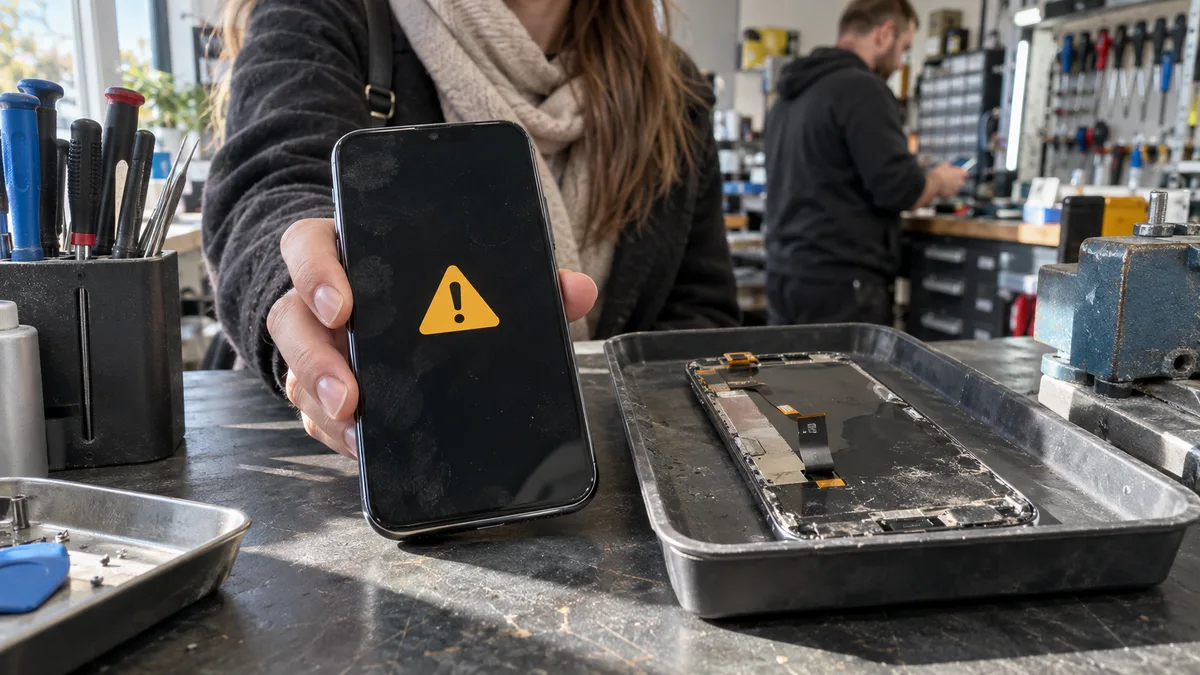
The short answer: An “Unknown Part” warning does not by itself prove that the repair shop used a counterfeit part. iOS may also display it for a genuine part that cannot be verified, is not working properly or has not undergone the required software configuration after installation. Open Settings → General → About → Parts and Service History. If you see Finish Repair, run Repair Assistant. If the part remains unknown, ask the repair shop exactly which part it used.
Unknown Part does not necessarily mean a third-party part
After a screen, battery or camera replacement, an iPhone may display a warning that it cannot verify a genuine Apple part. There are several possible reasons, and you cannot distinguish between them from a screenshot:
- the part is not genuine,
- the part is genuine but comes from a different model,
- the part has been modified or is not working properly,
- the part is genuine and working, but it was not calibrated after installation,
- a used part from an iPhone 15 or later is still protected by the previous owner’s Activation Lock.
A phone displaying this warning will usually continue to work normally. However, the record remains in its service history, where a future buyer can also see it, and some features may be unavailable. The most common ones are True Tone, battery health information and Face ID.
This article describes Apple’s support as of September 2026. Item names may differ in older versions of iOS.
What happens during part pairing
Part pairing is not a single lock that permanently ties every component to one logic board. It consists of several consecutive steps:
- the phone verifies the identity and origin of a supported part,
- it loads the part’s calibration data,
- it checks that the part belongs to the given model,
- for biometrics, it links the front TrueDepth camera to the processor’s secure component (Secure Enclave),
- it records the result in Parts and Service History.
Screens, batteries and cameras contain data that allows iOS to identify and calibrate them. Face ID has the strictest pairing requirements. A front camera transferred from another phone will not enable biometrics unless the pairing process is completed, even if the selfie camera produces an image.
The iPhone 13 showed just how sensitive this process could be. After its launch in 2021, Face ID stopped working even when only the screen was replaced outside Apple’s system. Following criticism from repair technicians, Apple said an iOS update would change this behaviour. This illustrates that the outcome of a repair depends not only on the part but also on the software version.
What applies to the iPhone 12 through 16
First, find the exact model in Settings → General → About. Tap Model Number to display the identifier beginning with the letter A. It is more precise than “iPhone Pro” or the screen size.
| Series | Models | New genuine part | Used genuine part from another iPhone |
|---|---|---|---|
| iPhone 12 (2020) | 12, 12 mini, 12 Pro, 12 Pro Max | calibration through Repair Assistant | not officially supported |
| iPhone 13 (2021) | 13, 13 mini, 13 Pro, 13 Pro Max | calibration through Repair Assistant | not officially supported |
| iPhone 14 (2022) | 14, 14 Plus, 14 Pro, 14 Pro Max | calibration through Repair Assistant | not officially supported |
| iPhone 15 (2023) | 15, 15 Plus, 15 Pro, 15 Pro Max | calibration through Repair Assistant | supported for selected parts from the same model |
| iPhone 16 (2024–2025) | 16, 16 Plus, 16 Pro, 16 Pro Max, 16e | calibration through Repair Assistant | supported for selected parts from the same model |
Apple maintains and regularly updates the exact list of parts supported for each model and iOS version. The iPhone 16e belongs to the iPhone 16 series, but its construction differs from both the iPhone 16 and 16 Pro, so their parts are not interchangeable.
Statuses in Parts and Service History
The Parts and Service History section appears under Settings → General → About only if a monitored part has previously been replaced in the phone. It may show the following statuses:
- Genuine: the system has verified a genuine part and completed its calibration.
- Used: a genuine part that was previously installed in another iPhone of the same model (on supported iPhone 15 and later models).
- Finish Repair: the part is installed, but Repair Assistant still needs to be run.
- Unknown Part: the component is not genuine, cannot be verified, has been modified, is not working properly or cannot be paired with the phone.
It is often claimed that only Apple can remove the warning. This is no longer universally true. On a supported model with a genuine part, the phone itself can complete the calibration.
We repair batteries, connectors and screens as part of our iPhone repair service in Brno. We also offer an iPad repair service in Brno.
How an unfinished repair affects individual parts
Screen: True Tone often does not work with a third-party or uncalibrated screen. Cheap LCD replacements using incell technology are also sold for models in the iPhone 12 through 16 series that originally use OLED panels. They tend to be thicker, offer poorer contrast and consume more battery power. After a replacement, test touch across the entire screen, automatic brightness, True Tone and whether the display turns off during a call. If the proximity sensor is faulty, the screen will remain on during calls and your ear may press buttons.
Battery: The phone works, but Settings → Battery → Battery Health may show no capacity percentage or may display a warning instead. You then have no way to monitor the battery’s health. Apple recommends using a new battery rather than a used one because an adhesive-mounted battery can easily be damaged during removal. If your iPhone switches off while still showing remaining charge, read why an iPhone switches off at 30 percent.
Rear camera: A working preview in the Camera app does not necessarily mean that the camera assembly is functioning correctly. Check focus at both short and long distances, every lens, zoom switching, Portrait mode, video stabilisation and the camera in another app, such as a video-calling app.
Front camera and Face ID: The selfie camera may work while Face ID reports that it is unavailable. Biometrics require a completed connection to the Secure Enclave. Apple is introducing support for used biometric parts gradually, and availability differs between model series.
How to run Repair Assistant
Before you begin, install the latest available version of iOS, charge the iPhone and connect it to a standard Wi-Fi network with internet access.
This can be an issue in business environments. Corporate Wi-Fi that uses 802.1X authentication and public networks with a sign-in page, such as those in hotels or cafés, do not work for this step. Connect the phone to another secure network, such as your home Wi-Fi or a hotspot from another phone.
- Open Settings → General → About.
- Select Parts and Service History.
- Tap Restart & Finish Repair.
- Follow the on-screen instructions.
- After the restart, check the history and the replaced part’s functionality again.
If the process fails, the usual causes are incorrect installation, a part from a different model or Activation Lock. A genuine part from an iPhone 15 or later may remain linked to the previous owner’s Apple Account. Calibration cannot proceed until the owner releases it.
What to check as soon as you collect the phone
Do not leave with only an assurance that “the warning will disappear eventually.” Ask the repair shop to show you the exact status.
- the exact model and current iOS version,
- the Parts and Service History section and the status of every replaced part,
- Face ID if work was performed on the front of the phone,
- touch, brightness, True Tone and the proximity sensor after a screen replacement,
- battery health and charging after a battery replacement,
- every lens and focusing after a camera replacement.
The history shows only the most recent service event for each component. On a used or company-owned iPhone, treat it as an important check rather than a complete record of every repair. Our guide on how to prepare a MacBook, iPad or iPhone for repair explains what to do before handing over the device, including backups, Find My and passwords.
How to recognise a trustworthy repair quote
Before accepting the job, the repair shop should answer these questions:
- What type of part will it use: new genuine, used genuine or third-party?
- What status will appear in Parts and Service History after the repair?
- Can Repair Assistant be run on this model?
- Will Face ID, True Tone and battery health information work after the repair?
- How will the phone be tested after installation?
- What warranty applies to the labour, and what warranty applies to the part?
- What happens if the software configuration cannot be completed?
The label “OEM quality” does not mean that iOS will recognise the component as genuine. Even a physically genuine part taken from another phone may be unusable if it comes from a different model or remains protected by Activation Lock.
Why the warning alone cannot determine the price
The same warning can indicate unfinished calibration, incorrect installation or a part that needs to be replaced. A quote based only on a photo of the warning does not tell you what you are actually paying for.
When making your decision, compare four things: whether the phone works, which status will appear in its service history, what warranty you will receive and how the repair will affect its resale value. The price can be determined only after identifying the model, the part and the extent of the fault.
We provide hardware repairs for the iPhone 12 and later as an independent repair shop. If you do not know what the warning on your phone means or want to have the repair completed properly, contact us. We will tell you in advance whether we can accept the job and what outcome you can expect for your model. We do not provide data recovery services for mobile phones.
Book online: Fault diagnostics — tell us the model and what is happening, and we will contact you with the next steps.
Rather not deal with it yourself?
Book a diagnosis in Brno — you get the price up front and we start only once you agree.
Where to find us
We are a PC and laptop repair shop in Brno-Židenice: diagnostics and repairs of computers and laptops, data recovery from drives, and out-of-warranty Apple repairs (iPhone 12 and newer, MacBook, iPad).
Viniční 3587/216, 615 00 Brno-Židenice, Czech Republic Mon–Fri 10:00–16:00
Call +420 774 777 774 Computer repair and laptop service in Brno
We put the repair price in writing after diagnostics and carry on only once you agree.


