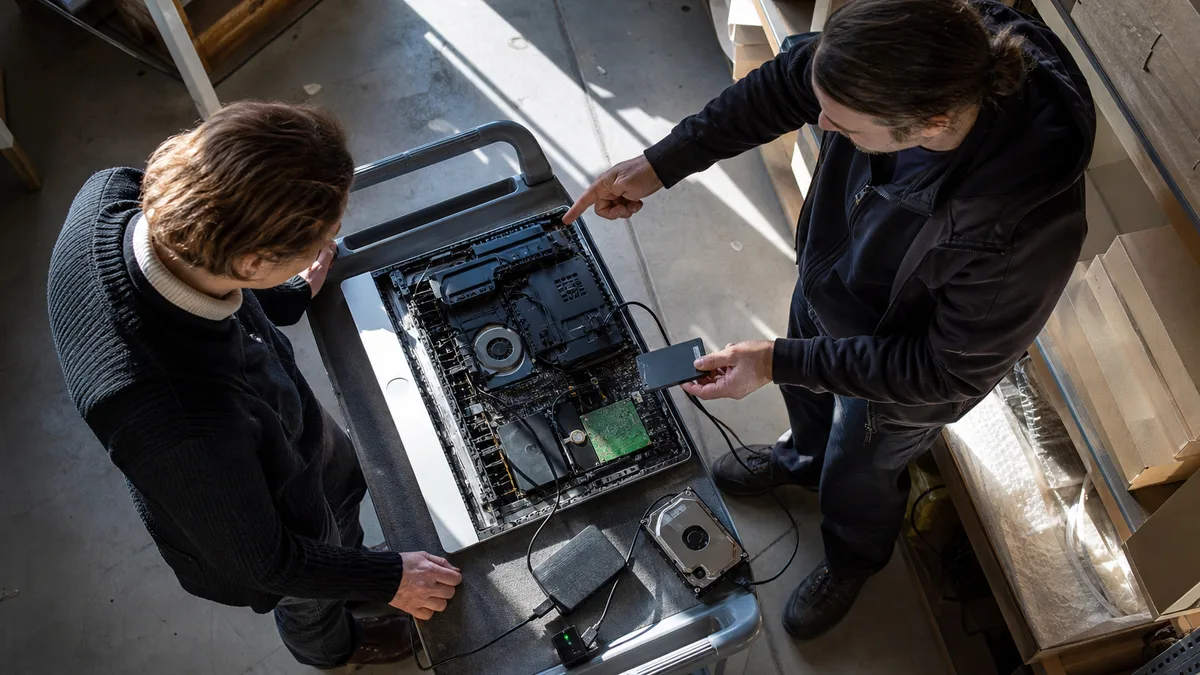
The short answer: If an older iMac takes minutes to start and the cursor freezes even while you type, the mechanical hard drive is often to blame — either on its own or as the slower half of a Fusion Drive. Replacing the storage with an SSD makes the most noticeable difference. Back up your data first, however: a drive that is slowing down may be close to failure, and this may be your last opportunity to retrieve the data.
Three different machines behind the same glass
A 2015 iMac looks much like a 2019 model from the outside, but the machines differ where it matters most — their storage. There are three configurations:
- Hard disk drive (HDD): a mechanical drive with spinning platters. It is inexpensive and offers plenty of capacity, but it is a bottleneck for modern macOS. You can recognise it by the way the machine pauses to “think” whenever it needs to access data.
- Fusion Drive: according to Apple, this combines flash storage with a hard drive and appears to the system as a single volume. Frequently used files are automatically moved to the flash storage, while everything else remains on the slower mechanical drive. Apple introduced it as an optional storage configuration for iMac and Mac mini computers in late 2012.
- SSD only: flash storage with no mechanical component.
A Fusion Drive is therefore not “half an SSD” in the way people often imagine. The machine performs reasonably well while its workload fits within the flash component. Once it spills over — because of a large photo library, a system update, or a nearly full drive — performance drops to the level of an ordinary mechanical hard drive. This is where the familiar description “sometimes it flies, sometimes it barely moves” comes from.
A split Fusion Drive is a special case: two volumes appear in Finder instead of one. This is not a cosmetic issue. The combined volume has been split, and Apple provides a dedicated procedure for fixing it. Do not install anything on the machine until the issue has been resolved.
Which iMac you have and why it matters
You can find the model in the Apple menu under About This Mac. For more precise information, hold the Option key and select System Information. Apple uses a Model Identifier to identify each configuration, and that identifier determines what can be done with a particular machine:
| Apple model | Identifier | Latest compatible macOS | Memory |
|---|---|---|---|
| iMac (21.5″, Late 2015) | iMac16,1 | macOS Monterey | cannot be upgraded |
| iMac (Retina 4K, 21.5″, Late 2015) | iMac16,2 | macOS Monterey | cannot be upgraded |
| iMac (Retina 5K, 27″, Late 2015) | iMac17,1 | macOS Monterey | rear access door, 4 slots |
| iMac (21.5″, 2017) | iMac18,1 | macOS Ventura | not user-accessible |
| iMac (Retina 4K, 21.5″, 2017) | iMac18,2 | macOS Ventura | not user-accessible |
| iMac (Retina 5K, 27″, 2017) | iMac18,3 | macOS Ventura | rear access door, 4 slots |
| iMac (Retina 4K, 21.5″, 2019) | iMac19,2 | macOS Sequoia | not user-accessible |
| iMac (Retina 5K, 27″, 2019) | iMac19,1 | macOS Sequoia | rear access door, 4 slots |
Two points in the table deserve emphasis. First, on models limited to Monterey or Ventura, poor performance is often compounded by applications and browsers that already require a newer operating system. An SSD upgrade can genuinely improve speed, but it will not change the supported macOS version. Second, upgrading memory in a 27″ model is a routine operation performed through the access door on the back, but this is not the case for many 21.5″ models. For the 2017 and 2019 models, Apple states that the memory is not user-removable and directs customers to an Apple Store or an authorised service provider; memory in the Late 2015 21.5″ models cannot be upgraded at all.
What actually helps
- Replacing the storage with an SSD. This produces by far the greatest improvement in machines equipped with either a mechanical hard drive or a Fusion Drive. Depending on the model, the repair may involve a SATA drive or installing storage in the flash slot. The exact option can only be determined after opening the machine and checking what is actually installed.
- A clean system installation and data transfer. Cloning an ageing system together with all its accumulated clutter can unnecessarily reduce some of the performance gain. Apple describes how to reinstall macOS in its own guide. The choice between cloning and a clean installation should be agreed when arranging the repair, not after the machine has already been opened.
- More memory where the design allows it. On 27″ models from 2015–2019, adding memory makes sense when the machine begins to struggle with several applications open at once. For 21.5″ models, this option is generally unavailable — see the table above.
What does not help: “clean-up” optimisers, deleting system files, or generic advice to “just reinstall it.” If the drive is physically slowing down because of bad sectors, every additional write can make the situation worse. For a general comparison of when replacing the drive in an older computer is worthwhile, see Installing an SSD in an old laptop. With an iMac, there is another factor to consider: its all-in-one construction.
Why the bonded display must be removed and resealed
This is the heart of the issue and the reason an iMac is not suitable for a DIY upgrade. On iMacs with Retina displays, the front glass is not held in place by screws or clips: the display assembly is bonded to the chassis around its perimeter with double-sided sealing strips. To reach the drive, a technician must remove the display. The strips cannot be reused during reassembly and must be replaced with a new set.
This has several practical consequences:
- The display is separated using a thin tool around its perimeter, and there is a risk of cutting the cables routed immediately behind the frame. The cables are short, so the display cannot simply be folded out of the way.
- Before the display is bonded back in place, both the display and chassis must be degreased and all traces of the old adhesive removed. Otherwise, the seam may not sit flush and a gap can remain in one corner, often described as “dust under the glass.”
A dismantled iMac also cannot simply be “switched on for a test and left that way.” An unsealed display is only held temporarily, creating a risk that the glass will fall. This is why the cost of this repair must always include a new set of adhesive strips and the time required to clean the seam, not just the drive itself. It is also why replacing a drive in an iMac is considerably more involved than replacing one in a laptop.
Back up first, then repair
A drive that is slowing down may be close to the end of its life. It might continue working for years, or it might fail during the next copy operation. Before ordering anything, create a verified backup. Apple provides Time Machine for this purpose, but a manual copy to an external drive is also sufficient if you actually try opening the copied files. A backup you have never tested is only a hope.
| What you observe | What it may indicate | Safe next step |
|---|---|---|
| startup takes minutes, but the machine then works reasonably well | slow storage or a Fusion Drive operating outside its flash component | back up the data and have the drive tested |
| two drives have appeared in Finder instead of one | split Fusion Drive | do not install anything; follow Apple’s procedure |
| the cursor freezes even while typing and the drive clicks | possible mechanical damage | stop using the machine and prioritise the backup |
| the slowdown began after a system update | full storage or an incompatible version | free up space and check the supported macOS version |
| the machine only struggles when several applications are open | insufficient memory | check whether the model supports an upgrade |
| the drive does not appear in Disk Utility at all | the storage or its connection is not communicating | do not keep switching it on to test it; have it diagnosed |
What to bring to the repair shop
Provide the model and year shown under About This Mac, the identifier (for example, iMac18,3), whether the machine has a Fusion Drive, and how the slowdown manifests itself — continuously or only sometimes. State whether you have a backup and when it was created. If the drive contains data that does not exist anywhere else, mention this first rather than as an afterthought: it changes the entire order of operations. Bring the keyboard and mouse, but passwords are not required for the initial hardware assessment.
Servis PC Brno provides out-of-warranty diagnostics and repairs for Apple devices on a pilot basis and is not an Apple Authorised Service Provider. We determine the scope of work, the appropriate part, and the price only after identifying the model and inspecting the machine. If the device is still under warranty or covered by a manufacturer programme, contact the retailer or Apple before arranging a repair with us.
If your iMac takes minutes to start and you do not want to risk the drive failing while you are trying to create a backup, have it assessed before copying data blindly. Arrange an appointment through Apple repair in Brno, the booking form, or by calling 774 777 774. In the description, include the year and size of the iMac, whether it has a Fusion Drive, and whether it contains any data without a backup.
Sources
- Apple: About Fusion Drive, an optional storage option for some Mac computers
- Apple: How to fix a split Fusion Drive
- Apple: Identify your iMac model
- Apple: Install memory in an iMac
- Apple: Back up your Mac with Time Machine
- Apple: How to reinstall macOS
Rather not deal with it yourself?
Book a diagnosis in Brno — you get the price up front and we start only once you agree.
Where to find us
We are a PC and laptop repair shop in Brno-Židenice: diagnostics and repairs of computers and laptops, data recovery from drives, and out-of-warranty Apple repairs (iPhone 12 and newer, MacBook, iPad).
Viniční 3587/216, 615 00 Brno-Židenice, Czech Republic Mon–Fri 10:00–16:00
Call +420 774 777 774 Computer repair and laptop service in Brno
We put the repair price in writing after diagnostics and carry on only once you agree.


