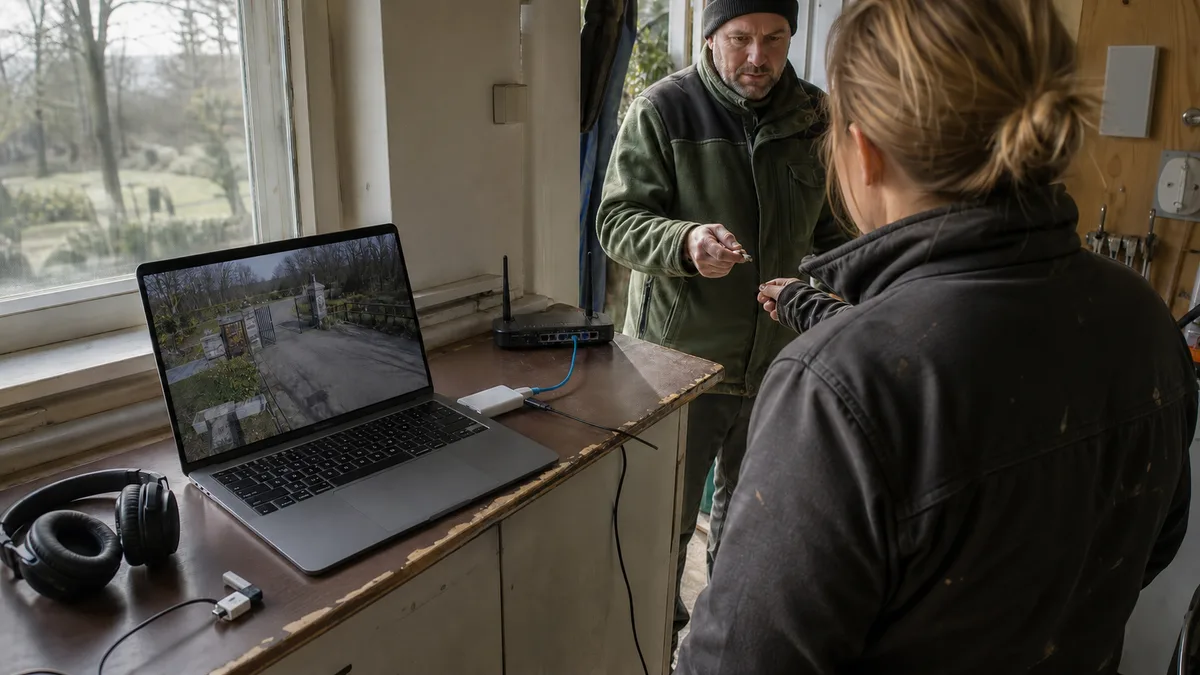
The short answer: A single Wi-Fi outage is not proof that your MacBook is faulty. First determine whether only the internet connection fails or the entire wireless connection drops, and whether the same thing happens on another network. The decisive comparison is “same Mac, different network” — without it, you are only guessing. If Bluetooth also cuts out, the Mac cannot detect any networks even in another location, or the issue appeared after a fall or display repair, hardware diagnostics are warranted.
First, identify exactly what is dropping
“Wi-Fi is not working” can describe three different problems. The MacBook may lose its connection to the router, remain connected but lose internet access, or have a working internet connection while only one service fails — such as a company shared drive or a video call. Note the state of the Wi-Fi icon, the exact time, and whether a phone on the same network still works at that moment.
With Bluetooth, distinguish between a problem affecting one specific accessory and one affecting every device. Headphones may cut out because of their own battery or because they switch between a phone and the Mac, while simultaneous loss of the mouse, keyboard, and Wi-Fi points in a different direction. Apple itself places several checks unrelated to the logic board at the top of its Wi-Fi troubleshooting guidance: whether Wi-Fi is turned on at all, whether you are within range of the network, and whether the Wi-Fi service is available in Network settings.
Identify the model, not just the screen size
“13″ MacBook Pro” refers to several different designs, and their wireless hardware varies. Before changing any settings, identify the model, year, and chip type:
- On a working Mac: Apple menu → About This Mac.
- For more detail: hold the Option key and select System Information from the Apple menu.
- The bottom case has an engraved model number beginning with the letter A; it is usually also listed on the box and purchase receipt.
These model families are most commonly confused in practice:
- MacBook Air with an Intel processor (models through 2020) and MacBook Air with an Apple chip — M1 (2020), M2 (2022 and 15″ 2023), M3 (2024).
- 13″ and 15″ MacBook Pro with Touch Bar (2016–2020) and 16″ Intel (2019).
- 13″ MacBook Pro with an M1 (2020) or M2 (2022) chip.
- 14″ and 16″ MacBook Pro with Pro and Max series chips (2021 and later).
The difference is not cosmetic. Each generation has a different internal layout, cable routing, and disassembly procedure — which also changes what can be tested without opening the machine.
Six tests that will not make matters worse
- Restart both the Mac and the router, then temporarily disable any VPN, network filter, and internet sharing.
- Test the Mac on another known-good network. The quickest option is a personal hotspot from an iPhone or iPad with mobile data — Apple lists this as a full-fledged way to connect a Mac to the internet alongside Wi-Fi and Ethernet.
- Disconnect any USB-C hub, dock, and external drive. Poor-quality accessories can increase interference and disrupt the connection.
- For Bluetooth, charge the accessory, disconnect it from other host devices, and test only one device at a time.
- Try a cable instead of wireless. MacBook Air and MacBook Pro models with Apple chips do not have an Ethernet port; Apple recommends an Ethernet adapter for this situation. If everything runs for hours over a cable without interruption, you have narrowed the problem down to the wireless connection path.
- Update macOS only through the standard system update process. There are no downloadable “Wi-Fi drivers” for Mac, and installing anything claiming otherwise will only create a second problem.
The hotspot test is the most valuable item on this list. If the MacBook works reliably away from the office, repairing the laptop is unlikely to fix what is actually a router configuration issue.
Results table
| Result | More likely cause | Next safe step |
|---|---|---|
| only one home network fails | router, band, security, or saved profile | check the recommended router settings |
| all networks fail, but Bluetooth works | Wi-Fi service, software, antenna, or controller | test using a hotspot and in another building |
| Wi-Fi and Bluetooth drop simultaneously | interference, accessories, or a shared hardware path | disconnect hubs and perform a clean comparison test |
| the issue changes with the display angle | cable routing or a connector in the display assembly | stop repeatedly moving the display and seek repair |
| the connection remains active, but the internet does not work | DNS, VPN, router, or internet provider | compare another service and another device |
| the Mac reports weak security or network privacy | router settings, not a Mac fault | adjust the network security, not the Mac |
When the environment, rather than the Mac, is responsible
The radio environment in an apartment building, medical practice, or open-plan office is very different from that in a detached house. Alongside standard troubleshooting, Apple therefore provides separate guidance on issues caused by wireless interference and on recommended settings for Wi-Fi routers and access points. If the outages are tied to a specific room, time of day, or a running microwave oven, that tells you something about the environment, not the laptop.
Older AirPort base stations and AirPort Time Capsules belong in this category as well. Apple recommends unplugging their power cable, waiting several minutes, reconnecting it, and only then trying the connection again. The same principle applies to third-party routers; only the controls are located elsewhere.
An antenna in the display is a hypothesis, not a diagnosis
If the connection changes with the angle of the lid, after a knock to the desk, or if the issue appeared after a display replacement, mechanical damage to a cable or connector in the display assembly is a reasonable suspicion. It is still only a hypothesis to be tested, not a diagnosis, and certainly not a promise about a particular model. Designs vary between generations, and the cause cannot be confirmed without opening the machine. What you can do at home is stop repeatedly moving the lid, photograph or record the symptom, and note the angle at which it occurs. That gives the repair technician useful evidence.
What not to do
Do not delete all networks, profiles, and company certificates without documenting them first. On a managed Mac, you could remove settings that you cannot restore yourself — and your IT department may not be able to reinstate them immediately. Resetting network settings is a legitimate step, but it should come only after the comparison tests and only if you know what is configured on the Mac. Do not open the case to “tighten the antenna,” and do not try to locate conductive strips by pressing through the cover.
What to prepare for diagnostics in Brno
Bring the exact model and year, ideally including the A-number from the bottom case, along with the results of two comparison tests: which network showed the problem and whether it recurred on a hotspot outside the building. If the issue began after a fall, liquid exposure, or display repair, mention this immediately — it changes the order of the diagnostic steps. A screenshot of the network settings and a timeline showing when the outages began are also useful. Do not write your Wi-Fi or Apple Account password on the service form; we do not need them for hardware testing.
Servis PC Brno provides out-of-warranty MacBook diagnostics on a pilot basis and is not an Apple Authorised Service Provider; the scope of the work, component variant, and price are determined only after identifying the model and inspecting the device. If the device is under warranty or covered by a manufacturer programme, contact the retailer or Apple first. For an overview of other common repairs, see MacBook repair in Brno.
If you are still unsure after these tests whether the problem lies with the router or the Mac, have it tested — that is quicker than spending another week troubleshooting blindly. You can arrange an inspection through Apple repair in Brno, the booking form, or by calling 774 777 774. In the description, include the model, how the issue presents itself, and the result of the test on a second network; this will tell us where to begin.
Sources
Rather not deal with it yourself?
Book a diagnosis in Brno — you get the price up front and we start only once you agree.
Where to find us
We are a PC and laptop repair shop in Brno-Židenice: diagnostics and repairs of computers and laptops, data recovery from drives, and out-of-warranty Apple repairs (iPhone 12 and newer, MacBook, iPad).
Viniční 3587/216, 615 00 Brno-Židenice, Czech Republic Mon–Fri 10:00–16:00
Call +420 774 777 774 Computer repair and laptop service in Brno
We put the repair price in writing after diagnostics and carry on only once you agree.


